Demo data note: Screenshots use representative demo data captured from a live environment. Exhibition is a gated marketplace add-on and appears only when enabled. Never use real customer records, bank statements, secrets, or private packages in a public demo.
How the Exhibition module fits together
The Exhibition module manages a marketplace where the organizer owns the booths and the card-payment machines, renters (exhibitors) sell from those booths swiping on the organizer's terminals, and the bank settles all card money into the organizer's account. The module attributes each card transaction to the right renter, takes the organizer's commission and any booth rent off the top, and settles the rest. The terminal serial number is the universal join key linking a bank line to a machine, its assignment, and the renter.
All pages live under Exhibition in the sidebar at /exhibition/*; the module is a federated web remote whose API is served at /api/v1/exhibition. The golden join key is the machine Serial Number = the terminal ID printed on the bank statement and on the renter's report — if they do not match, nothing auto-matches. Every money figure on the overview and dashboard is computed from the same per-renter difference view used everywhere else, so there is a single source of truth for the numbers.
Jump to: Overview · Renters, machines & assignments · Reconciliation session · Statements & reconciliation · Settlement & payout · Imports · CSV formats · Reports & exports · How the cycle works · Permissions · Pages.
Overview — the rented-terminal marketplace
What it is. The Exhibition module manages a marketplace where the organizer owns the booths and the card-payment machines, renters (exhibitors) sell from those booths swiping on the organizer's terminals, and the bank settles all card money into the organizer's account. The module attributes each card transaction to the right renter, takes the organizer's commission and any booth rent off the top, and settles the rest. The terminal serial number is the universal join key linking a bank line to a machine, its assignment, and the renter.
How to use it. An organizer dashboard (/exhibition/dashboard) composes the KPI overview and settlement report into one read-only command center: headline KPIs (commission income, payable owed to renters, overdue rent, reconciled machine sales, net position, and renter/contract/machine counts), an Action-Needed strip (overdue rent, open reconciliation sessions, unmatched recon lines), a renters-needing-attention list, and a settlement summary with PDF/CSV download and email.
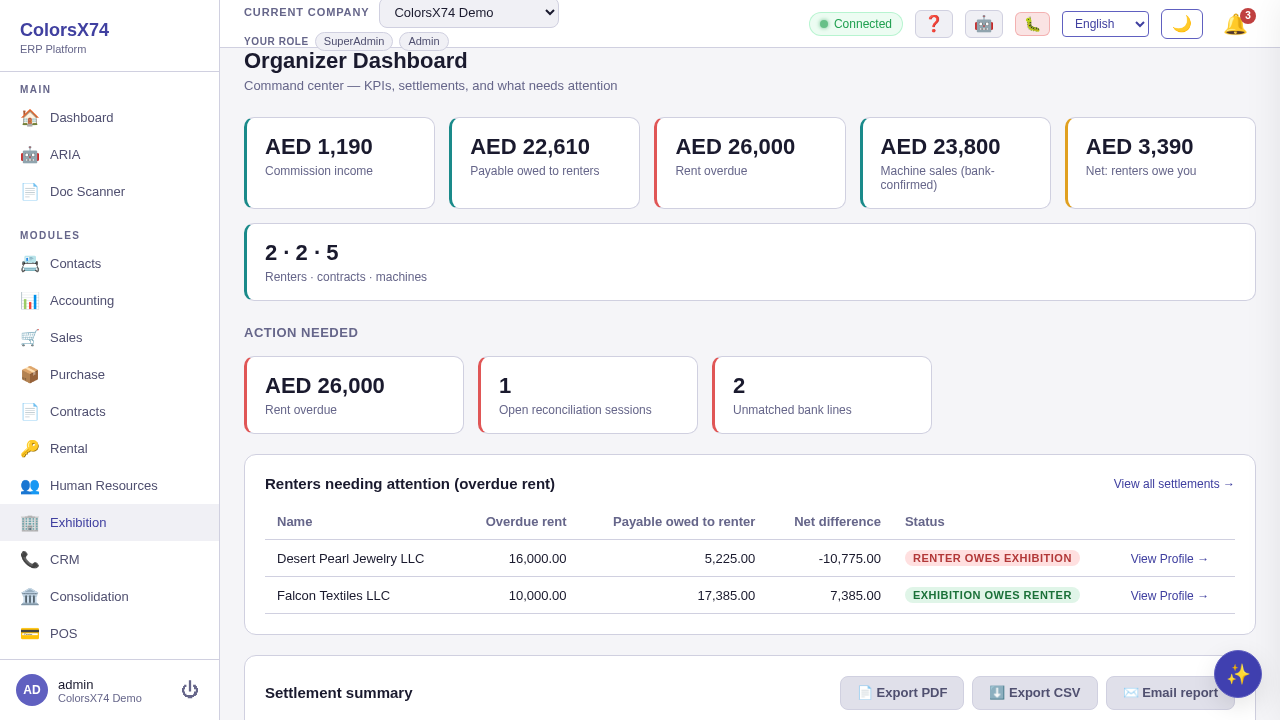
Use it wisely. All pages live under Exhibition in the sidebar at /exhibition/*; the module is a federated web remote whose API is served at /api/v1/exhibition. Treat the Serial Number as sacred — it is the terminal ID printed on the bank statement and on the renter's report; if they do not match, nothing auto-matches. Because the overview/dashboard money figures are computed from the same per-renter difference view used everywhere else, trust the dashboard as the single source of truth rather than reconciling numbers by hand.
Renters, machines, and assignments (setup)
What it is. The three setup entities. A renter is a contact flagged IsRenter. A payment machine is a physical card terminal whose Serial Number must equal the bank's terminal ID. An assignment binds a machine to a renter over a date window and snapshots the commission percent in force, so later commission changes never rewrite recorded history.
How to use it. The renters page lists renters with active contract, machine count, total rent due/paid and balance; it supports search and a quick-add form (name + optional email/phone) that creates a contact with isRenter=true — renters can also be any existing contact. On machines you create/edit a terminal with Serial Number (= terminal ID, e.g. POS-001), label, optional bank code, location and notes; toggle active/inactive; or delete (soft delete), with the list searchable by serial/label/location. On assignments, per selected machine, you create an assignment to a renter with Assigned From (and optional Assigned To, contract, booth asset, notes). Overlapping active assignments for the same machine/period are rejected; commission percent must be 0-100, is validated, snapshotted onto the assignment, and copied onto every statement created from it. An open assignment (no Assigned To) can be ended by setting an end date — and the assignment date window is what auto-reconcile and the renter-CSV importer use to decide which renter owned the machine on each transaction date.
Booth contracts (/exhibition/contracts) create an EXH- numbered rental contract for a renter against a booth asset with monthly rent + deposit; the system auto-generates the payment schedule (a deposit payment if any, then one payment per month). A quick-add creates the booth asset itself, and the bridge panel can link booth-rent and payment-machine-usage scenarios to formal contracts.
Linked scenarios tell you when they have drifted. A bridge records the state of the document it was linked against, so if that booth contract is later re-dated or re-priced the card shows Out of sync instead of continuing to report a healthy link — and Source deleted if the document is gone entirely. Re-sync link re-confirms the bridge against the document as it stands now. It records that you have reviewed the change; it deliberately does not rewrite the linked contract, which is a document of record and may already be signed — change that through the contract itself.
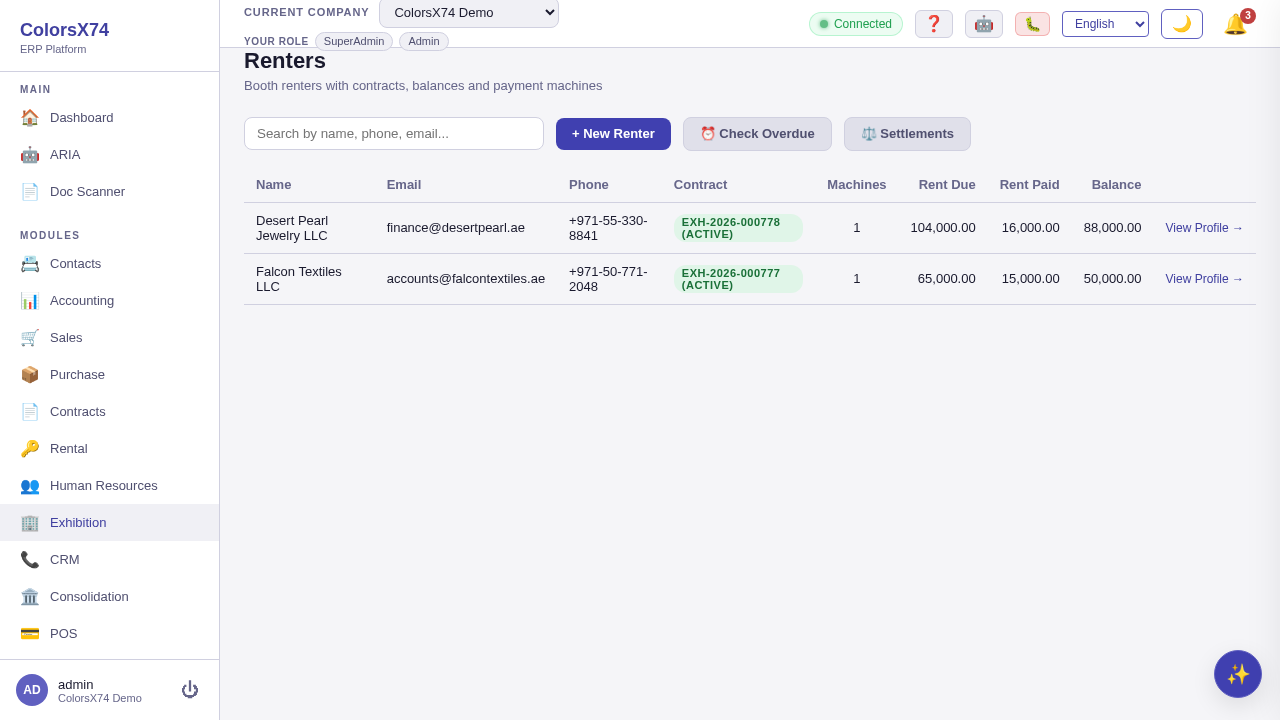
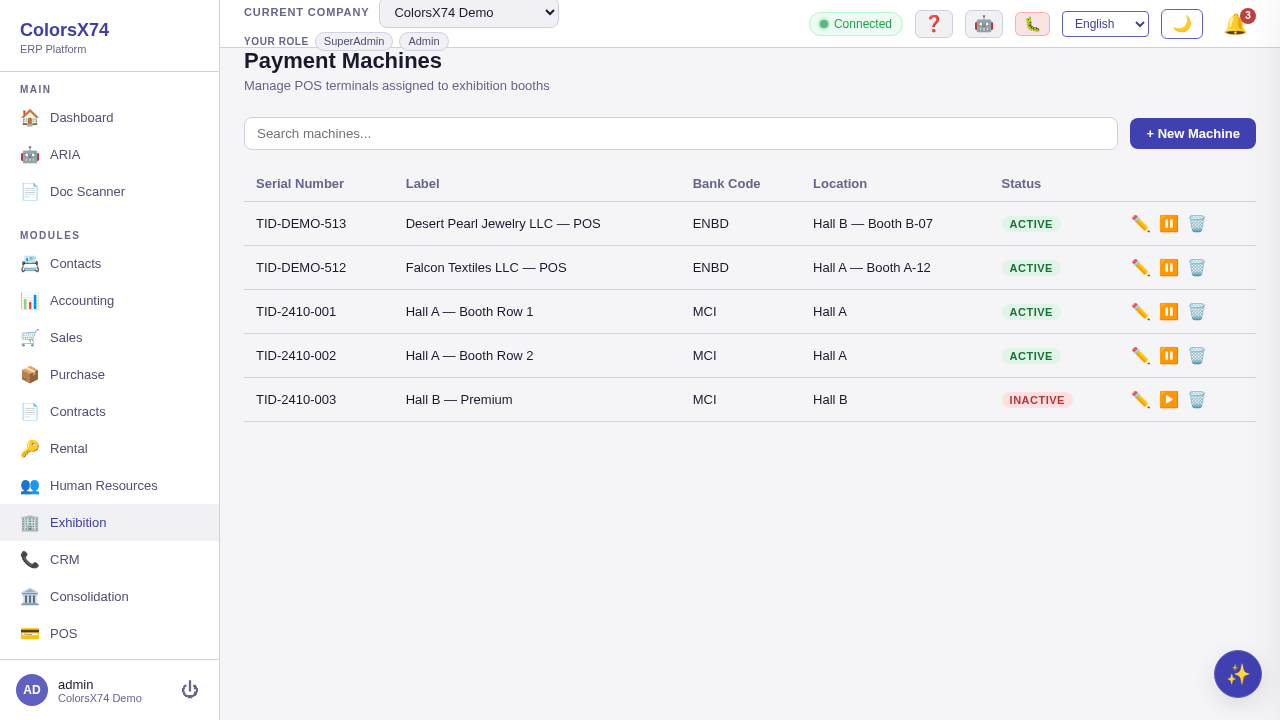
Use it wisely. Set the machine Serial Number to the exact terminal ID the bank prints — this single field is what makes every later auto-match work. Always create an assignment with an Assigned From date before transactions arrive, because the assignment window decides who owned the machine on each date; reassigning a machine mid-period just needs a new assignment with the next From date. Never edit a snapshotted commission expecting old statements to change — the snapshot is deliberate so history stays correct.
Reconciliation session (bank-confirmed money)
What it is. A reconciliation session is a batch of bank-confirmed card transactions for a bank account and period. It is created as Draft, populated by one of three import paths (each line is a recon line with terminal, date, gross/net, status Unmatched), then auto/manually matched and completed. Importing moves the session to In Progress.
How to use it. Create a session with a bank account ID and period from/to; it starts in Draft. Three import paths populate a Draft (PDF and CSV also accept In Progress): the bank-feed Import (pulls BankTransactions tagged with a machine ID for the account/period), PDF import (a Network International acquirer statement — parses terminal, date, gross/net, commission, VAT, acquirer reference, card number, and sets the session statement date), and bank-statement CSV import. On import the session totals (transaction count, total amount) are recomputed and a cash-recognition journal entry is posted automatically only when configured: Dr bank GL (net) + Dr bank-fee expense (MSF+VAT, when the import carries fee fields — PDF / acquirer CSV) = Cr machine-settlements suspense (gross); bank-feed lines carry no fee component, so the fee leg is omitted there. If the bank GL account or the settlement-clearing/bank-fee accounts are not configured in AccountingDefaults, the JE is skipped with a log warning and the import still succeeds.
Auto-match (auto-reconcile, only on an In Progress session) matches each Unmatched line to a renter via terminal → machine serial → assignment whose date window covers the transaction date; a second pass applies a +/-2-day tolerance for late bank processing. Matched lines become AutoMatched and carry the matched machine/renter/booth. Lines can be matched by hand (manual match by entering a renter contact ID → ManualMatched, resolving the machine by serial) or excluded with an optional reason (Excluded lines drop out of all totals and statements). Complete Session marks it Completed with timestamp and completed-by; only In Progress sessions show the auto-match/complete actions, and open (non-completed/cancelled) sessions and their unmatched lines drive the dashboard Action-Needed counters.
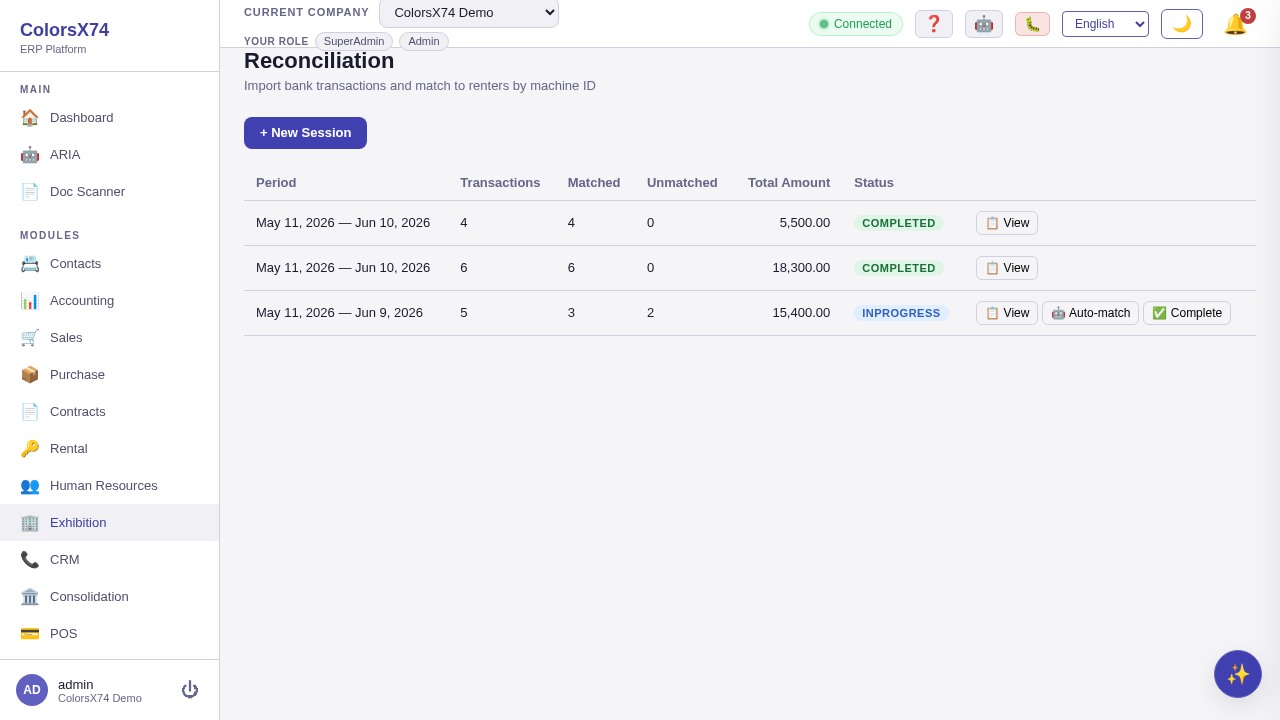
Use it wisely. Run auto-match first and reserve manual match/exclude for the leftovers — an unmatched line is almost always a missing assignment or a serial mismatch, and surfacing that is the point. Re-importing the same file is safe because lines de-dup, so an interrupted import can simply be re-run. Only complete a session once its lines are clean; open sessions and their unmatched lines are exactly what the dashboard nags you about.
Renter sales statements + statement reconciliation (commission core)
What it is. A renter sales statement is what a renter declares they sold, as daily totals, with commission computed and snapshotted from the assignment (commission = gross × rate, net = gross − commission, owed to the renter). Statement reconciliation compares the declared gross against what the bank actually settled for that machine over the period and posts the allocation journal entry.
How to use it. Statements are created by hand (assignment + period + daily totals) or in bulk via the renter sales CSV import; commission percent is snapshotted from the assignment at creation so a later rate change never alters a recorded statement. Reconcile a statement to compare declared gross vs bank-confirmed gross for the same machine serial within the period (matching recon lines on either MachineSerialNumber or TerminalId, ignoring Excluded lines); it returns the declared amount, bank amount, discrepancy, and line count and marks the statement Reconciled. It is order-independent — it works whether the declaration or the bank import was recorded first. On a successful reconcile with bank gross > 0 the allocation JE is posted once per statement (configured-or-skip): Dr machine-settlements suspense (bank gross) = Cr commission income (gross × rate, only when the snapshotted rate > 0) + Cr renter payable (net). This clears the suspense funded at bank import into commission income and the renter payable.
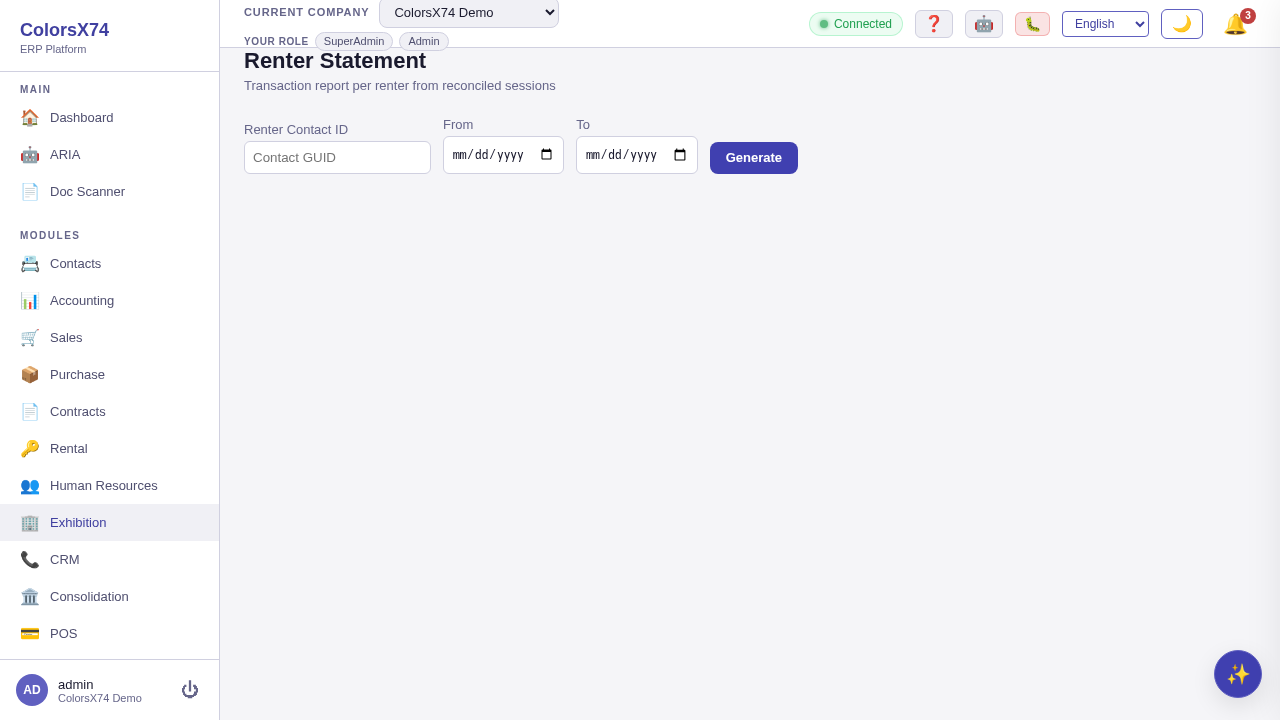
The renter-statement report page (/exhibition/renter-statement) is a separate read-only view: enter a renter ID + date range to list that renter's bank-matched recon-line transactions (date, serial, description, amount, match status, booth) with a total. The renter profile Settlement tab shows declared vs bank-confirmed sales, the discrepancy, commission, payable owed, offset against rent, paid out, overdue rent, and net difference, plus per-renter Offset and Payout action buttons.
Use it wisely. Reconcile every statement against the bank rather than paying out on a renter's declaration alone — the discrepancy is your fraud/error check. Trust the snapshotted commission: because rate is fixed at statement creation, you can adjust a renter's go-forward rate without disturbing history. Watch the discrepancy column on the Settlement tab; a persistent gap between declared and bank-confirmed usually means an unmatched recon line or a wrong terminal ID.
Settlement and payout (commission, overdue-rent offset, transfer)
What it is. Settlement nets each renter's bank-reconciled machine sales against the organizer's commission and any overdue booth rent, and pays out the rest. Available payable is the bank-confirmed net of each reconciled statement minus what is already offset or paid out. Overdue rent is offset oldest-first; payout is blocked while any overdue rent remains.
How to use it. The per-renter difference view (the single source of truth) computes declared sales, reconciled sales, discrepancy, commission, net reconciled, offset, paid out, payable owed, overdue rent, total rent due/paid, net difference, and a direction (ExhibitionOwesRenter / RenterOwesExhibition / Settled). It exists per renter and across all renters (sorted by absolute net difference). Offset overdue rent applies the renter's available reconciled payable against their overdue EXH- contract rent payments, paying down rent oldest-first and drawing from statements oldest-first by the lesser of available-payable and overdue-rent; statements fully drawn become Settled. It posts Dr renter payable / Cr booth rent income (cash-basis, configured-or-skip) and returns amounts before/after, payments affected, statements drawn, and the JE id.
Transfer payout pays the renter their available reconciled net. It is blocked (returns blocked=true, transfers nothing) if any overdue booth rent remains; future-dated rent does not block. On success it draws statements oldest-first, marks fully-drawn statements Settled, and posts Dr renter payable / Cr bank (configured-or-skip). The offset button is enabled only when overdue rent > 0 and payable > 0; the payout button is enabled only when payable > 0 and overdue rent = 0 — encoding the owner rule that rent must be clear before a payout. Rent payments can be recorded manually against a contract's scheduled payment, and a Check-Overdue action flips past-due pending EXH- payments to Overdue.
Use it wisely. Run the Check-Overdue sweep before settling a batch so the overdue figure (and the payout block) is current. Let the oldest-first logic do the work — offset clears the oldest rent and draws the oldest statements automatically, which keeps the audit trail tidy. The deliberate block on payout while rent is overdue is a feature, not a bug: clear the rent (offset or manual payment) and the payout button enables itself.
Imports — PDF, bank feed, and the two CSVs
What it is. Money and claims enter the module through four paths. Into a session: the bank feed (BankTransactions), a Network International PDF, and a bank-statement CSV become recon lines. Separately, a renter sales CSV becomes renter sales statements. PDF and both CSVs are 10 MB max and file-extension validated.
How to use it. Bank-feed import pulls existing BankTransactions for the session's bank account within the period that carry a machine ID, de-duplicated by bank transaction ID; Draft-only. PDF import parses a Network International acquirer statement into recon lines (terminal, date, gross, net, commission, VAT, acquirer reference, card number) and sets the session statement date; de-duplicated by acquirer reference; Draft or In Progress. Bank-statement CSV import turns the bank CSV (see CSV formats) into recon lines; de-duplicated against already-imported lines so re-importing the same file is safe (which also avoids double-posting the cash JE); Draft or In Progress.
Renter sales CSV import groups rows by terminal, finds the machine by serial, buckets each row under the assignment whose date window covers it (so a machine reassigned mid-file produces one statement per renter), sums per day, and creates one renter sales statement per (assignment, period) with commission from the assignment. The confirmation reports statements created, rows parsed, malformed rows skipped, duplicate statements skipped, and unmatched terminals (so a machine you forgot to assign surfaces immediately). Both CSV imports share one flexible, header-driven parser (case/space-insensitive column names, quoted fields, UTF-8 BOM tolerated).
Review before you import (PDF and bank CSV). Choosing a statement file no longer imports it straight away — it shows you what the import would do, and nothing is written until you confirm. The review panel names the format that was recognised, the statement date, how many rows were read against how many the statement itself declares, how many rows are new versus already imported, the money those new rows add, a per-terminal breakdown, and a sample of the rows. For a CSV it also lists any row it could not read, with the line number, the problem and the offending cell. If every row is already in, the confirm button is disabled and it tells you so. This matters because importing posts a cash journal immediately: a statement for the wrong period, or one you already imported last week, parses perfectly and reconciles against its own totals — only a human comparing the period and the terminals catches it.
Availability: Exhibition is a gated marketplace add-on. When it is not enabled, the menu item and routes are gated and redirect to the marketplace — expected behaviour. The screenshots were captured while the add-on was enabled and are retained as a feature reference.
Use it wisely. Always include a Reference column in the bank CSV — it is the exact de-dup key, so re-imports stay clean and the cash JE never double-posts. Read the renter-import confirmation: malformed-rows-skipped and unmatched-terminals are how silently bad data and missing assignments announce themselves. Keep files under 10 MB and split a large statement period rather than forcing one oversized upload.
CSV import formats
What it is. Both imports use one shared parser (ExhibitionCsvImportParser): a header row is required; column names are case- and space-insensitive (normalized to letters/digits only); quoted fields and a UTF-8 BOM are handled; input is assumed UTF-8.
Bank-statement CSV (Reconcile → Import Bank CSV, endpoint POST sessions/{id}/import-csv). Required columns: Terminal (aliases: Terminal ID, Machine, Machine Serial, Serial, Serial Number) — must equal the machine's Serial Number; Date (aliases: Transaction Date, Txn Date, Value Date, Posting Date); and Amount (aliases: Gross, Gross Amount). Optional: Net (alias Net Amount) — used when the session reconciles on net; Reference (aliases: Ref, Acq Reference, Transaction ID, Txn ID) — optional but recommended because it is the exact de-dup key. If Terminal, Date, or Amount/Gross is missing, the import stops and tells you exactly which column it could not find, which columns your file actually has, and the names it accepts — so an export that calls the column “Device” or “Txn Amount” is a quick rename rather than a guessing game.
Renter sales CSV (Reconcile toolbar → Import Renter Sales CSV, endpoint POST renter-statements/import-csv). Same parser/aliases; in practice Terminal, Date, Amount. Rows are grouped by terminal, bucketed under the assignment whose date window covers each row, and summed per day into one statement per (assignment, period).
Date formats (tried in order, parsed invariant/exact): yyyy-MM-dd (ISO, preferred), yyyy/MM/dd, dd/MM/yyyy, dd-MM-yyyy, yyyy-MM-ddTHH:mm:ss, yyyy-MM-dd HH:mm:ss, dd/MM/yyyy HH:mm:ss. Ambiguous US M/d/yyyy is deliberately not accepted so slash dates never silently misparse. Time-of-day is dropped (date.Date is stored). Amounts are invariant-culture decimals, taken as absolute values (a leading ‘-’ is fine) — refunds/chargebacks are absolute-valued, not modelled as reversals.
Malformed rows. A data row with a blank terminal, an unparseable date, or an unparseable amount is skipped rather than failing the whole file — and each one is now reported individually: the line number (counting the header, so it matches your spreadsheet), what was wrong (no terminal / date format not recognised / amount not readable), and the cell that caused it. The bank-CSV review panel lists them before you import, so a file with a handful of bad rows is fixed in a minute instead of being rejected wholesale or silently losing rows.
De-dup / idempotent re-import. Bank CSV: a line with a Reference de-dups on that reference (case-insensitive, prefix ‘r:’); a line without a reference de-dups on a natural key terminal|yyyyMMdd|gross|net (‘n:’ prefix). De-dup is only against already-persisted lines, so two genuinely-identical reference-less sales in ONE file are both kept; re-importing the same file skips duplicates (and so does not double-post the cash JE). Renter CSV: existing (MachineAssignment, PeriodFrom, PeriodTo) statements are skipped on re-import (and intra-file dups), so re-importing the same renter report is safe.
The statement period = the min/max transaction date present in the file (per assignment for the renter CSV).
Limitations: positive-sales-only (no negative/reversal modelling); UTF-8 only; the renter import drops a row whose date no assignment covers and reports terminals with no machine or no covering assignment as “unmatched”.
Reports and exports
What it is. Four report surfaces. The settlement & commission report (per-renter rows + grand totals, optional date range) is downloadable as CSV and PDF and emailable. The renter statement of account is a PDF that can be downloaded or emailed. The renter statement report and the machine daily summary are on-screen tables.
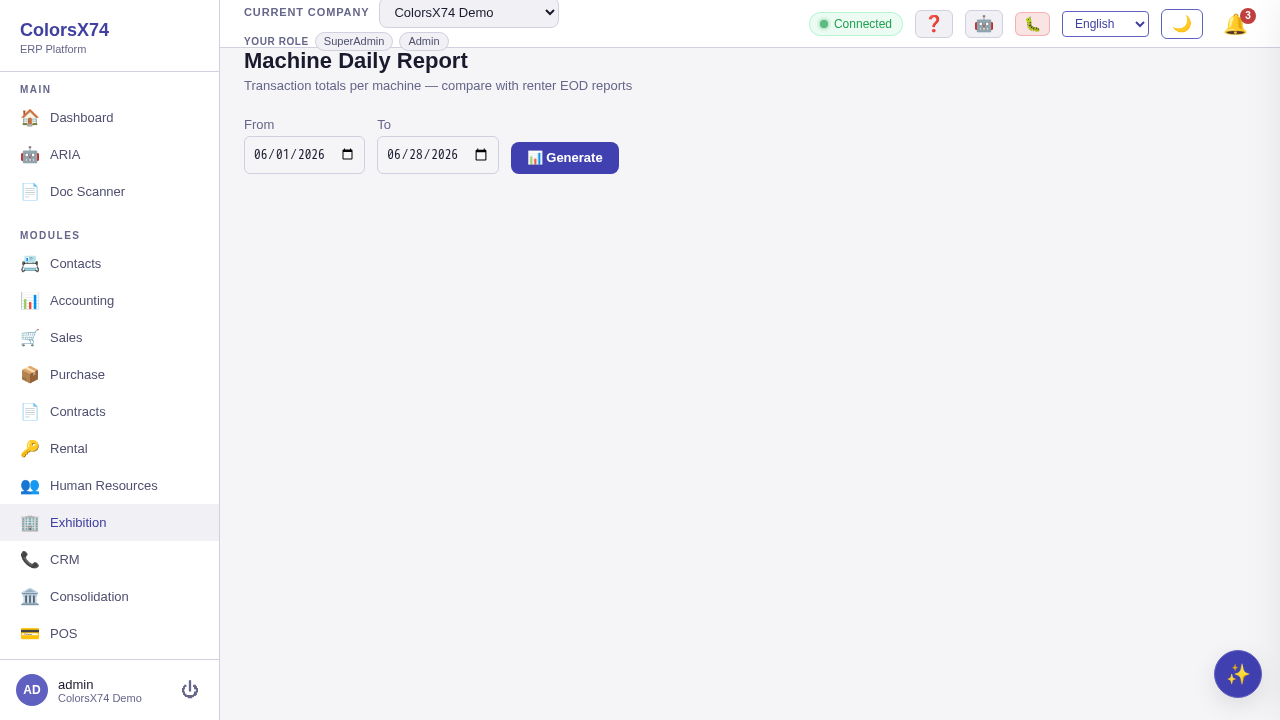
How to use it. The settlement & commission report shows per-renter difference rows plus column-sum totals with an optional ?from&to date range; it is available as JSON, RFC-4180 CSV (UTF-8 BOM so Excel reads non-ASCII names), and a printable PDF (host-rendered via QuestPDF), reachable from the renters Settlements panel and the dashboard. The machine daily summary (/exhibition/machine-report) shows, per machine per day, the transaction count and gross/net/commission totals over a date range, with the assigned renter resolved by the assignment covering each day; it includes summary totals (last transaction date, total transactions, gross, net) and a client-side CSV export. The renter statement report (/exhibition/renter-statement) lists a renter's bank-matched recon-line transactions over a date range with a total (excludes Excluded lines).
Email. The renter statement-of-account PDF can be emailed to the renter's email on file (or an override; errors if neither is present), and the settlement report PDF can be emailed to a specified recipient (organizer/accountant); both are queued for delivery via the core email service and return the email log id. The renter statement-of-account PDF (downloaded from the renter profile) combines the booth contract, rent schedule, machine transactions, and settlement position.
Use it wisely. Export the settlement & commission report as CSV for spreadsheet checks and as PDF for the renter/accountant — both come from the same difference view, so they always agree. Email the statement-of-account PDF straight from the renter profile rather than re-keying numbers. Use the machine daily summary to spot a quiet terminal (the last-transaction date) before it becomes a reconciliation surprise.
How the cycle works
- Add the renter (/exhibition/renters → New Renter) or pick an existing contact; flagged IsRenter.
- Add the payment machine (/exhibition/machines → New Machine) with Serial Number = the exact terminal ID the bank prints.
- Assign the machine to the renter (/exhibition/assignments) with an Assigned From date (and optional contract/booth); this snapshots the commission percent and defines the date window auto-matching uses.
- (Optional) Create the booth contract (/exhibition/contracts) for rent + deposit; the rent payment schedule is auto-generated as an EXH- contract.
- Bring in the money: create a reconciliation session (/exhibition/reconcile) for the bank account + period, then import bank-confirmed transactions via bank feed, Network International PDF, or bank-statement CSV (posts the cash-recognition JE if configured).
- Bring in the claims: import the renter sales CSV (declared daily totals) which creates one renter sales statement per renter/assignment with commission snapshotted, or create a statement by hand.
- Reconcile the session: auto-match lines (terminal → machine → assignment, +/-2-day window), manually match or exclude leftovers, then complete the session.
- Reconcile each renter sales statement: compare declared gross vs bank-confirmed gross for that machine/period; on match it posts the allocation JE (suspense → commission income + renter payable) and marks the statement Reconciled.
- Offset overdue rent: apply the renter's reconciled payable against their overdue booth rent (oldest-first); a payout is blocked while overdue rent remains.
- Transfer the payout: pay the renter their bank-reconciled net (Dr renter payable / Cr bank); fully-drawn statements become Settled.
- Report and share: view/export the settlement & commission report and machine daily summary; download or email the renter statement-of-account and the settlement report PDFs.
Permissions
What it is. Every Exhibition action is gated by a granular permission, so a renter-desk operator, an accountant, and the organizer can hold exactly the scope they need.
- Exhibition.Read — view renters, overview/dashboard, renter profiles, renter differences (single + all).
- Exhibition.Recon.Read — view machines, machine assignments, reconciliation sessions/lines, machine daily summary.
- Exhibition.Recon.Manage — create/update/delete machines, create/end assignments, create sessions, import (bank feed / PDF / bank CSV), auto-reconcile, complete session, manual-match/exclude lines.
- Exhibition.Statement.Read — renter statement report, renter sales statements (list/detail), settlement report (JSON/CSV/PDF), renter statement PDF.
- Exhibition.Statement.Manage — create renter sales statements, reconcile a renter sales statement, import renter sales CSV, record rent payment, check overdue payments.
- Exhibition.Statement.Email — email a renter their statement-of-account PDF; email the settlement & commission report PDF.
- Exhibition.Payout.Run — offset a renter's payable against overdue rent; transfer a renter's payout.
- Exhibition.Contract.Read — view booth contracts (list/detail), contract scenarios, contract bridges.
- Exhibition.Contract.Manage — create booth contracts; link a contract scenario.
Use it wisely. Keep the money-moving scopes (Exhibition.Payout.Run and Exhibition.Statement.Email) narrow — front-desk staff usually need only Read plus the Recon/Statement Manage scopes to capture data, while offset/payout and outbound email stay with the organizer or accountant.
Pages on dev
What it is. The full Exhibition surface lives under /exhibition/*; each route is gated by the relevant permission above.
- /exhibition (index) — module landing/launcher (the Exhibition root component shown at the section root).
- /exhibition/dashboard — Organizer dashboard: KPI cards (commission, payable, overdue rent, reconciled sales, net position, counts), an Action-Needed strip (overdue rent / open sessions / unmatched lines), a Renters-Needing-Attention list, and a settlement summary with PDF/CSV/email export.
- /exhibition/renters — Renter list (quick-add renter, search, rent due/paid/balance, contract + machine count), a Settlements panel (per-renter difference rows + totals, date-range filter, settlement report PDF/CSV export), and a Check-Overdue button.
- /exhibition/renters/:id — Renter profile: rent-balance/AR/AP KPIs, tabs for Contract, Payments (record rent payment), Machines, Transactions, and a Settlement tab (declared vs bank-confirmed, commission, payable, offset, payout) plus download/email statement PDF.
- /exhibition/contracts — Booth contracts: quick-add booth asset, create booth contract (auto rent schedule), list with payment summary, and the contract-bridge linking panel (booth-rent + payment-machine-usage scenarios).
- /exhibition/machines — Payment machines (card terminals): create/edit, set serial=terminal ID + label/bank code/location, activate/deactivate, delete, search.
- /exhibition/assignments — Machine assignments: per-machine assignment of renter (+ optional contract/booth), assigned-from/to window, commission snapshot, end assignment.
- /exhibition/reconcile — Reconciliation sessions: create session, import bank lines (bank feed / PDF / bank CSV), import renter sales CSV, auto-match, manual match/exclude lines, complete session.
- /exhibition/renter-statement — Renter statement report: bank-matched machine transactions for a renter over a date range, with totals.
- /exhibition/machine-report — Machine daily summary report: per-machine per-day transaction counts and gross/net/commission totals over a date range, with client-side CSV export.
Suggested demo flow
- Setup: add a renter, a payment machine (serial = bank terminal ID), and an assignment — point out the commission snapshot and the date window.
- Money in: create a reconciliation session and import bank-confirmed lines (bank feed / PDF / bank CSV); note the optional cash-recognition JE.
- Claims in: import the renter sales CSV and show the one-statement-per-assignment result with malformed/unmatched feedback.
- Match: auto-reconcile the session (+/-2-day window), exclude/manual-match leftovers, then complete it.
- Allocate: reconcile a renter statement (declared vs bank) and show the suspense → commission + payable JE.
- Settle: offset overdue rent oldest-first, then transfer the payout — demonstrate the rent-must-be-clear payout block.
- Close on the dashboard and the settlement & commission report (CSV + PDF + email) as the single source of truth.
Related pages
- Overview, login, and dashboard
- Accounting, reports, banking, tax, and payments
- Sales, purchase, contracts, and rental
- Inventory, manufacturing, marketplace, and add-ons
- AI, ARIA, setup wizard, scan, draft, and settings
- Admin, settings, security, audit, approvals, and notifications
- Troubleshooting, browser requirements, and support handoff