Demo data note: Screenshots use representative demo data captured from a live environment. Do not use real customer records, secrets, payment keys, or private documents in a public demo.
What ColorsX74 ERP is
ColorsX74 ERP is a single browser workspace that runs your whole business — finance, sales, purchasing, contracts, inventory, and operations — backed by one shared data model and extended through signed marketplace add-ons. It is organised by business area, not by technical subsystem, so the menu reads the way a manager thinks. The same core also powers a desktop client and is reachable by API; this documentation covers the web portal.
This page covers the things you meet before any module: signing in, the dashboard, the navigation shell and its toolbar, notifications, and account security.
Signing in
What it is. The portal is private; everything sits behind authentication. The login screen accepts an email and password, and the same screen links to self-service password reset.
How to use it. Enter your email and password and submit; on success you land on the dashboard. If your organization has single sign-on configured, use the SSO option instead and you will be returned to the portal after authenticating with your identity provider. Forgotten a password? Use the reset link to receive a secure, time-limited reset.
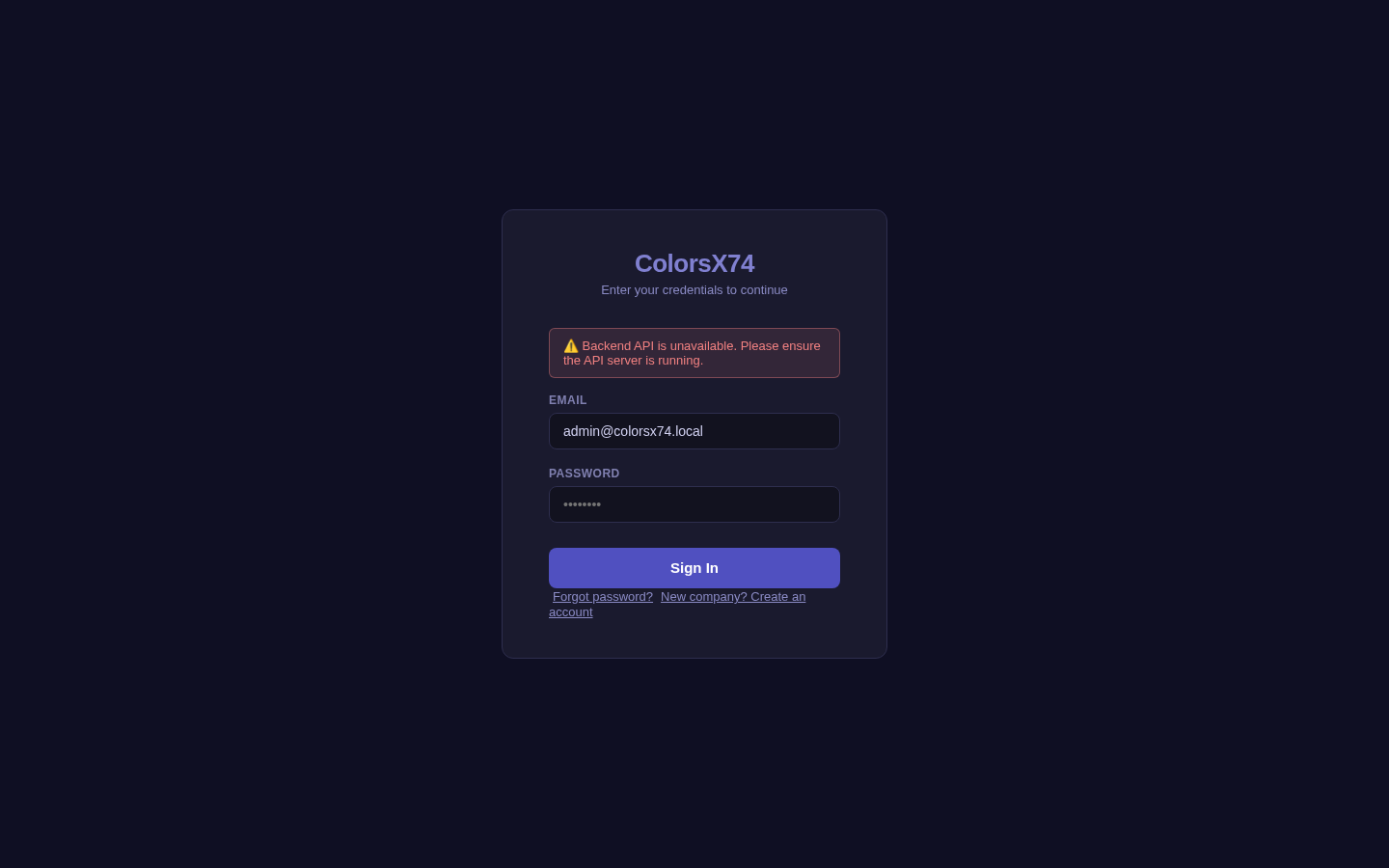
Use it wisely. In a public demo, only ever use a dedicated demo account — never a real user's credentials — and never show the password on screen. Treat the login page as the boundary: nothing inside should be screenshotted with live customer data.
The dashboard — your business at a glance
What it is. The dashboard is the landing page and command centre. It surfaces the numbers a manager checks first: a Financial Overview row (revenue, expenses, net profit, and overdue invoices with their total value) and an Operations row (pending orders, active contracts, active rentals), followed by cards for budgets, CRM pipeline, exhibition rentals, and recurring invoices, plus a Top Overdue list and a Revenue Trend chart.
How to use it. Read it left to right, top to bottom. The Financial Overview answers "are we making money and who owes us?"; the Operations row answers "what is in flight?". The period indicator (top-right) tells you which month the figures cover. Each tile is a jumping-off point into the module behind it.
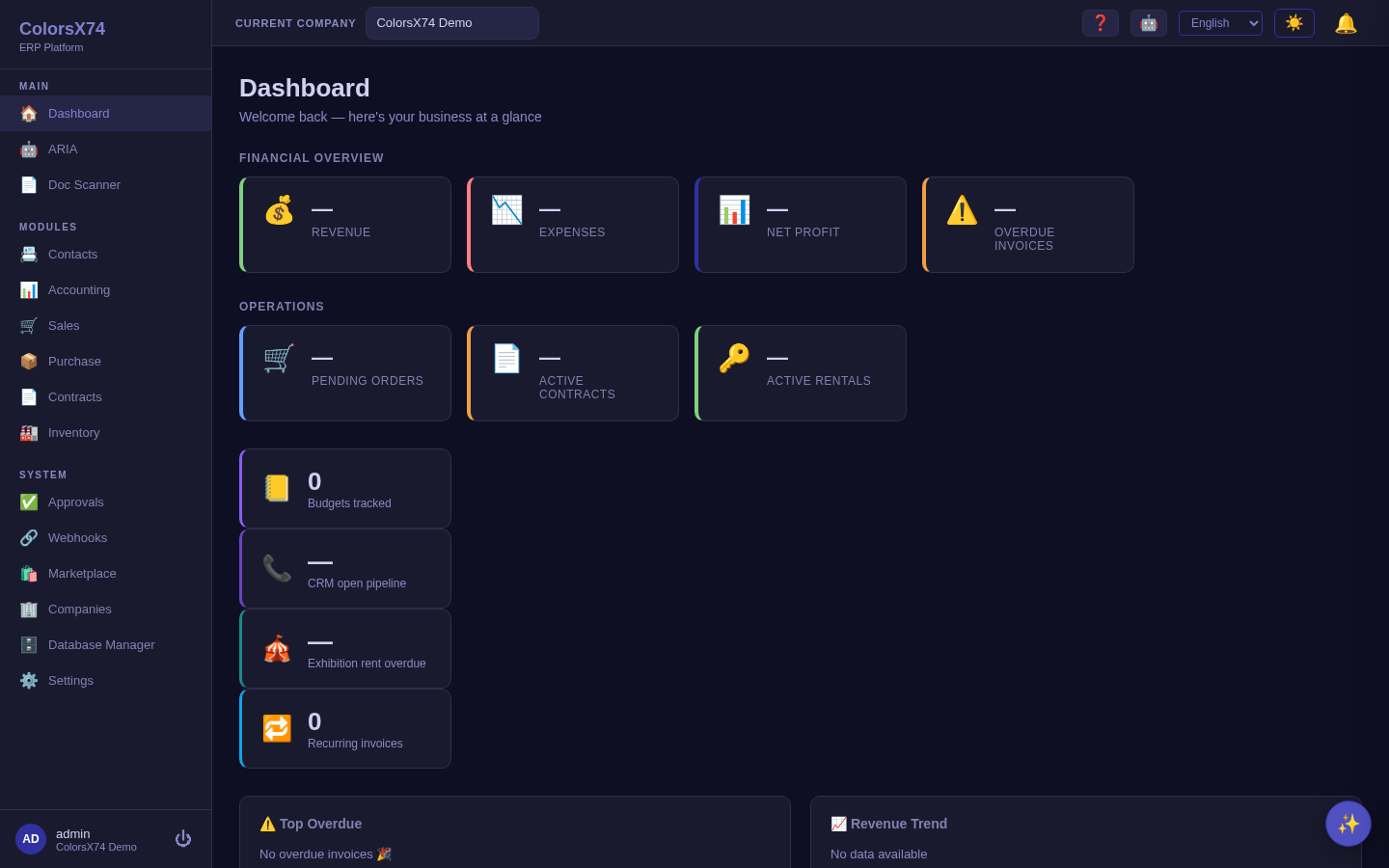
Use it wisely. Use the dashboard to decide where to spend the next ten minutes, not as a report — drill into the module for detail. Empty or zero tiles in a fresh tenant simply mean no data has been entered yet; they are not errors. When demoing, open the dashboard first to set the "one cockpit for the whole business" frame before diving into a module.
The navigation shell and toolbar
What it is. A persistent left navigation groups the product into Main (Dashboard, the ARIA assistant, Doc Scanner), Modules (Contacts, Accounting, Sales, Purchase, Contracts, Inventory, and any enabled add-ons such as Rental, Manufacturing, CRM, Exhibition, Consolidation, or POS), and System (Approvals, Webhooks, Marketplace, Companies, Database Manager, Settings). A top toolbar shows the current company — with your role in it shown beneath, so you always know your access in the company you are working in — a connection indicator, help, language, light/dark theme, and the notification bell; your account sits at the bottom-left with sign-out.
How to use it. The left rail is always available, so navigation is one click from anywhere. Switch interface language from the toolbar selector (English, العربية, Español, Français are present), use the sun/moon control for a quick light/dark switch — or pick from the full set of themes (Light, Dark, Midnight, Ocean, High contrast) in Settings → Display — and switch the active company from the company selector when you belong to more than one. The app opens in light mode by default.
Use it wisely. The module list reflects what is enabled for your organization — if a customer's demo does not show Rental or Manufacturing, that add-on simply is not turned on, which is the expected behaviour and a good cue to talk about the marketplace. Right-to-left languages such as Arabic reflow the whole shell, which is a strong localisation talking point.
Global search — jump to anything
What it is. A command palette opens from anywhere with Ctrl+K (⌘+K on macOS) and is one search box for the whole product: every feature and module you can reach, every Settings page (Users, Roles, Module Access, Organization, Currencies, Branches, Email, and the rest), the quick-create actions (new sales order, invoice, journal entry…), the financial reports (trial balance, P&L, balance sheet), and a link straight to this documentation.
How to use it. Press Ctrl/⌘+K, start typing what you want — a module name, a setting, an action — then use the arrow keys and Enter to go there (or click). Esc closes it. Results are grouped by category (Navigation, Settings, Actions, Reports, Documentation) and the search matches in your interface language.
Use it wisely. The palette only lists what you can actually open — modules that are enabled for your organization and seated to you, and admin pages only if you are an administrator — so it never sends you to a screen you cannot use. It is the fastest way to reach a deep Settings page without hunting through the menu.
Install it as an app (PWA)
What it is. ColorsX74 ERP is a Progressive Web App: it can be installed to your phone's home screen or desktop and run in its own window, with no app store. Once installed, the app shell loads instantly (and opens even with a flaky connection — your live business data still needs the network, by design).
How to use it. On a supported browser an Install app option appears (in the sidebar/account area, and your browser's address bar). When a new version ships, a small "A new version is available — Reload" prompt appears; click it when convenient — it never interrupts you mid-task. If the app ever looks stuck on an old version, Settings → Display → Reset app cache clears it and loads a fresh copy.
Use it wisely. The offline cache only covers the app shell, never customer data — so there is no stale-data or privacy risk. Treat the Reset-app-cache button as the one-click fix to hand a user who reports a display oddity after an update.
Notifications
What it is. The bell in the toolbar opens an in-app notification panel that surfaces work needing attention — approvals waiting on you, reminders, and the results of background jobs.
How to use it. Click the bell to open the panel, read the items, and follow a notification through to the record it concerns. Notifications are part of the shell, so they reach you on whatever screen you are on.
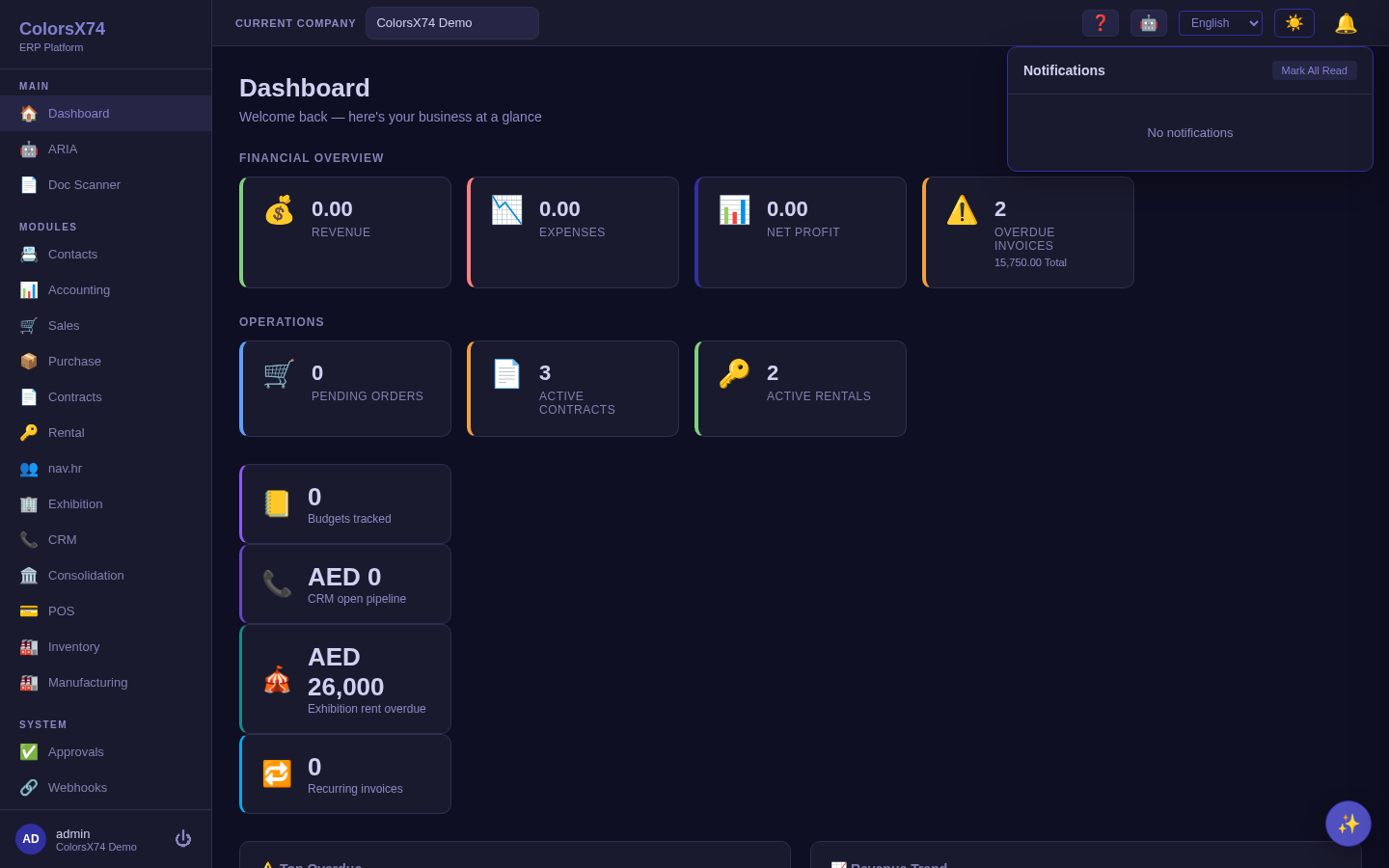
Use it wisely. Treat notifications as a queue: clear them by acting, not by dismissing. For approvers, the panel plus the Approvals screen is your daily worklist.
Account security — changing your password
What it is. An authenticated change-password screen lets a signed-in user rotate their own password without an administrator.
How to use it. Open Change Password from your account, enter your current password, then the new one twice. The form enforces the organization's password policy.
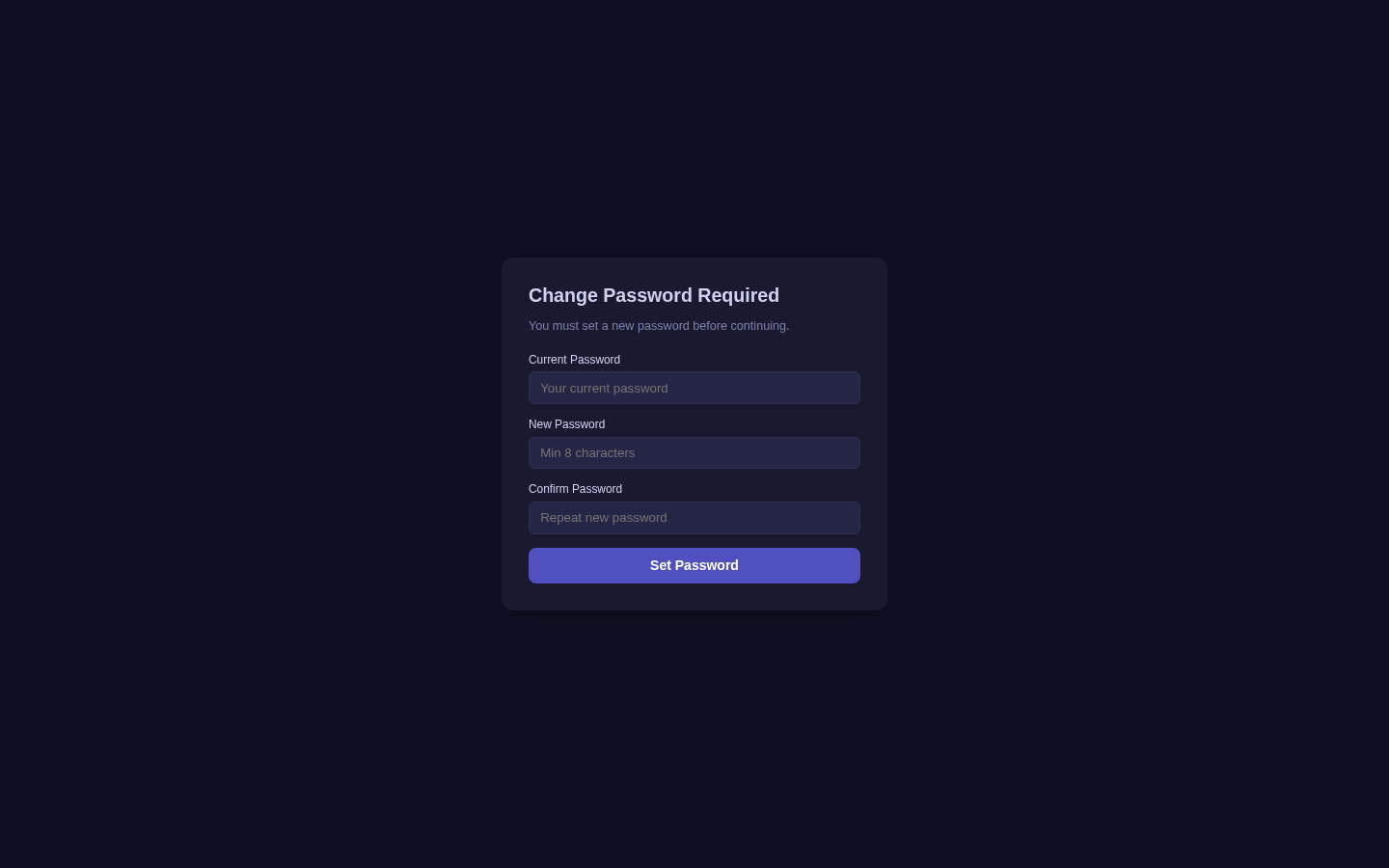
Use it wisely. Encourage users to rotate passwords through this screen rather than asking an admin to reset them, and never display real passwords during a demo. Pair this with the role and security controls on the Admin page.
Suggested demo flow
- Open the portal and sign in with a dedicated demo account.
- Frame the dashboard as one cockpit over shared business data; point at the KPI tiles.
- Open the notification panel to show task visibility.
- Use the left navigation to enter the module that matches the conversation; mention enabled-vs-available add-ons.
- Demonstrate language and theme switching, and (if relevant) the change-password flow.
Related pages
- Accounting, reports, banking, tax, and payments
- Sales, purchase, contracts, and rental
- Inventory, manufacturing, marketplace, and add-ons
- Exhibition rental management
- AI, ARIA, setup wizard, scan, draft, and settings
- Admin, settings, security, audit, approvals, and notifications
- Troubleshooting, browser requirements, and support handoff