Demo data note: Screenshots use representative demo data captured from a live environment; some lists are empty where the demo tenant is unseeded. Public docs deliberately avoid passwords, tokens, and real endpoint secrets. For support, collect screenshots and steps — never secrets.
The Settings hub
What it is. Settings centralises configuration into a single tabbed hub: General, Security, Users, Roles, Module Access, Organization, Security Dashboard, Accounting Defaults, AI Configuration, AI Sessions, Currencies, Branches, Display, Translations, Languages, Email SMTP, Billing, and Data Import. SuperAdmins additionally manage companies and the database from the System area.
How to use it. Open Settings from the bottom of the navigation; the left tab list is the index to everything an administrator configures. Start at General for organization identity, then work down: people (Users/Roles, and who can change a colleague's order), capabilities (Module Access), structure (Organization/Branches), finance defaults (currencies, accounting), and usability (display, translations).
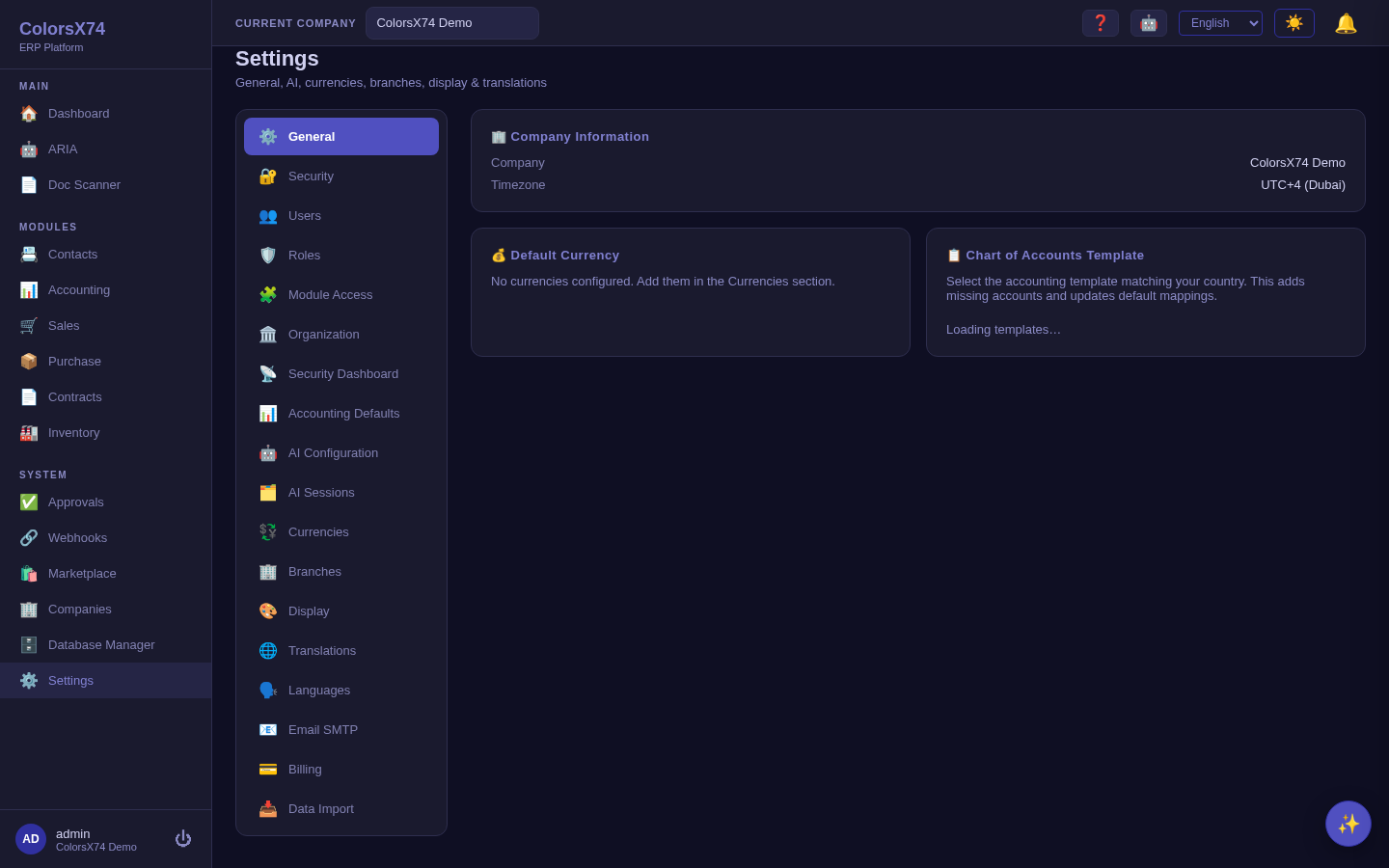
Use it wisely. Configure Settings before onboarding users — defaults set here (currency, accounting accounts, language) flow into every document afterwards, and changing them later means re-touching data. Treat Settings access as privileged; it is the control room for the whole tenant.
Users and roles — access control
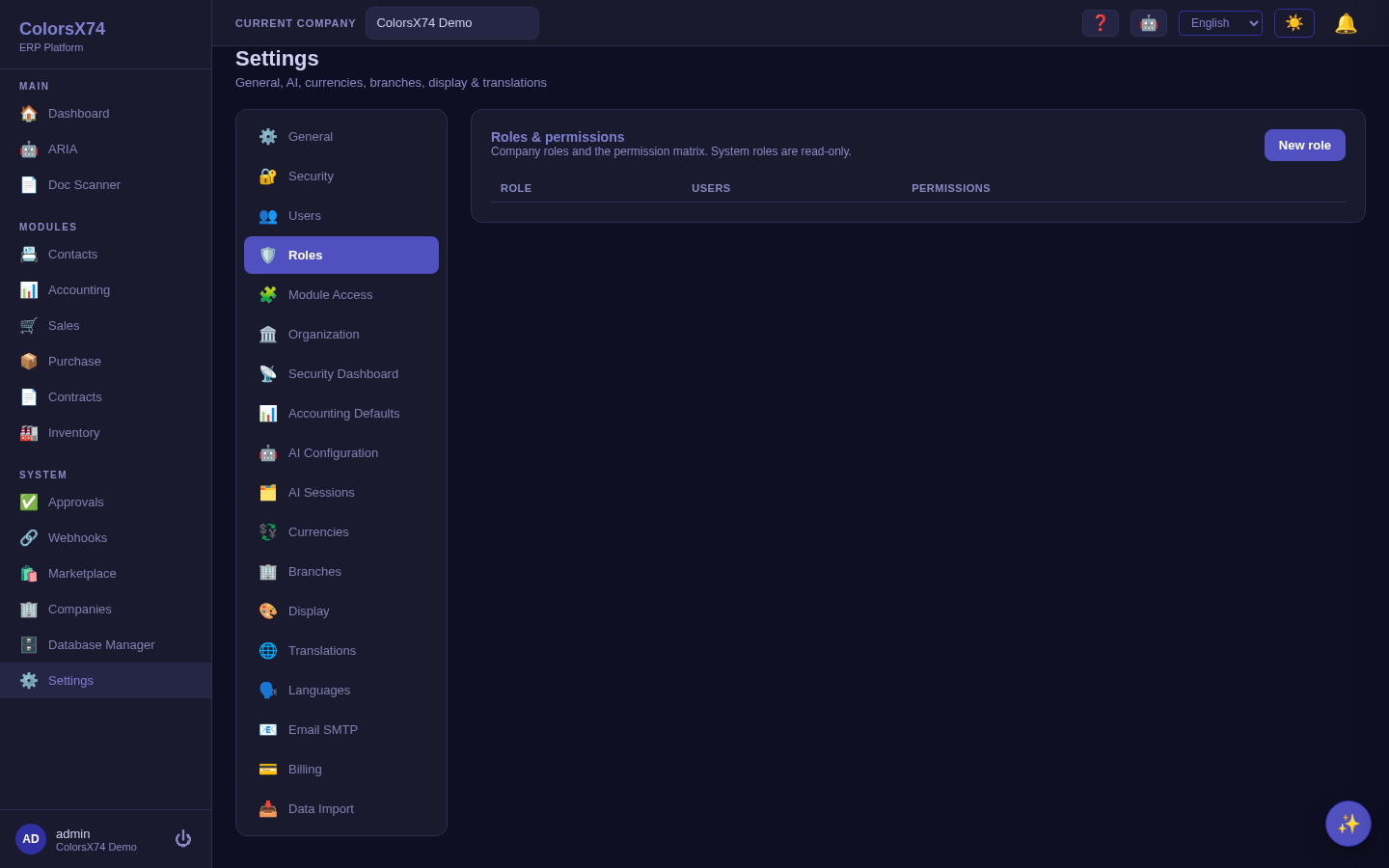
What it is. Users creates accounts and assigns roles, unlocks, and resets them. Roles defines the company role set and the permission matrix; system roles are read-only so the built-in safety floor cannot be edited away.
How to use it. Create a user and assign one or more roles; the Users table shows status, roles, and last sign-in so you can audit access at a glance. Build custom roles under Roles by composing permissions, and keep system roles for the standard tiers.
Seeded starter templates. Every company ships with seven function-shaped role templates — Accountant (full accounting and banking plus report exports), Sales and Purchase (their full document cycles plus contacts), Sales Manager and Purchase Manager (everything their team can do, plus authority over the team's orders — see Who can change a colleague's order), Auditor (read/export across operations plus the audit log), and Viewer (read-only) — each marked with a Seeded template badge while it still carries its factory defaults. Unlike system roles they are fully editable, renamable, and deletable: use them as-is, or open one and adjust the matrix (the badge clears once you customize, and a deleted template is not re-created). These names also unlock the matching AI Copilot skill defaults for users whose primary role they are. The built-in User role is deliberately minimal — profile, dashboard, and the shared contact directory — so module data such as payroll or financials is always an explicit grant, never a default.
Platform operators (hosted deployments). For the operator of a hosted deployment, a dedicated Operators page under Administration assigns scoped platform roles — provisioning, support, and read-only audit — to dedicated operator accounts, so day-to-day operations no longer require the all-powerful super-administrator identity. Every assignment and revocation is recorded in the audit log, operator accounts without multi-factor authentication are flagged, and the platform roles themselves can never be granted through the normal tenant role editor.
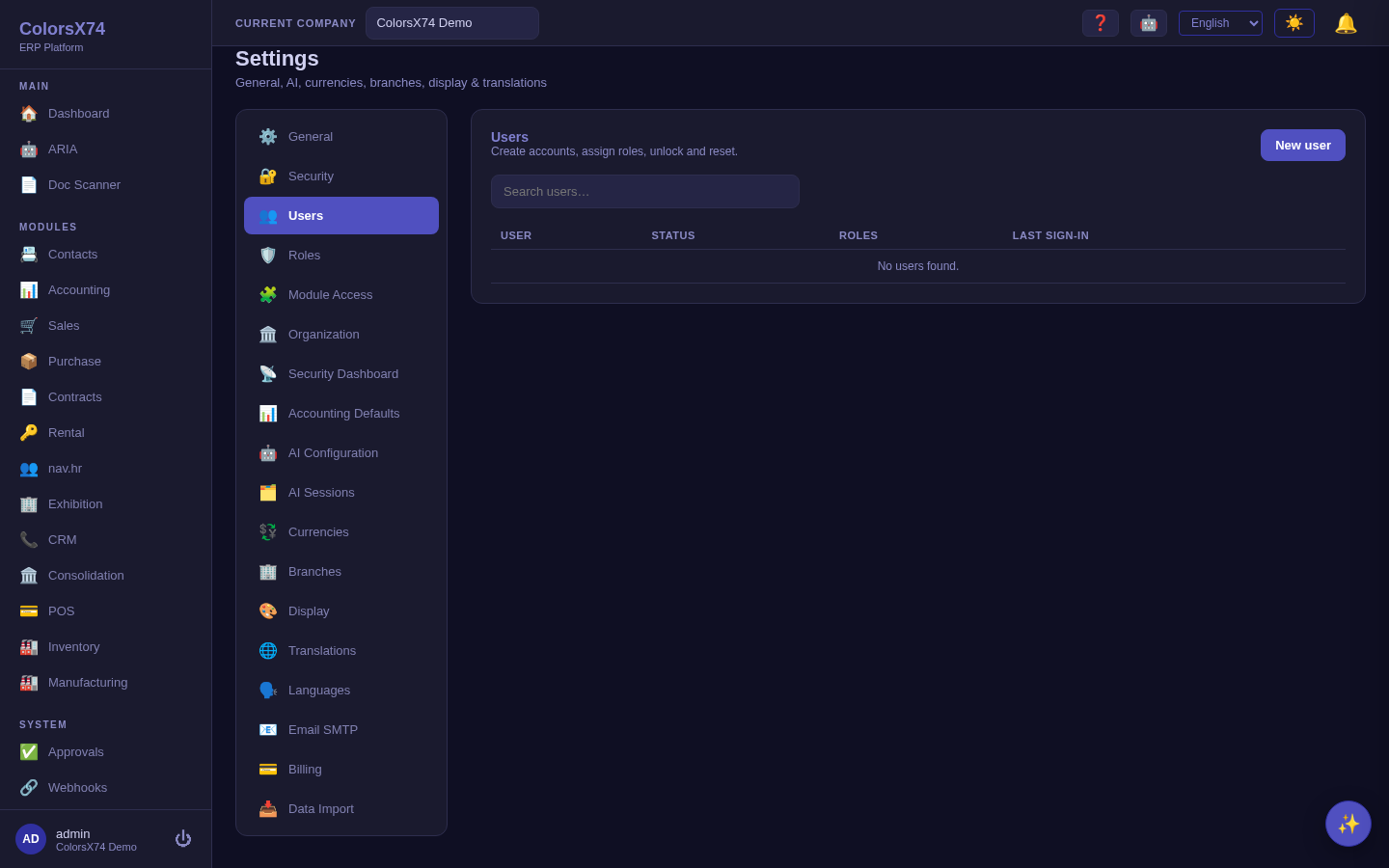
Use it wisely. Grant least privilege — assign the narrowest role that lets someone do their job, and use the last-sign-in column to spot dormant accounts. Pair roles with approvals to enforce segregation of duties: the person who creates a transaction should not be the only one who can approve it.
Who can change a colleague's order
What it is. Sales and purchasing work off a shared book. Every member of the team can see every customer and every order in the company — which is what stops two people quoting the same customer without knowing the other already has an order open. What ownership controls is not who can look, but who can act.
The rule. Each order records the rep or buyer responsible for it. That person, and a manager, may make the commercial decisions on it — confirming, cancelling, deleting, or sending a purchase order to the vendor. Anyone else on the team is refused. An order with nobody assigned is open to the whole team, so work never gets stranded.
Fulfilment is deliberately not restricted. Shipping, receiving goods, and raising the invoice stay open to whoever holds those permissions, regardless of who owns the order. A warehouse should never be blocked because the rep who took the order is on leave — and if it were, people would simply reassign orders to themselves to get the work done, which defeats the point.
Changing who is responsible is a separate authority. Only a holder of the reassignment permission — the Sales Manager and Purchase Manager templates carry it — can move an order to a different person, or change a customer's account manager. It is kept apart from ordinary edit rights on purpose: a senior colleague may well be trusted to fix an order without also being trusted to move the person it is credited to.
Use it wisely. Give the manager templates to the people who genuinely run the team. Everyone else should hold Sales or Purchase: they can still create, quote, and run their own book end to end. If your team shares a single pool of orders and nobody "owns" a deal, simply leave the assignment empty — unowned orders are open to all.
Module Access — entitlements and seats
What it is. Module Access activates marketplace modules for the organization and assigns seats to specific users. Each optional module shows an Activated toggle (On/Off) and a Seats count with a Manage seats link — so you control both whether a capability is on and who can use it.
How to use it. Toggle a module On to make it available to the tenant, then assign seats to the users who need it. In the demo, CRM is On with one seat assigned, while HR, Group Consolidation, Rental Management, Exhibition, Point of Sale, Manufacturing, and the various Advanced modules are available but Off. Turning a module on makes its navigation and routes appear for entitled users.
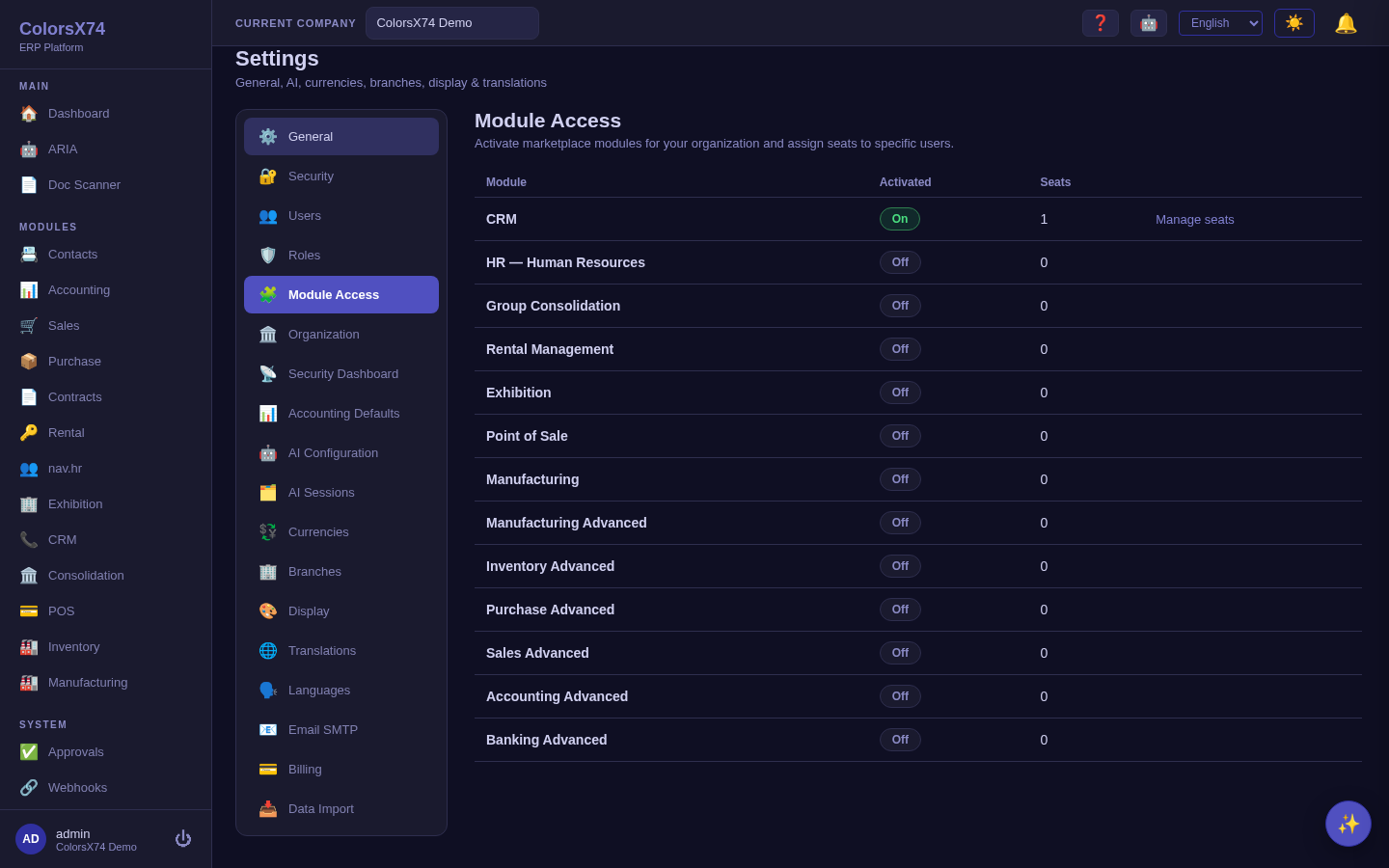
Is it actually enforced? Check the banner. Activation and seat caps are only enforced for an organization that has a subscription plan. A company created for you by the operator does not have one, so its switches are recorded and audited but never read — every installed module is available to all users, and a module shown as Off is still usable. When that is the case the page says so in a banner at the top, and you should treat the toggles as planning notes rather than access control. Nothing here is broken; the licensing layer simply begins working once a plan is assigned.
Use it wisely. Activation and seats are separate decisions: where licensing IS enforced, turning a module on does not by itself give everyone access — assign seats deliberately to control cost and surface area. If a user reports a missing module, check Module Access first, and check the banner: on an unlicensed organization the module is reachable regardless of the toggle, so a missing module there has some other cause.
Organization and branches
What it is. Organization holds the company's identity and structure; Branches defines the locations or business units the organization operates, so data can be scoped and reported by branch.
How to use it. Set the organization details under Organization, then define each operating location under Branches. Branches give you a structural dimension for reporting and access without splitting into separate tenants.
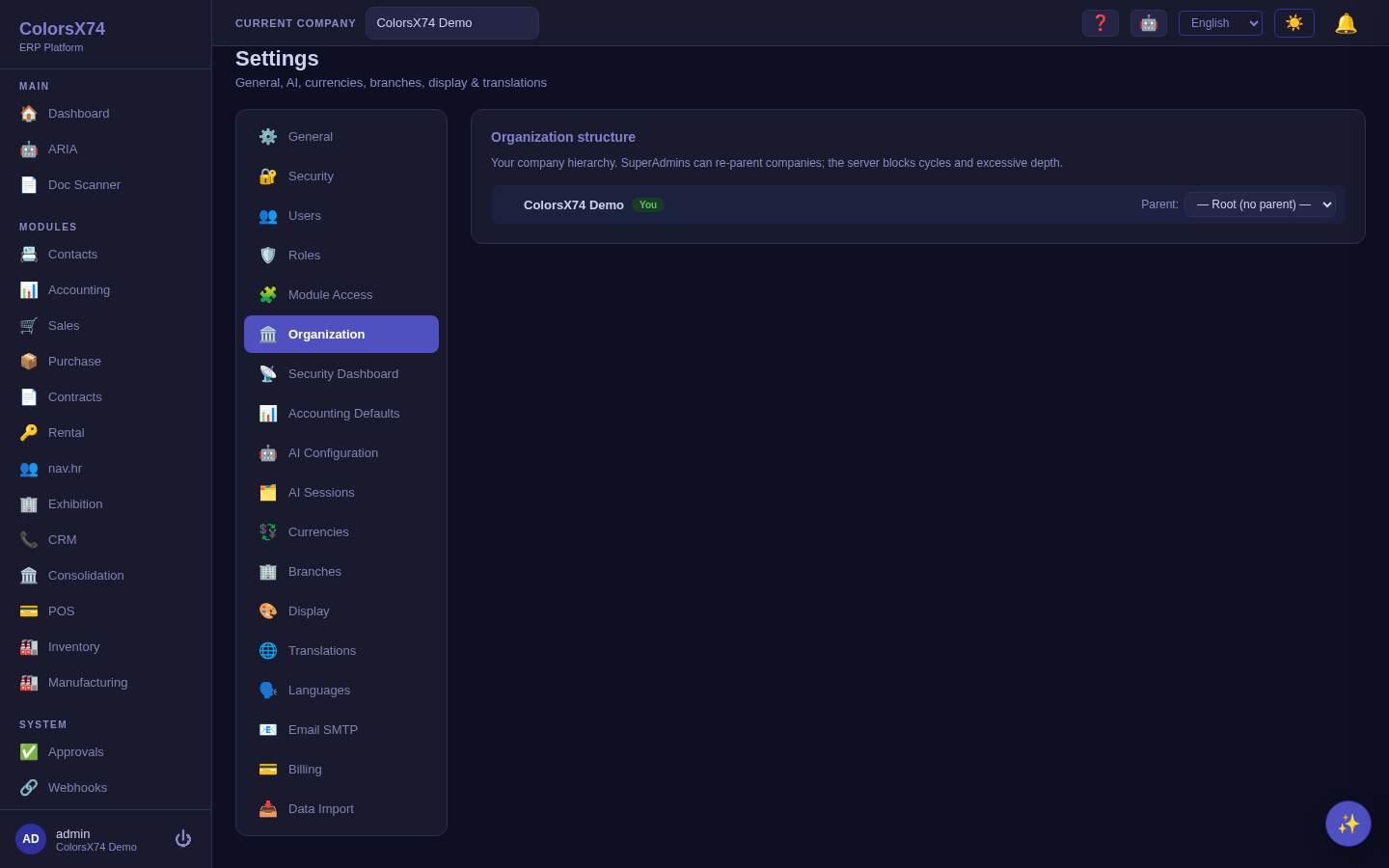
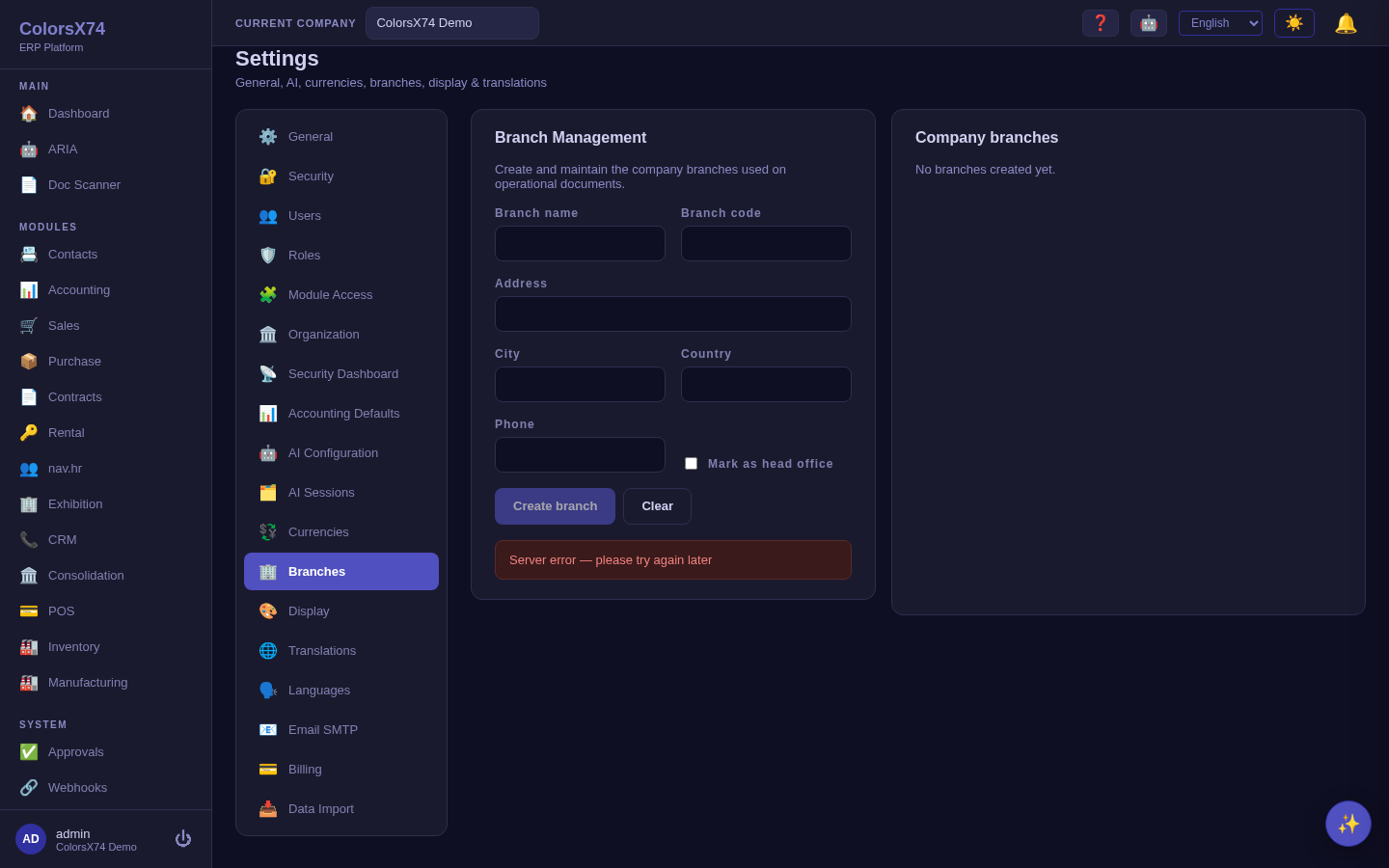
Use it wisely. Model branches to match how you actually report — too many fragments your numbers, too few hides them. Set this up before transacting so every document is attributed correctly from the start.
Finance defaults — accounting, currencies, exchange rates
What it is. Accounting Defaults sets the accounts and posting rules documents use by default; Currencies defines the currencies you transact in; Exchange Rate Settings controls how rates are sourced and applied. Together they make finance behave consistently without per-document decisions.
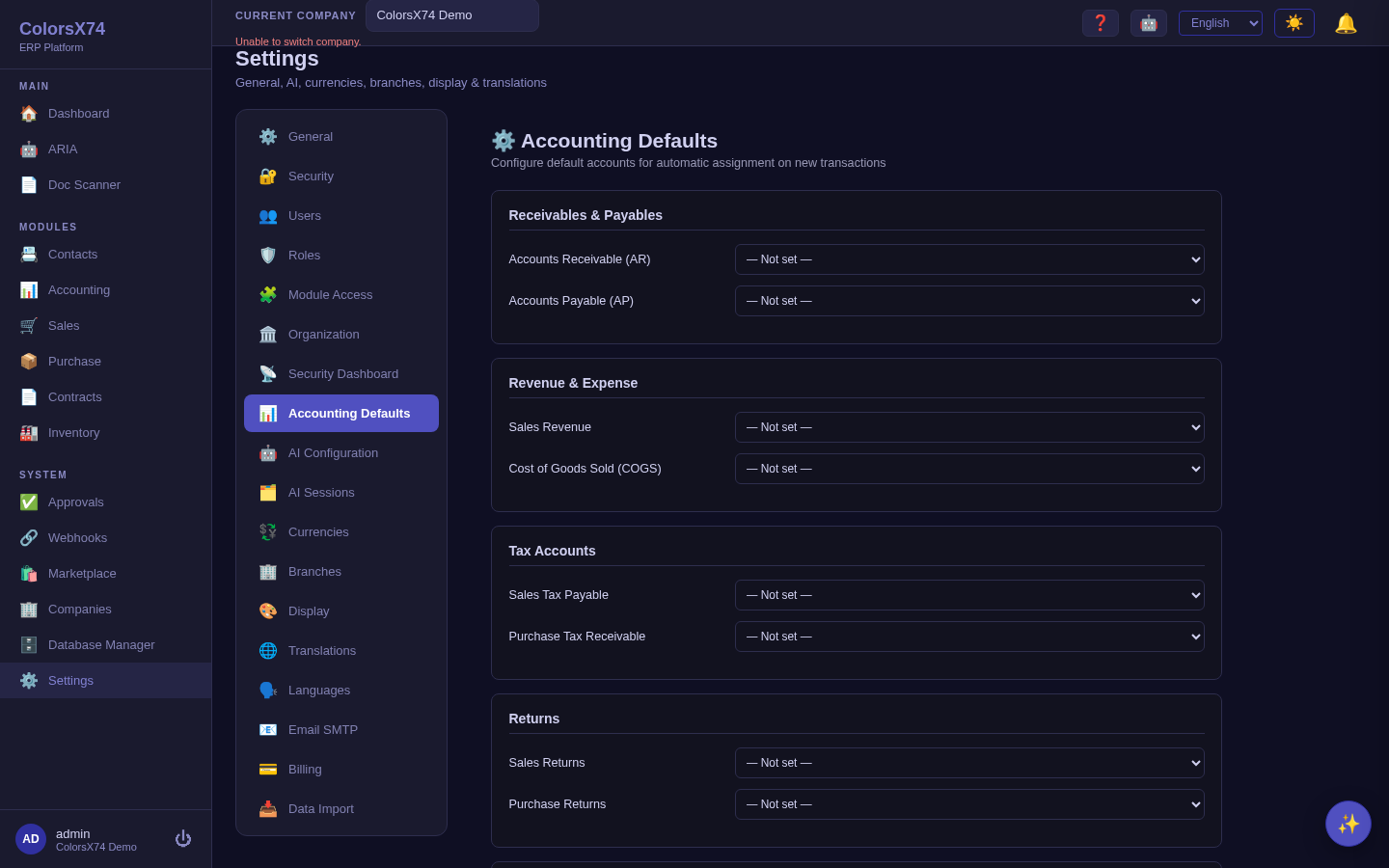
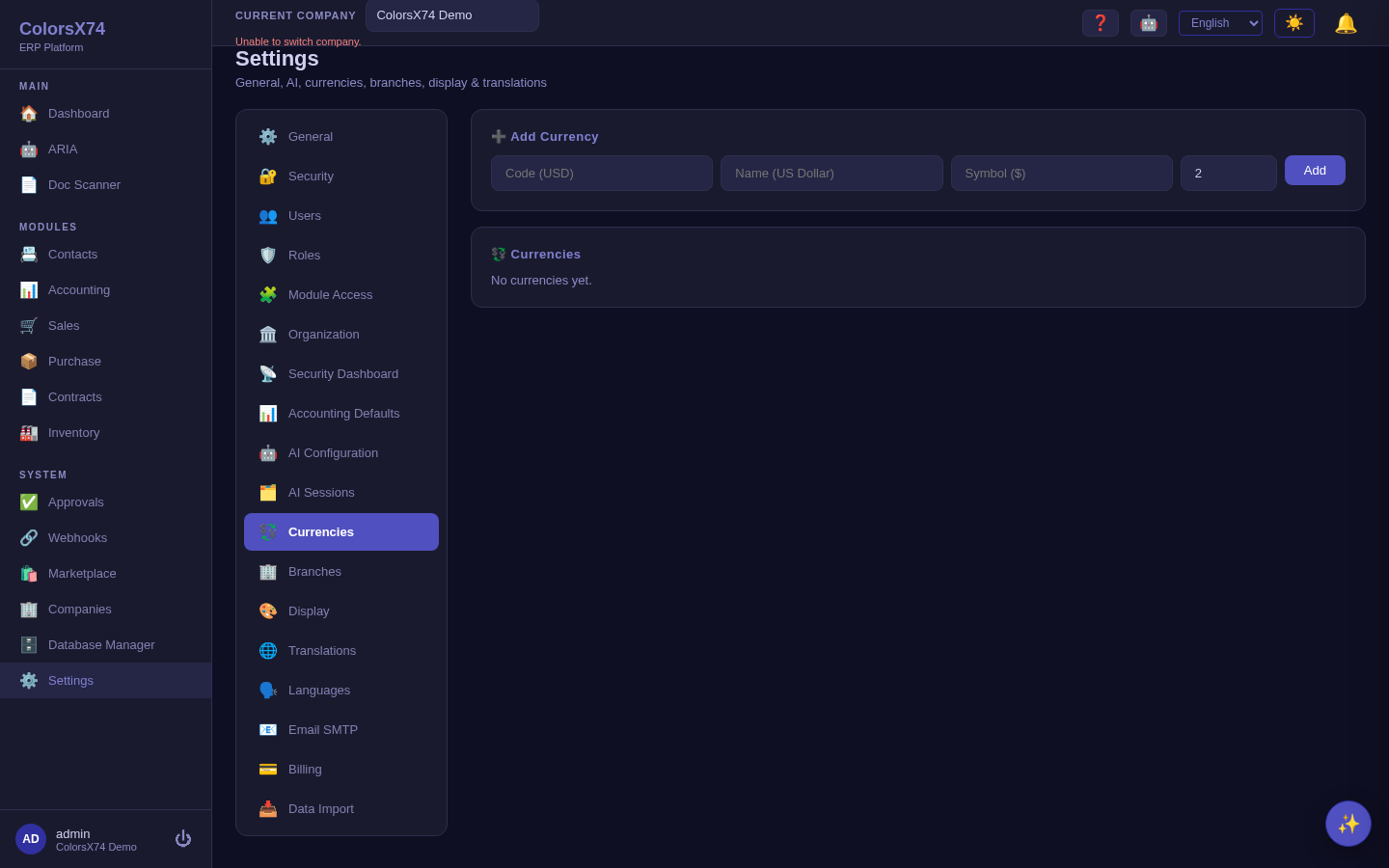
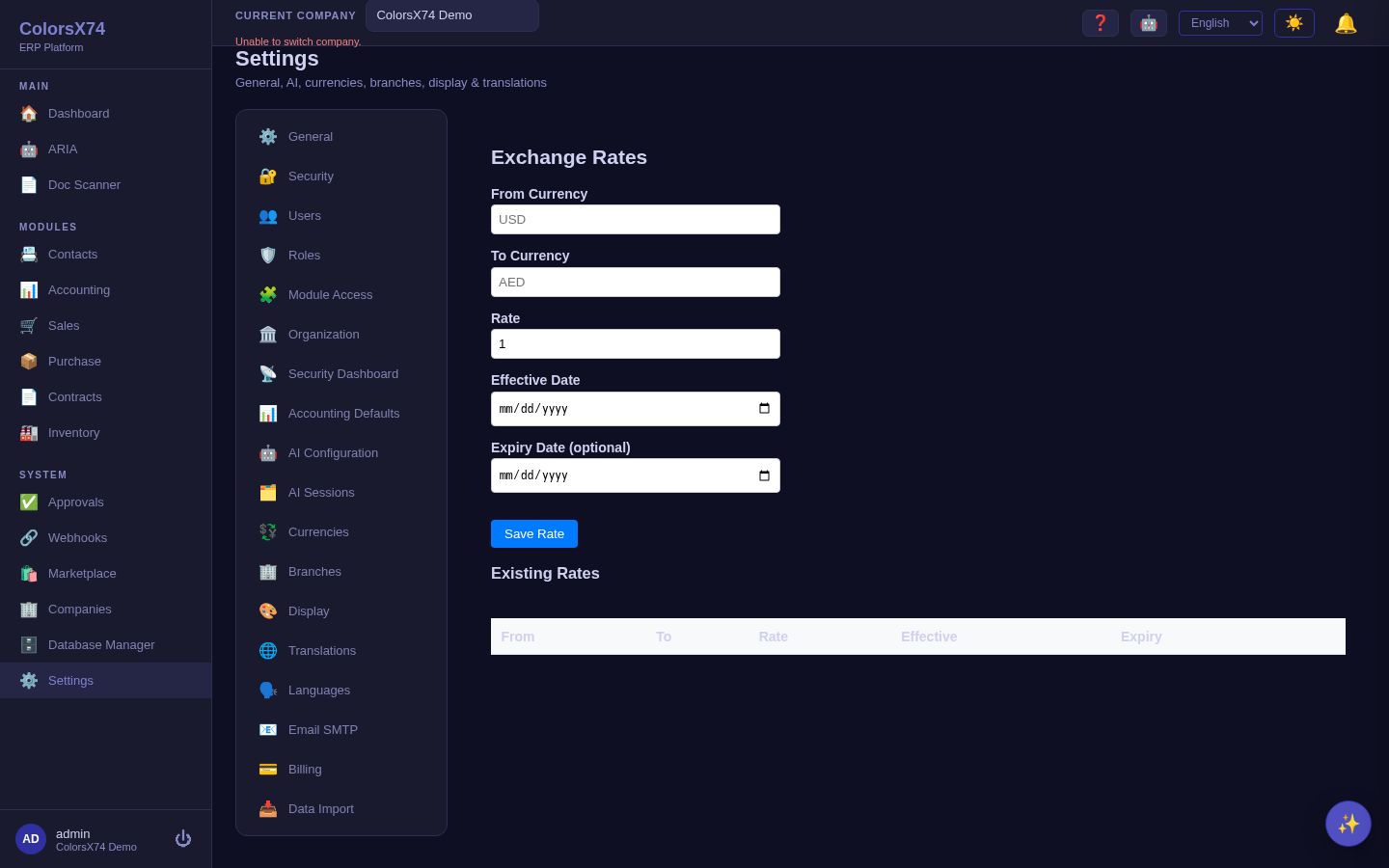
Use it wisely. Get the default accounts right before invoicing — they determine where revenue, receivables, and tax post, and fixing mis-posted history is far harder than configuring once. Keep exchange rates current so foreign-currency balances are never silently misstated (see the Finance page).
Display, translations, and localisation
What it is. Display controls presentation preferences (formats, theme defaults); Translations and Languages manage the interface languages — English, Arabic, Spanish, and French are present, and Arabic reflows the shell right-to-left.
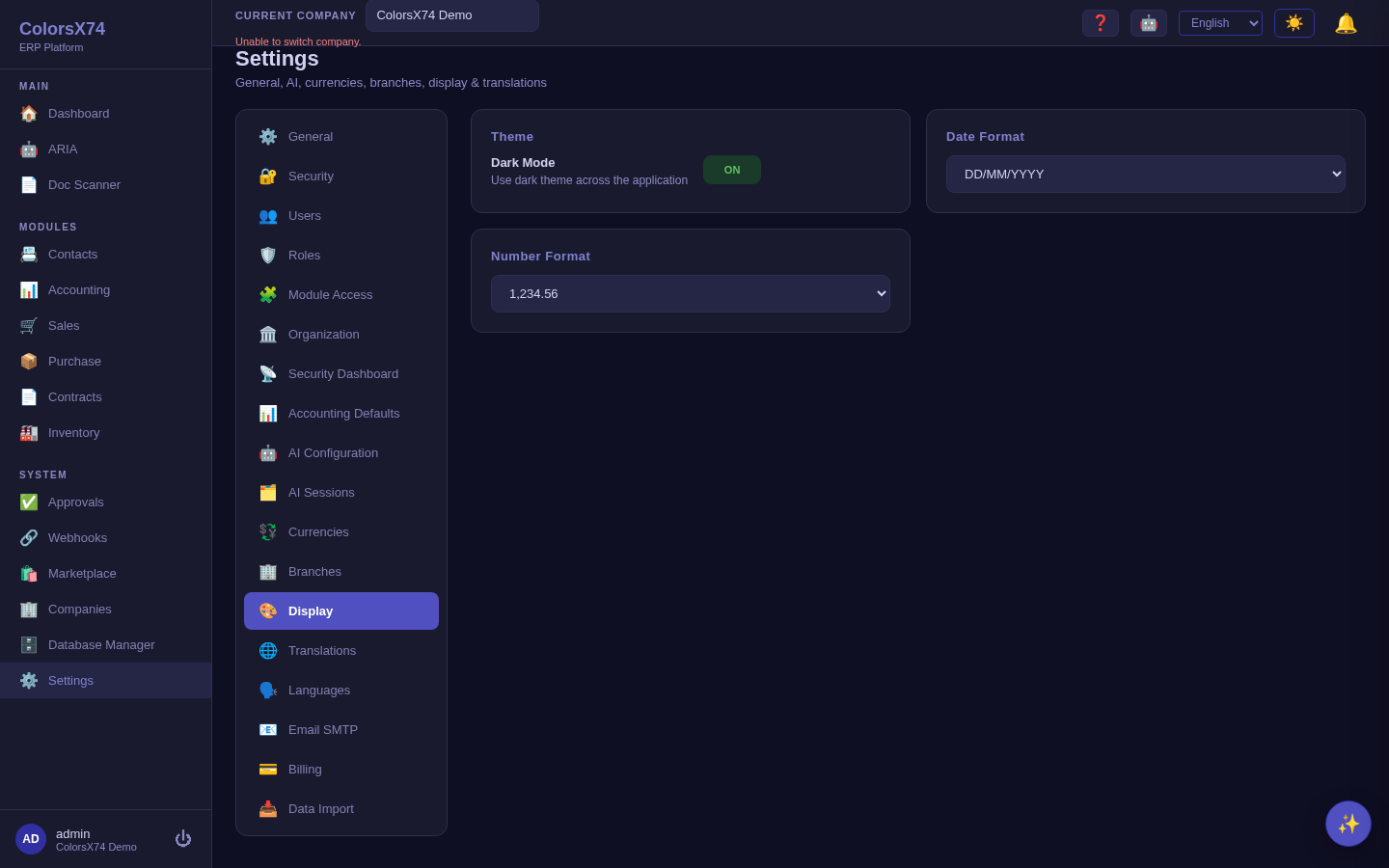
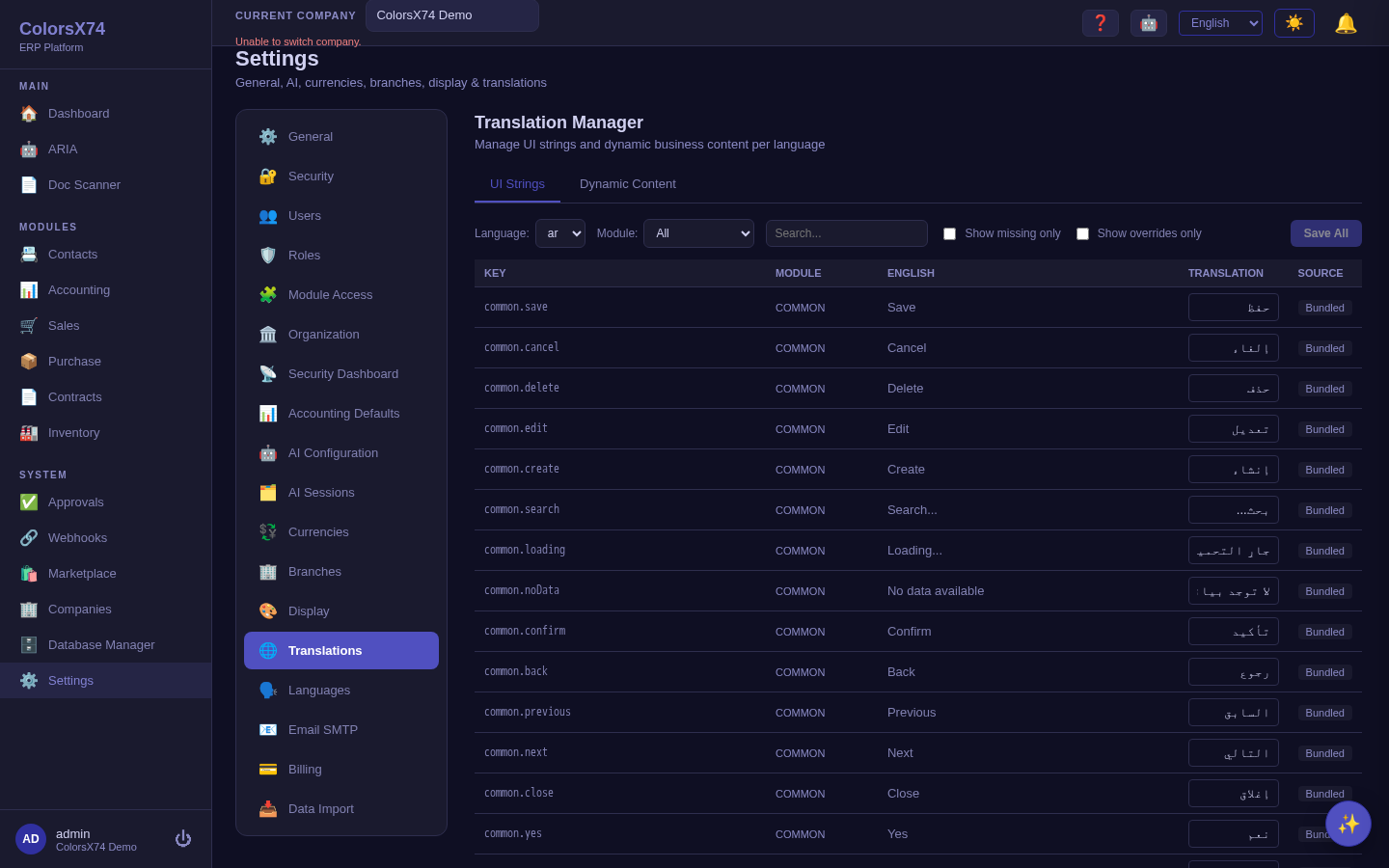
Use it wisely. Set display formats to local convention up front so dates and numbers read naturally for every user. Use translations to tailor terminology to your industry, and demo the RTL language switch as a concrete localisation proof point.
Audit log — traceability
What it is. The Audit Log records who did what and when across the system. It is the evidence trail behind every configuration change and sensitive action.
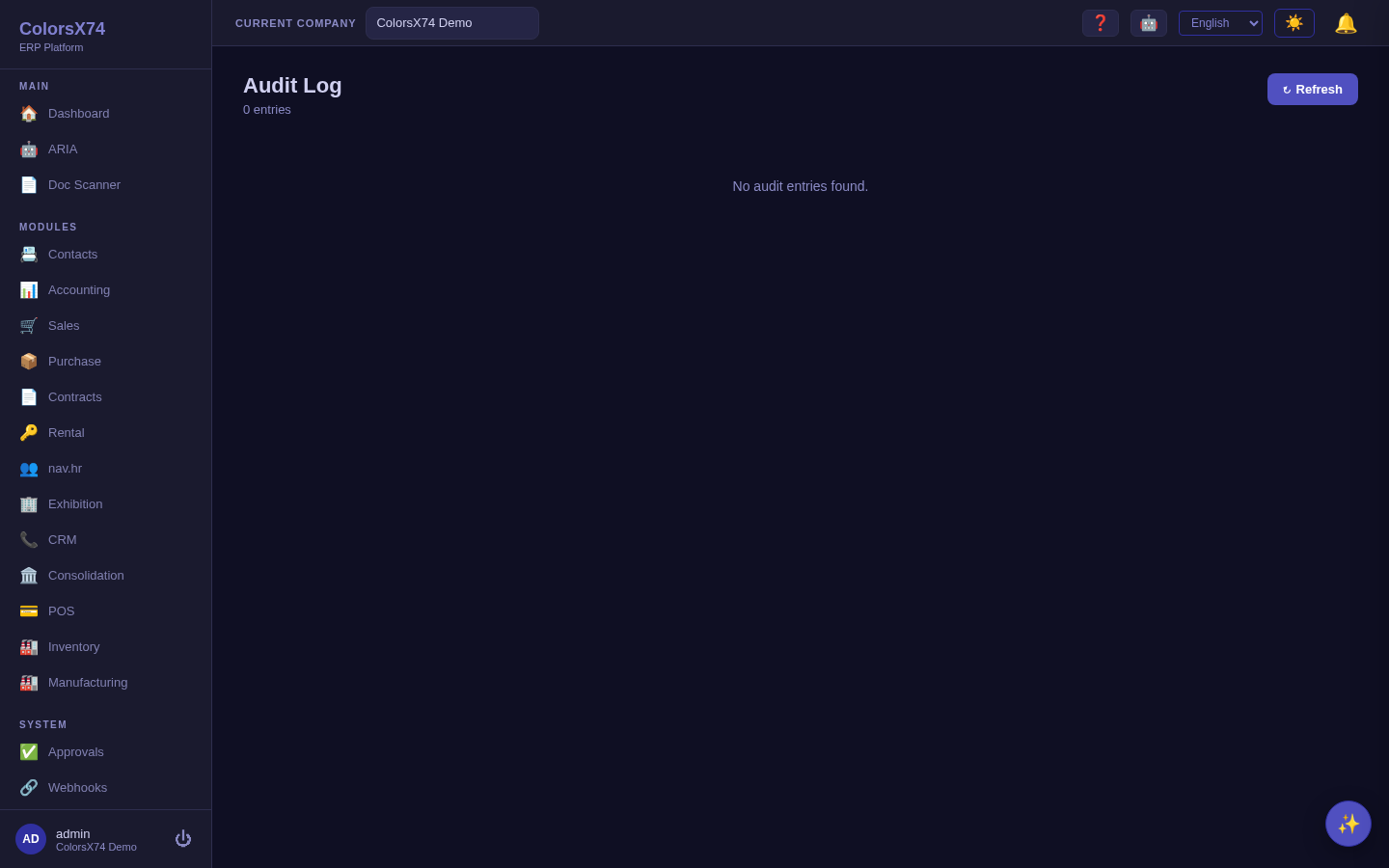
Use it wisely. Reach for the audit log first when investigating "who changed this?" rather than guessing. Treat it as read-only history — its value is that it cannot be quietly rewritten.
Sessions you can see and end. Every signed-in device shows up under Settings → Security → Active sessions — label, last activity, and IP. Sign out any single device you don't recognize, or use Sign out everywhere after a lost laptop or a suspected leak; administrators can also force-sign-out a user from every device. Signing in on a second device no longer ends the first one's session.
Tamper evidence, verified automatically. Every audit entry is cryptographically chained to the one before it, and the system re-verifies each company's recent chain daily in the background. If an entry is ever modified, deleted, or forged — even directly in the database — the check detects the break and alerts your administrators with a notification, in addition to the on-demand integrity check on the audit screen.
Approvals — control and segregation of duties
What it is. The Approvals screen is the worklist for items awaiting sign-off. It is how the system enforces that significant actions get a second pair of eyes.
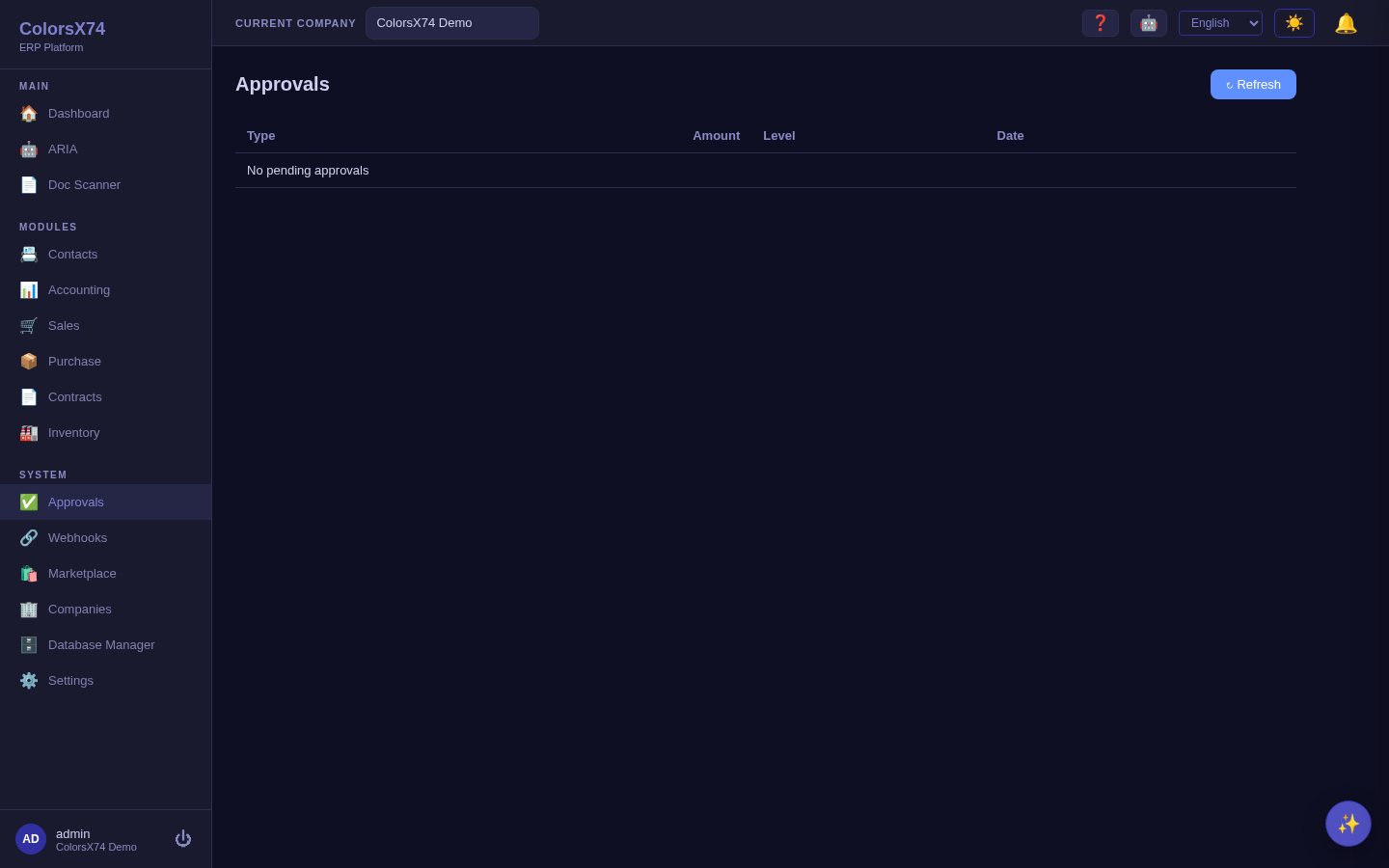
Use it wisely. Route material transactions through approvals and make the approver someone other than the originator. Clear the queue by deciding, not by ignoring; notifications surface waiting approvals so they do not stall work.
Webhooks and notifications
What it is. Webhooks let external systems receive events from the ERP for integration; Notifications (the toolbar bell) surface approvals, reminders, and background-job results inside the app.
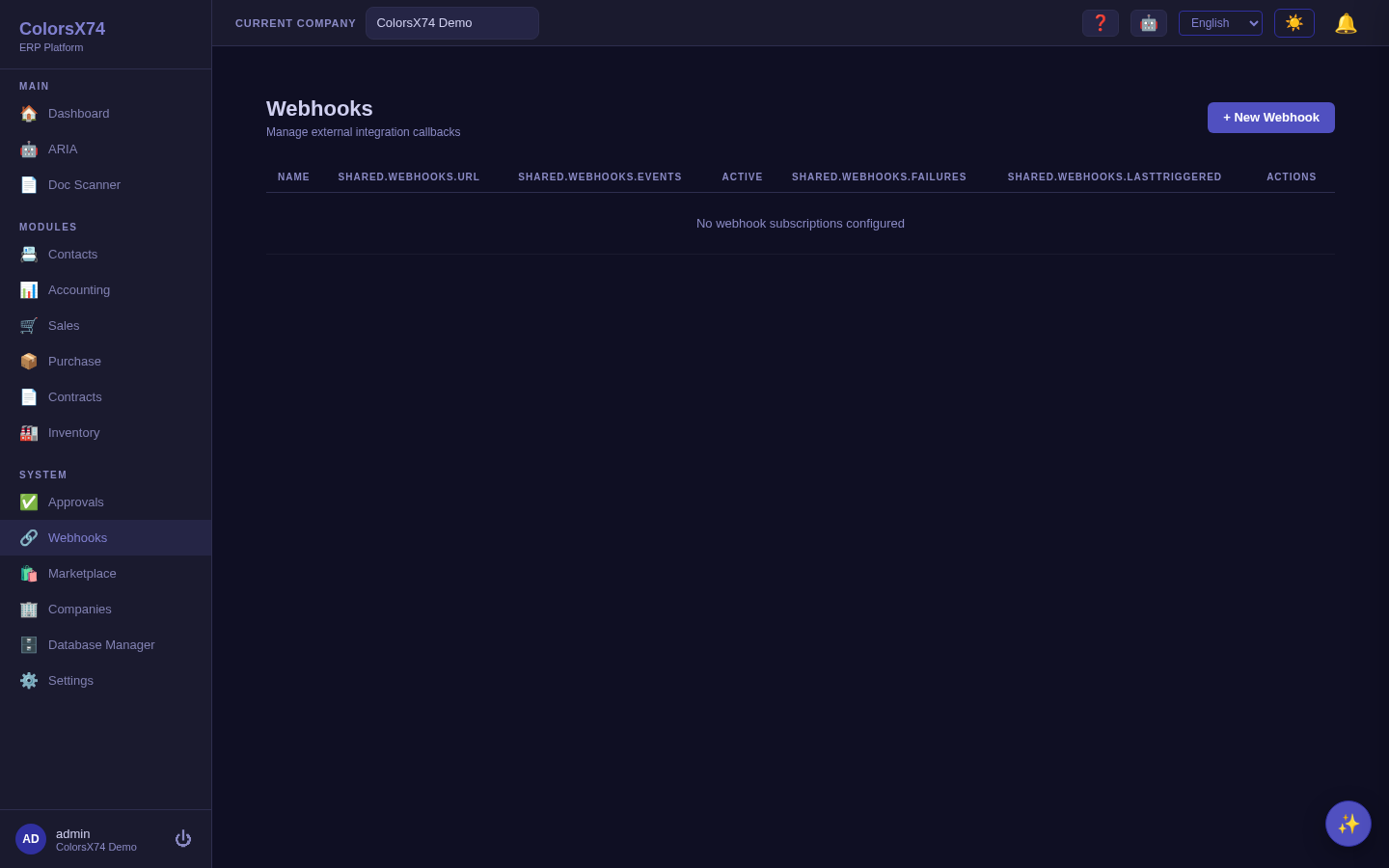
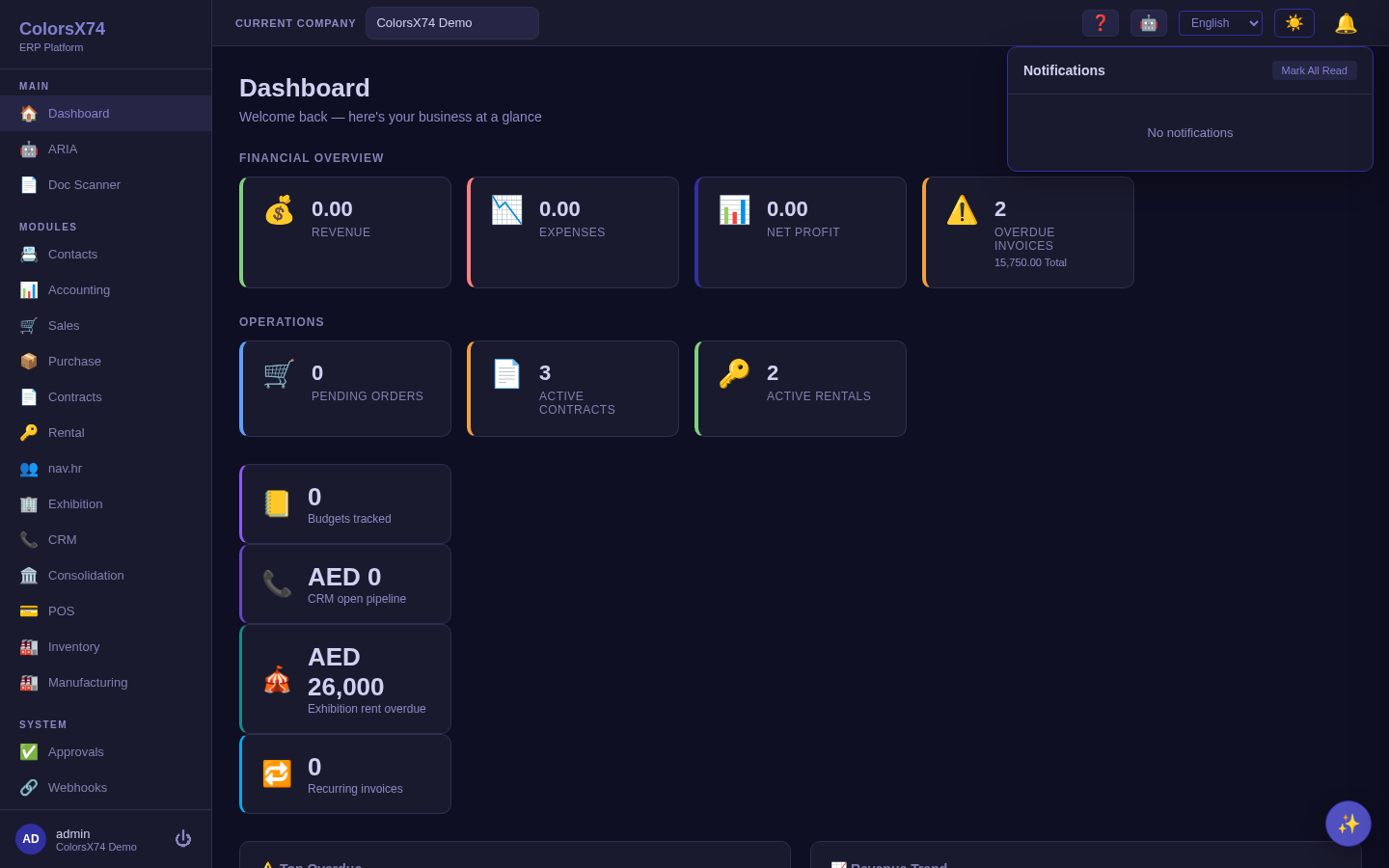
Use it wisely. Use webhooks for genuine event-driven integration rather than polling, and keep signing secrets and endpoint URLs in secure configuration, out of screenshots. Treat notifications as a worklist to act on, not noise to dismiss.
Credential resets and access revocation
Two administrative actions on a user — issuing a password-reset link and clearing multi-factor authentication (the lost-phone path) — are treated as credential takeovers, because together they hand over the account. They therefore carry the same ceiling as granting a role: you cannot reset credentials for a user who holds permissions you do not hold yourself, and nobody outside the platform-operator tier can reset an operator account — not even a full company administrator. If you see a refusal here, it is telling you the target out-ranks you; ask an administrator with the wider grant to perform it.
Revoking access revokes everything. Changing a password, choosing sign out everywhere, an administrator revoking a user's sessions, or a directory (SCIM) deactivation all now also revoke that user's MCP access tokens — the long-lived tokens an external AI agent uses to act as them. This is the point of those actions: after a suspected compromise there is no credential left alive. The affected tokens appear as revoked on Settings → MCP Tokens with the reason shown (“Revoked when the password was changed”, “Revoked by signing out everywhere”, and so on), so a token that stops working is never a mystery — issue a fresh one from the same screen.
Governance and security posture
Read the administration area as a set of guardrails working together: roles decide who can act, module access decides what is available and to whom, approvals add a second check on material actions, and the audit log records everything for review. Public documentation intentionally omits passwords, tokens, implementation logs, and private configuration — for customer support, collect screenshots and reproduction steps, never secrets.
Suggested demo flow
- Open Settings → General to frame the configuration hub.
- Show Users and Roles for least-privilege access control.
- Show Module Access to explain activation vs seats (the entitlement model).
- Touch Organization/Branches and the finance defaults (currencies, accounting, FX).
- Close with Audit Log, Approvals, and Webhooks/Notifications as the governance story.
Related pages
- Overview, login, and dashboard
- Accounting, reports, banking, tax, and payments
- Sales, purchase, contracts, and rental
- Inventory, manufacturing, marketplace, and add-ons
- Exhibition rental management
- AI, ARIA assistant, document scan & draft, and AI setup
- Troubleshooting, browser requirements, and support handoff