Demo data note: Screenshots use representative demo data captured from a live environment. Some lists show empty states where the demo tenant has not been seeded with sample records. Never use real customer records, secrets, payment keys, or private documents in a public demo.
Setup-time decisions that lock
Your base currency is chosen once. While a company has no posted journal entries you can change it freely — that is part of setting up. Once you have posted anything, it locks, and the system will tell you so. This is deliberate: every figure stored in your base currency (ledger lines, invoice and bill totals, customer balances) was calculated against it, so switching afterwards would silently re-label all of them without converting anything — your books would claim to be in a currency they were never kept in. If you genuinely need a different base currency, create a new company. Renaming the base currency's code is refused for the same reason.
Tax-inclusive pricing follows the tax. When a line uses one of your configured taxes, whether the price includes that tax is taken from the tax itself, so an invoice entered in the web app, the desktop app, or through an import all calculate the same net and tax. A free-text line — where you type a rate directly rather than picking a tax — keeps whatever you set on that line.
What the finance workspace is
The Accounting area is the double-entry heart of ColorsX74 ERP. Every commercial document elsewhere in the system — a sales invoice, a vendor bill, a customer payment, a fixed-asset purchase — ultimately lands here as a journal entry against the chart of accounts, and rolls up into the management reports. You open it from Accounting in the left navigation; the workspace presents an Overview tab plus dedicated screens for the chart of accounts, journal entries, source documents (invoices and bills), payments, the report set, bank reconciliation, and tax. Advanced finance (FX revaluation, budgets, fixed assets, payment-gateway configuration, the bank feed) lives behind the Advanced Features tab and is delivered by the accounting-advanced add-on.
Read this page top to bottom for a guided demo, or jump to the section you need: set-up (chart of accounts), daily posting (journals, invoices, vendor bills, payments), period close (reports, reconciliation), and control (tax, exemptions, multi-currency, advanced).
Chart of Accounts — the foundation
What it is. The Chart of Accounts (CoA) is the master list of ledger accounts — assets, liabilities, equity, income, and expenses — that every transaction posts to. ColorsX74 ships a default structure you can extend; each account has a type, a code, and a name.
How to use it. Open Accounting → Chart of Accounts. Use the search box to find an account by name or code, and the All Types filter to narrow to a single account class (for example, only expense accounts). Click + New Account to add an account: pick the account type first (it drives where the balance appears on the financial statements), give it a code that fits your numbering scheme, and name it clearly.
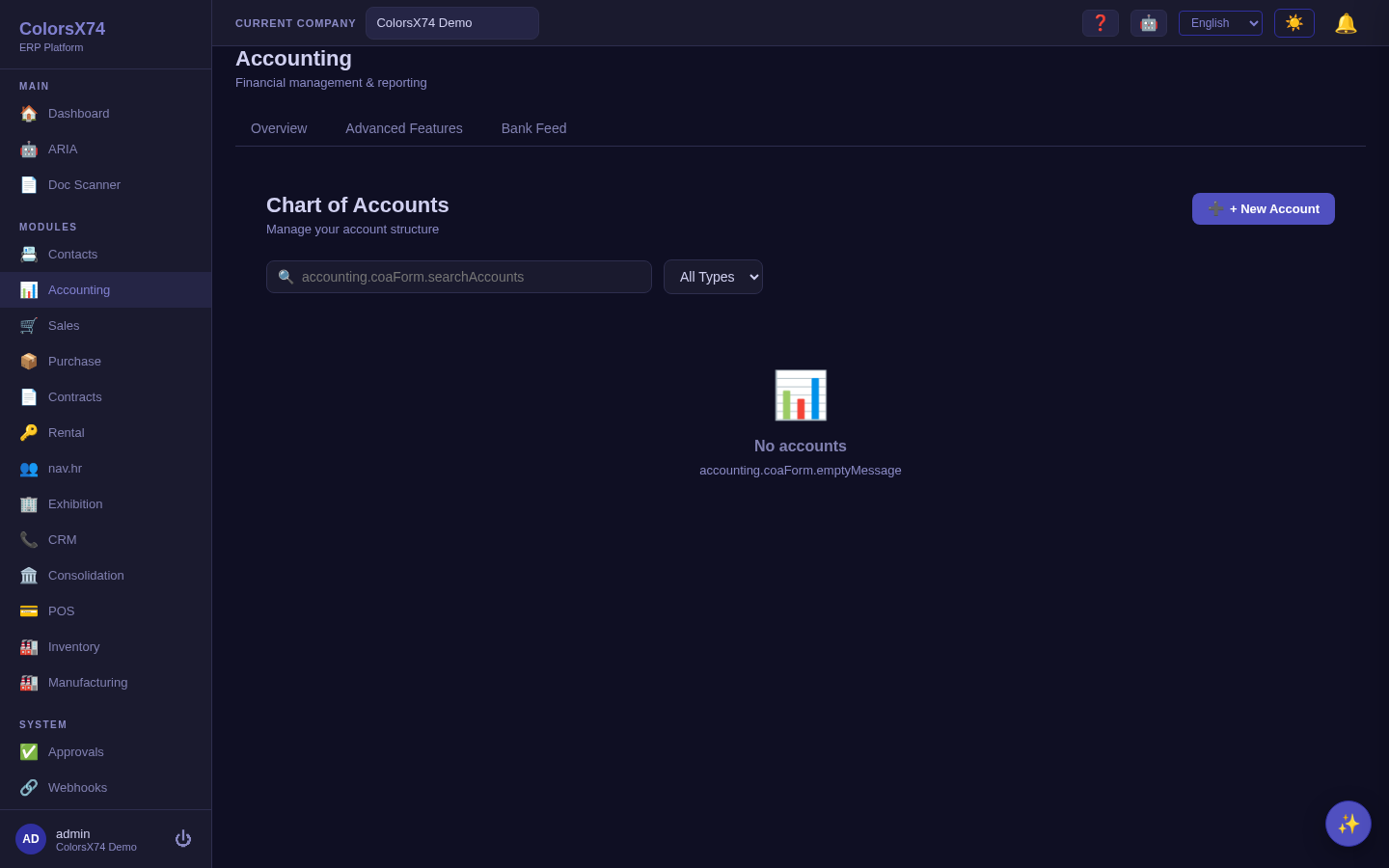
Use it wisely. Decide your numbering convention before you create accounts — a consistent code range per type (e.g. 1000s for assets, 4000s for income) keeps reports readable for years. Resist the urge to create a new account for every minor expense; prefer a smaller set of well-named accounts and use other dimensions (departments, projects) for analysis. Once an account has postings against it you cannot simply delete it — you deactivate it — so think about granularity up front.
Journal Entries — manual postings and the audit trail
What it is. A journal entry is a balanced set of debits and credits posted to the ledger. Most entries are created automatically from invoices, bills, and payments; the Journal Entries screen is where you record the things that have no source document — opening balances, accruals, depreciation, corrections, and period-end adjustments.
How to use it. Open Accounting → Journal Entries to review what has posted. To add an adjustment, create a new entry, set the date and a clear description, then add lines until total debits equal total credits — the system will not let you post an unbalanced entry. Each line carries the account, a debit or credit amount, and an optional memo.
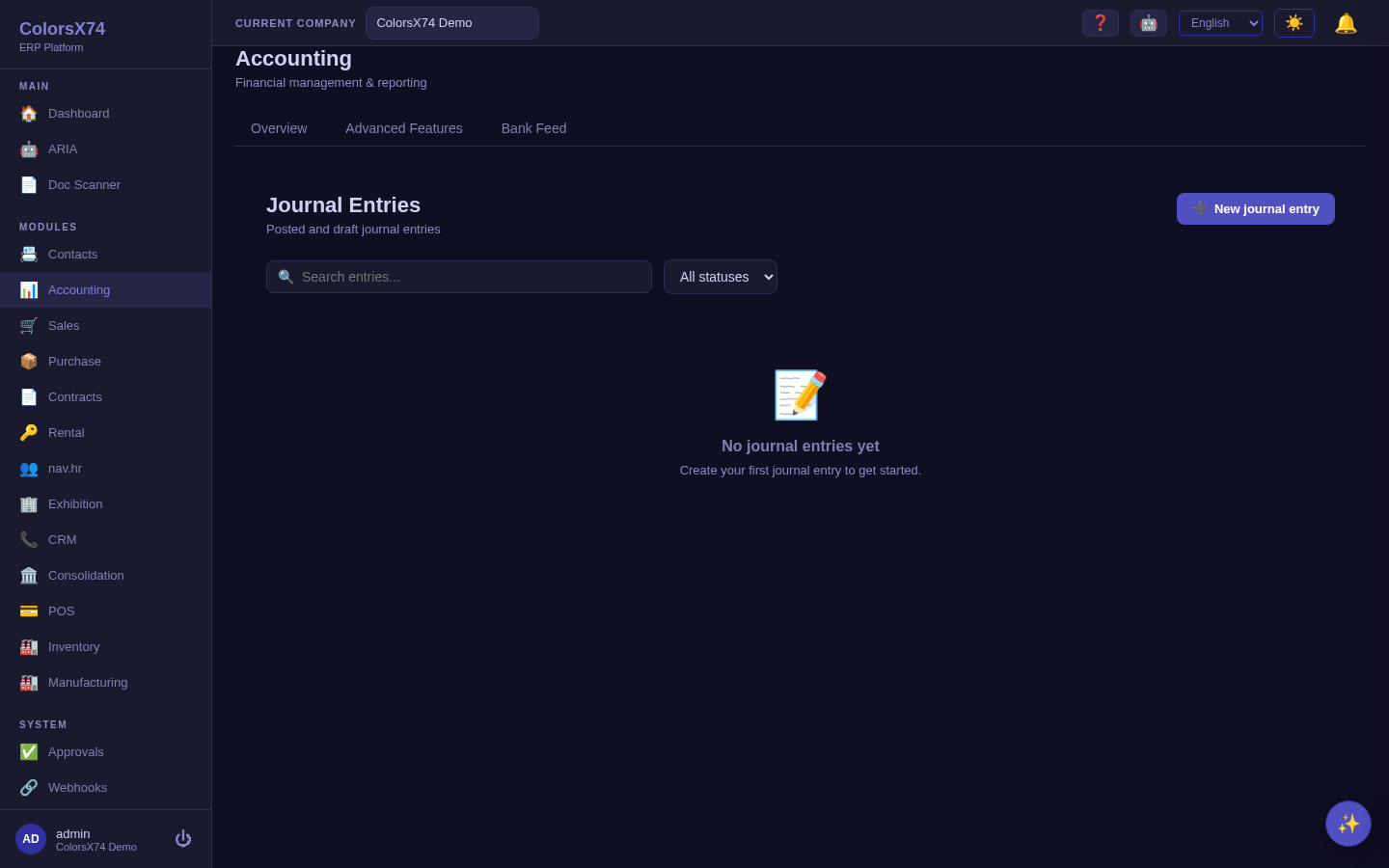
Use it wisely. Write descriptions a colleague (or an auditor) can understand months later — "Q2 prepaid insurance amortisation" beats "adjustment". Use dated reversing entries for accruals so they self-cancel next period instead of lingering. Keep manual entries to genuine adjustments; if you find yourself routinely journalling something that has a document behind it, post it through the proper invoice/bill screen so the subledger and reports stay consistent.
Customer Invoices — receivables
What it is. Invoices represent what customers owe you. They post revenue and a receivable, drive the aging report, and are the documents customers pay against.
How to use it. Open Accounting → Invoices for the receivables view, or create invoices from the Sales workspace where they link back to orders. Each invoice carries a customer, dates (issue and due), line items with tax, and a running status (draft, sent, paid, overdue). Record a receipt against an invoice from the Payments screen to clear the balance.
Payments on the invoice. Open an invoice and its Payments card lists every receipt applied to it (it used to show empty even when payments existed). Each row shows the net amount, which is what was received minus anything refunded, with a green Applied tag, or a yellow Refunded tag once money has gone back. A refund cannot be larger than what is still left on that payment, and the Refund button disappears when nothing is left to refund.
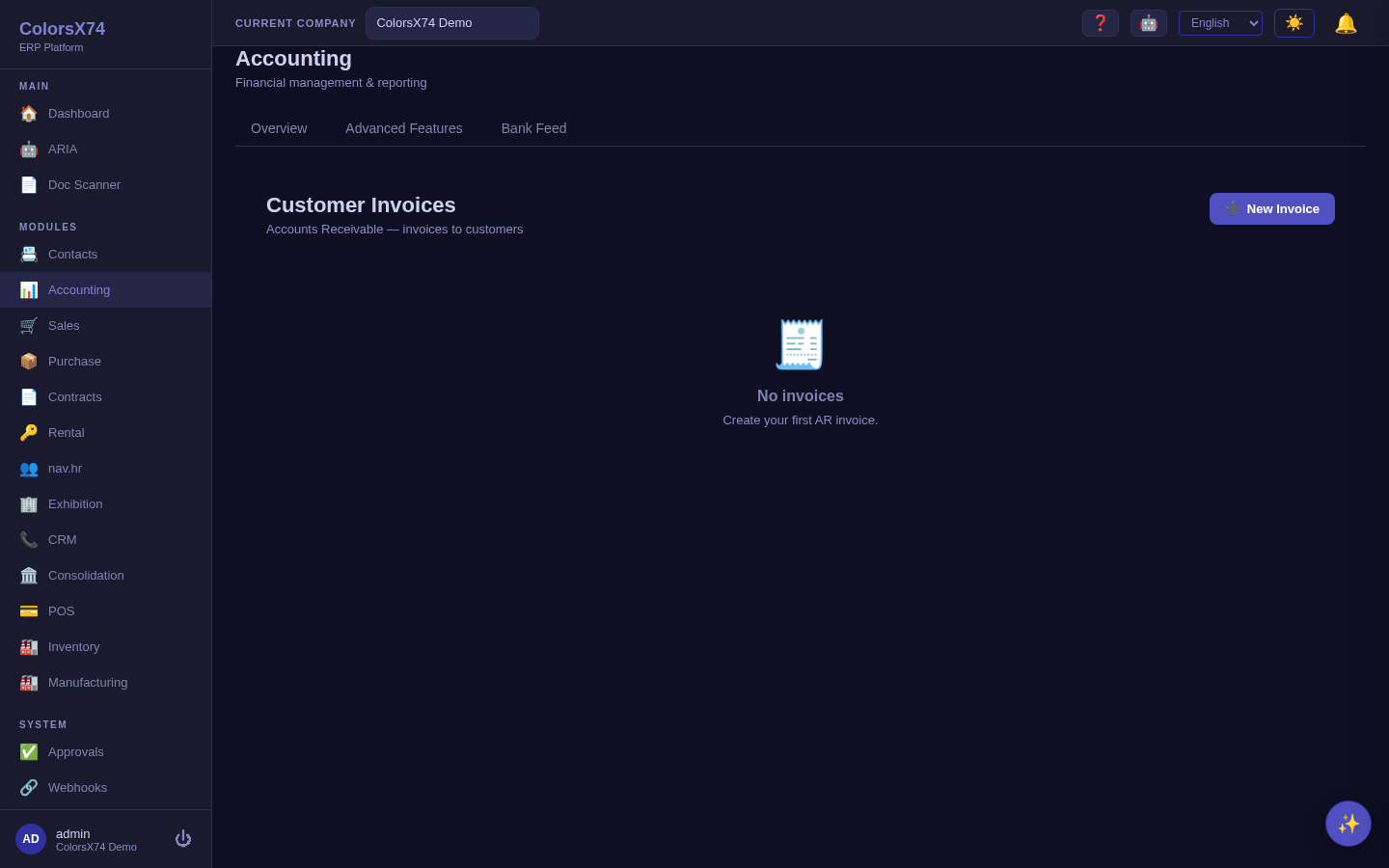
Drafts don't take a number. A draft — a sales invoice, a vendor bill or a journal entry — carries a provisional reference in its own DRFT- series rather than a number from the legal series. It earns its real number at the moment it becomes real: when you issue an invoice, submit a bill, or approve a journal entry. This is deliberate. Tax-invoice, payable and general-ledger series are expected to be gapless, and a draft is the document most likely to be edited away or deleted — so a draft that had already taken INV-2026-000042 would leave a permanent hole nobody could explain to an auditor. A DRFT- reference also makes an unposted document unmistakable in any list, search or export. A draft posts nothing to the ledger, moves no balance, and appears in no aging or statement until it is issued.
A draft reference is never reused. Because a draft leaves its series the moment it is approved — and can be deleted outright — the highest draft reference in use goes down as well as up. Drafts therefore draw from a counter that only ever moves forward, so a reference you noted while a document sat in review will never come back attached to somebody else's work. The counter is allowed to skip; a provisional reference is not a legal series, so a gap in it means nothing. The gapless guarantee applies where it matters — the posted JE-, INV- and bill series, which are unaffected by any amount of draft activity.
Use it wisely. Set realistic payment terms and let the due date drive your follow-up rather than chasing every invoice manually. Keep draft invoices truly draft — they should not hit the ledger until issued. Reconcile the invoice subledger to the receivables control account regularly; if they drift apart, the cause is almost always a manual journal that bypassed the subledger.
Vendor Bills — payables
What it is. Vendor bills are what you owe suppliers. They post an expense (or an asset) and a payable, and they are the payables side of the aging report.
How to use it. Open Accounting → Vendor Bills, or let bills flow in from the Purchase workspace where they can be three-way matched against a purchase order and a goods receipt. Capture the vendor, bill date and due date, lines and tax, then pay it from the Payments screen when due.
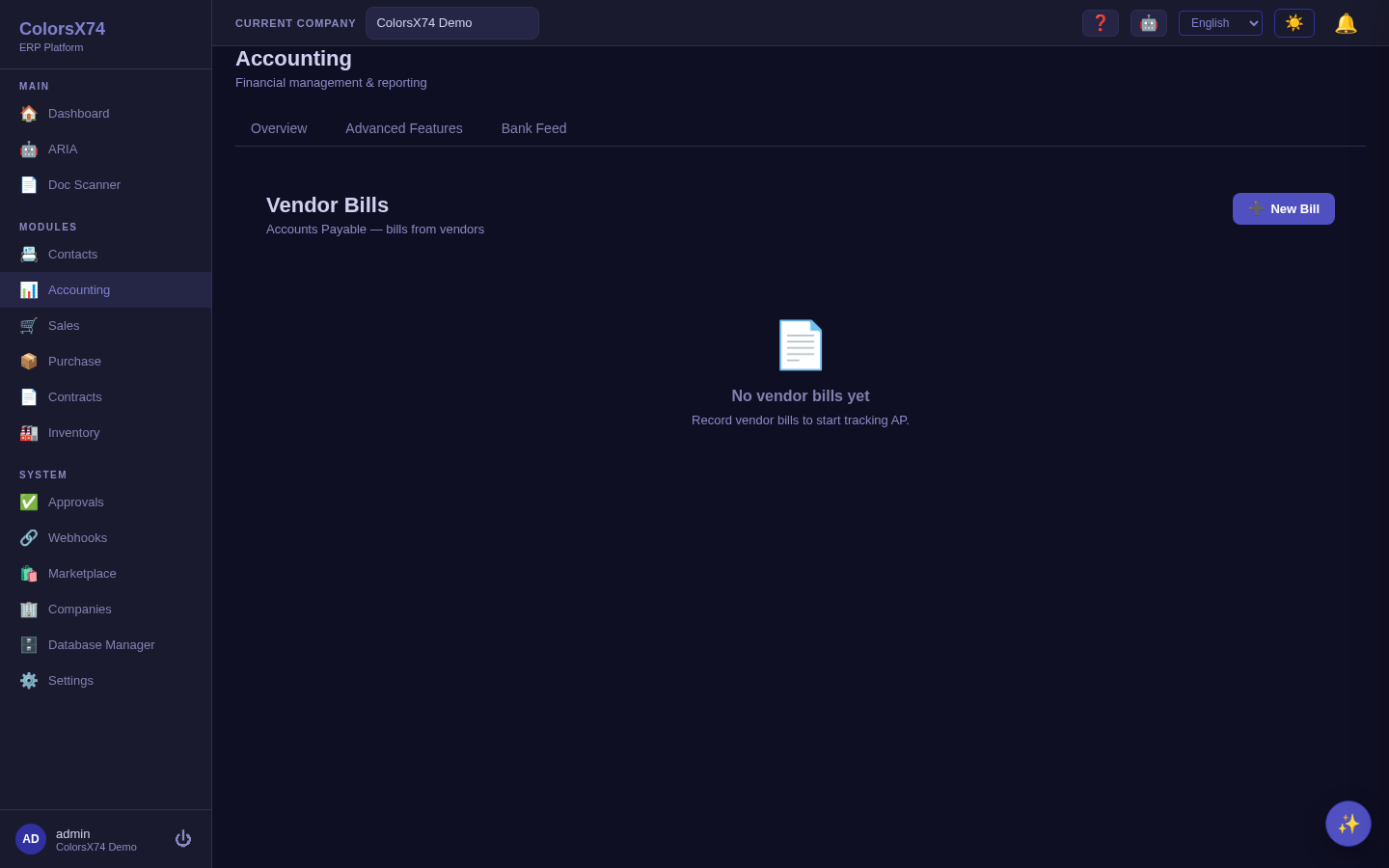
Use it wisely. Enter the bill date as the supplier's date, not the date you keyed it, so your period cut-off is correct. Use the due date to schedule payments and protect cash — paying early gives up float, paying late risks the relationship. For anything sourced through Purchase, match before you approve: the three-way match is your strongest control against duplicate and fraudulent invoices.
Payments — money in and out
What it is. The Payments screen records cash movements: customer receipts that clear invoices, and supplier payments that clear bills. Each payment links to the document it settles and to a bank or cash account.
How to use it. Open Accounting → Payments. Record a receipt or payment, choose the account it moved through, and allocate it to one or more open documents. Partial payments and allocations across several invoices are supported, so a single customer remittance can clear multiple invoices at once.
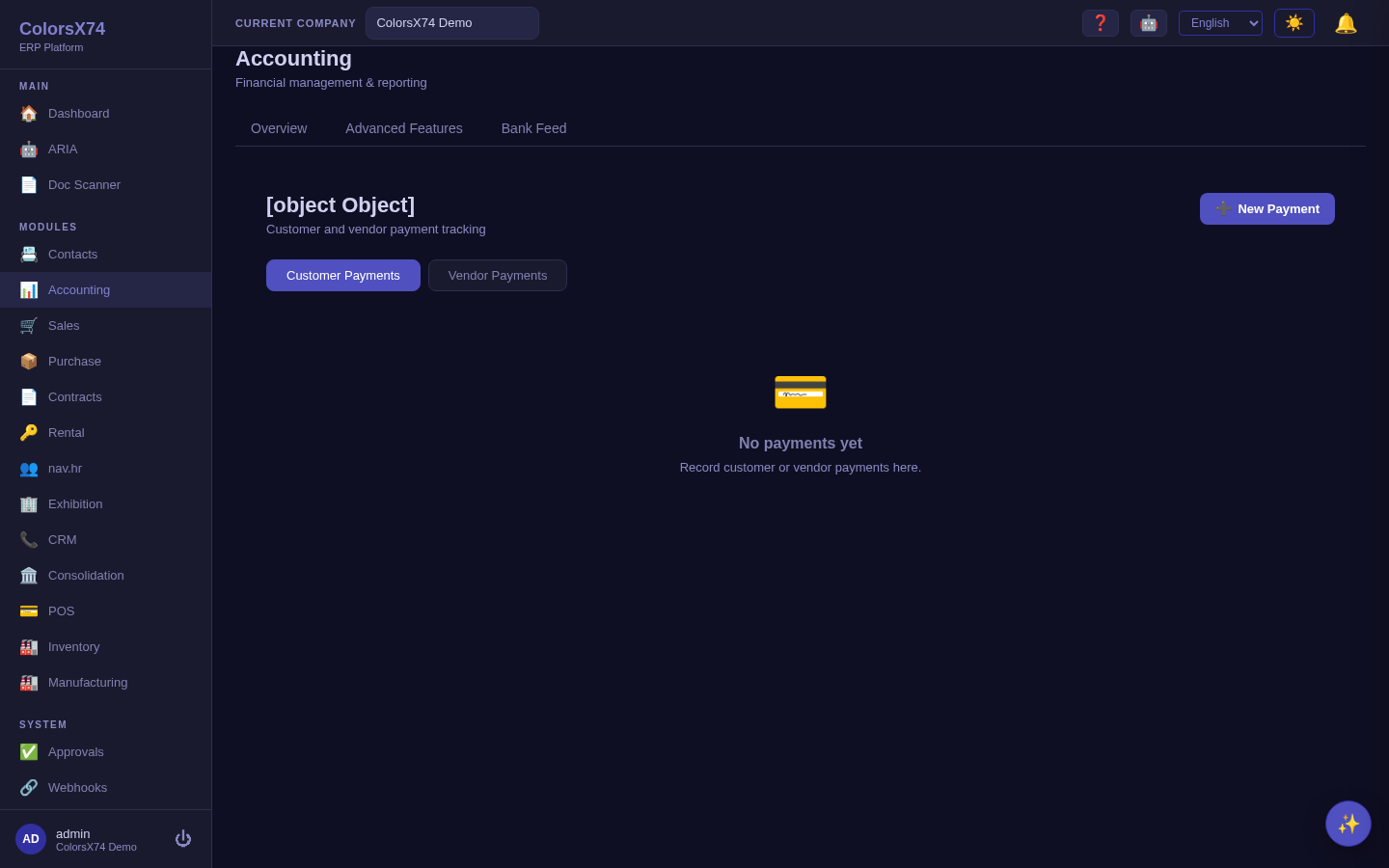
Use it wisely. Always allocate a payment to the specific document(s) it settles rather than leaving it on account — unallocated cash distorts aging and makes reconciliation harder. Record the payment against the bank account it actually used; that is what makes the later bank reconciliation tie out cleanly.
Withholding tax on supplier payments. When you pay a vendor net of tax withheld at source, enter the withheld amount on the payment. The vendor is paid the net cash while the amount you held back is booked to a Withholding Tax Payable account (2135), and the bill still clears in full — so the supplier's balance closes correctly and the tax you owe the authority sits on its own liability line, ready to remit. Withholding currently applies to payments in your base currency; the withheld amount must be less than the payment. (If your chart of accounts predates this feature, run Set up / Repair on the company once so the Withholding Tax Payable account is added.)
Collections & dunning — automated overdue reminders
What it is. Collections turns the aging report into action: once enabled, the system emails customers about their overdue invoices on an escalating schedule — a friendly first reminder, a firmer second notice, and a final notice — each listing the open invoices in their own currencies, with the customer's statement of account attached as a PDF. Credits on account are netted automatically, so a customer whose credit notes cover their balance is never chased for money they don't owe.
How to use it. Open Accounting → Collections. Set the escalation thresholds (days past due for each level), a minimum amount, how often a level may repeat, and a daily send cap. Review the preview first — it shows exactly who would be emailed and at what tone before you switch reminders on. The reminders log doubles as your collections worklist: failed sends and customers with no email on file surface there for follow-up, and a Remind now button sends an immediate reminder to a specific customer (at most once per 24 hours).
Use it wisely. Reminders only go out when company email (SMTP) is configured and enabled under Settings → Email, and dunning itself is off until you enable it — so nothing reaches a customer until both switches are deliberately on. Groom the ledger with the preview before the first enablement; the daily cap paces the initial catch-up on an old backlog.
Expense claims — paying people back
An employee who spends their own money files an expense claim under Accounting → Expense claims: one line per receipt, each charged to its own account, because a single trip routinely mixes travel, meals and stationery. A claim starts as a draft and posts nothing until a manager approves it. Nobody can approve their own claim, so the approve control is simply not offered on your own rows rather than being offered and then refused.
Approving recognises what the company owes the employee; Reimburse records the payment and clears it, so “what do we owe our people?” stays answerable.
Spending on a company card
An expense paid on a company card or account is filed the same way, with Paid by → Company card. The difference is what happens afterwards: an employee is owed their money back, while a company card was already paid — the money left when the card was used. A card expense is therefore complete the moment it is approved, and cannot be reimbursed.
It is still worth recording. The bank statement shows that money left, but not what it was for: this is where the receipt, the tax and the expense account for each line live. You may name the account the card settles against, or leave it on the company default.
Scanning a receipt
📷 Scan receipt reads a photographed or scanned till slip and fills in a line — the amount, the date and the merchant. It fills a line, it never files a claim: text recognition is a best effort, so the person holding the receipt checks it before saving. If the amount could not be read, the screen says so rather than leaving a silent blank.
The amount is taken as the total printed on the receipt, tax included, so leave the tax rate at zero unless you are deliberately splitting the tax out.
Receipts are read on our own server. A scanned receipt is never sent to an outside text recognition service. If no local recognition engine is available, scanning reports that plainly instead of falling back to one.
Management reports — proving the numbers
Control reconciliation (added 29 August 2026). A detective report that answers one question: does the receivables/payables balance in the general ledger match what the customer and vendor aging can explain? It breaks each control account down by posting source and flags any source that has no business touching that account — for example, a depreciation entry landing in Accounts Receivable, which is the real mistake that motivated the report. A flagged row is an invitation to review, not an accusation: open the general ledger for the account and date, and see which document put it there.
What it is. The report set turns posted activity into the statements a manager, lender, or auditor expects. ColorsX74 ships the Trial Balance, Profit & Loss, Balance Sheet, Aging, General Ledger, and Cash Flow as core reports; Budget Variance and Comparative P&L are part of advanced finance.
How to use it. Each report lives under Accounting and takes a date or date-range. Start with the Trial Balance to confirm the books balance, then read the P&L for performance and the Balance Sheet for position. Drill from a summary line into the General Ledger to see the underlying entries.
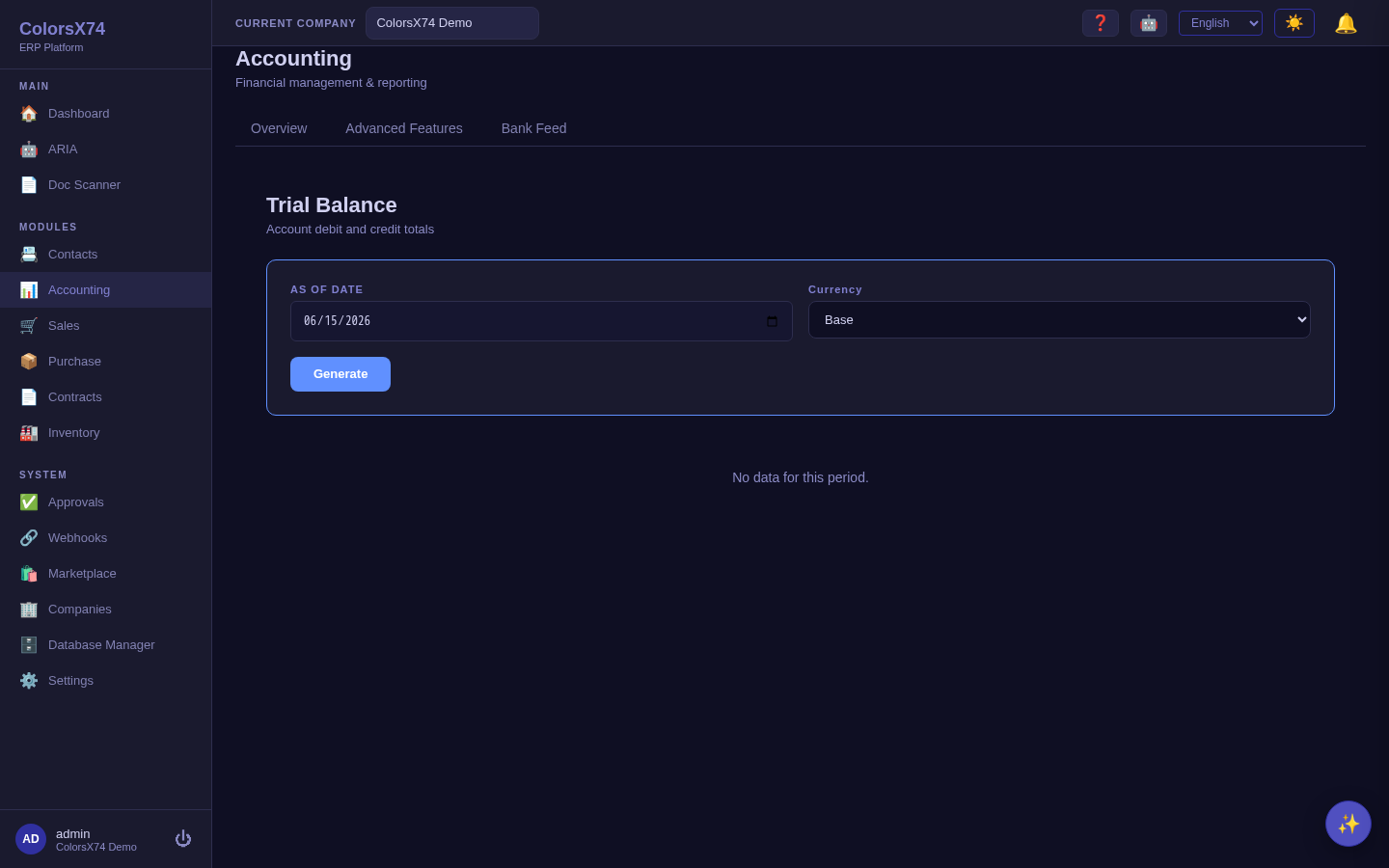
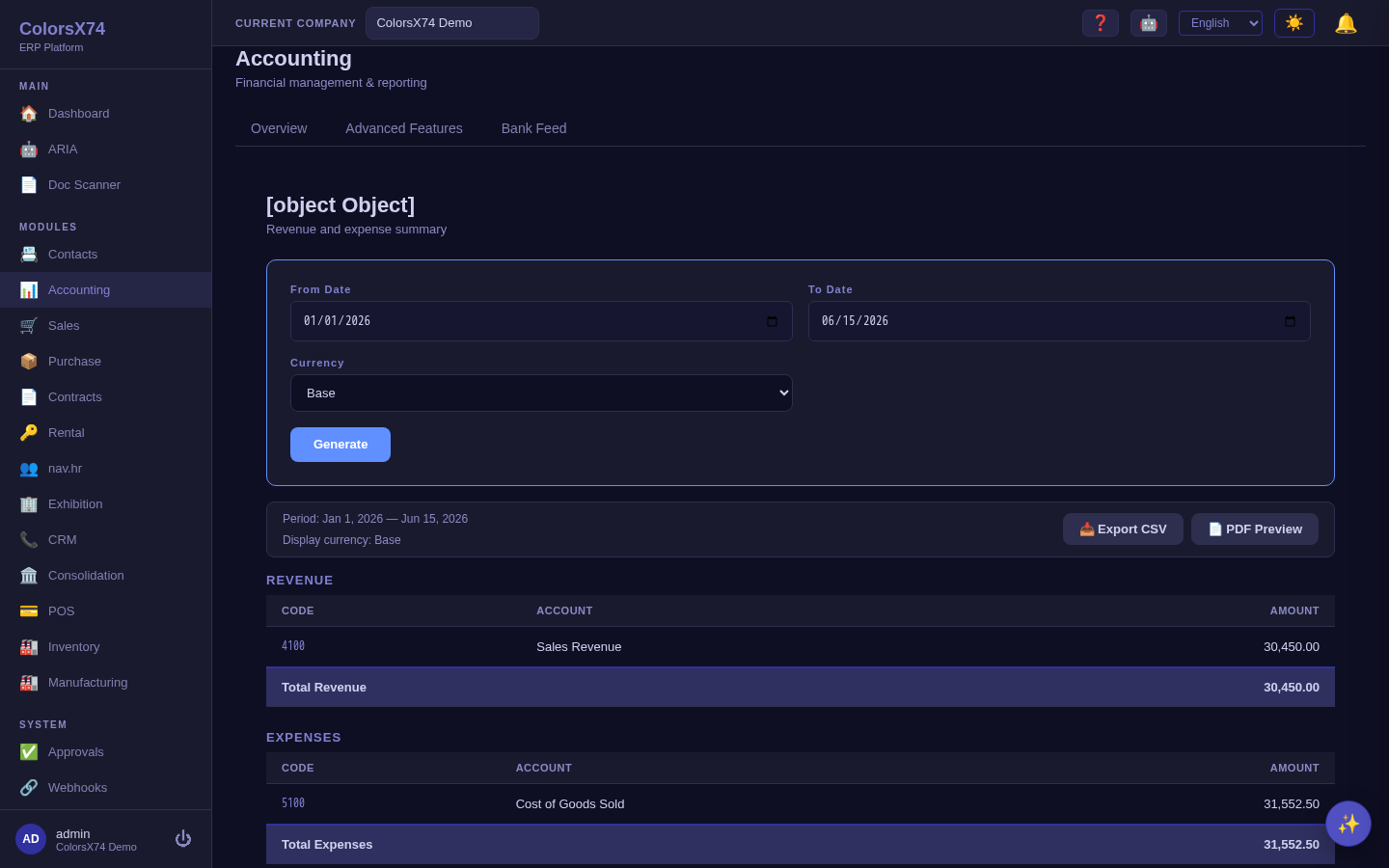
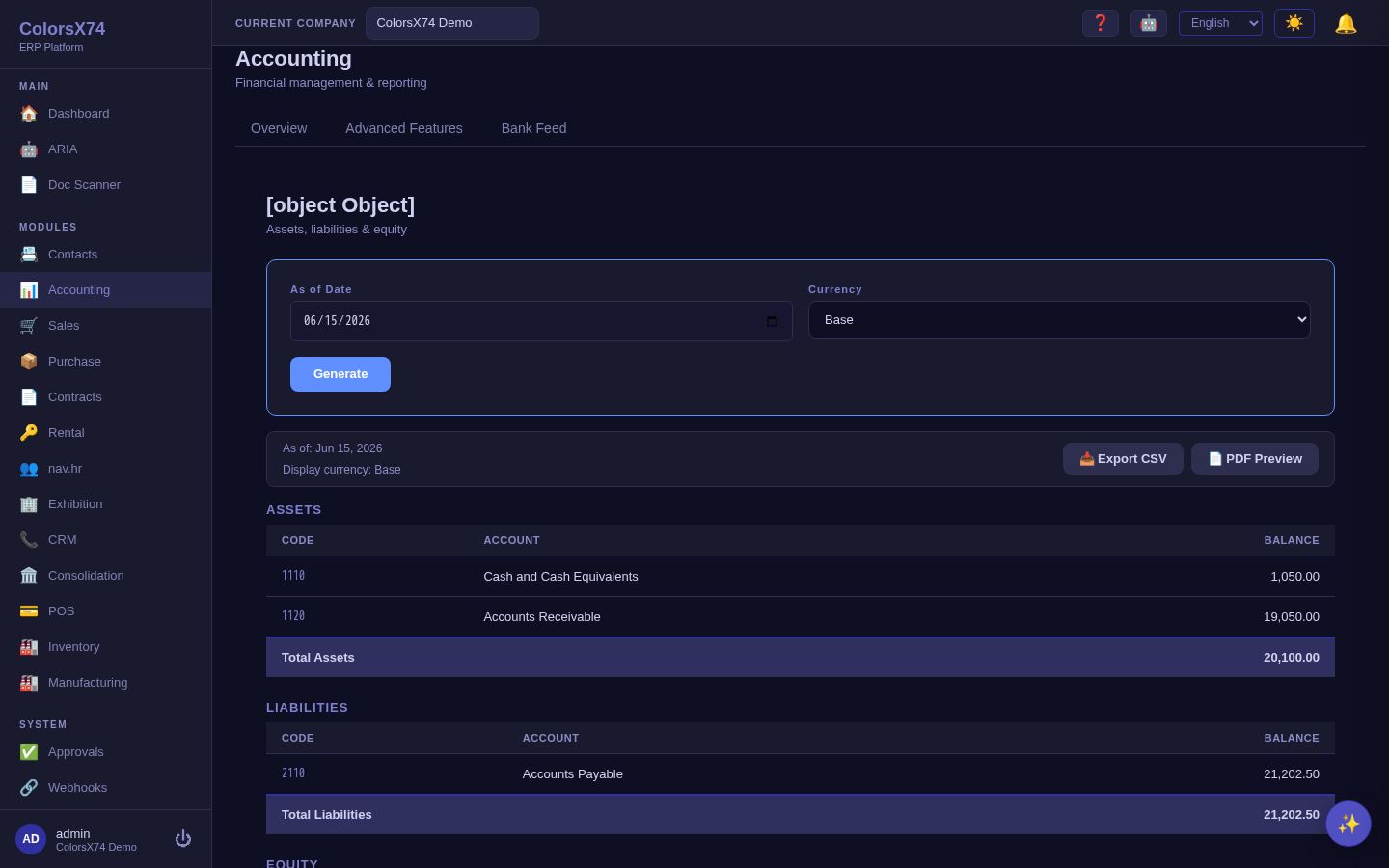
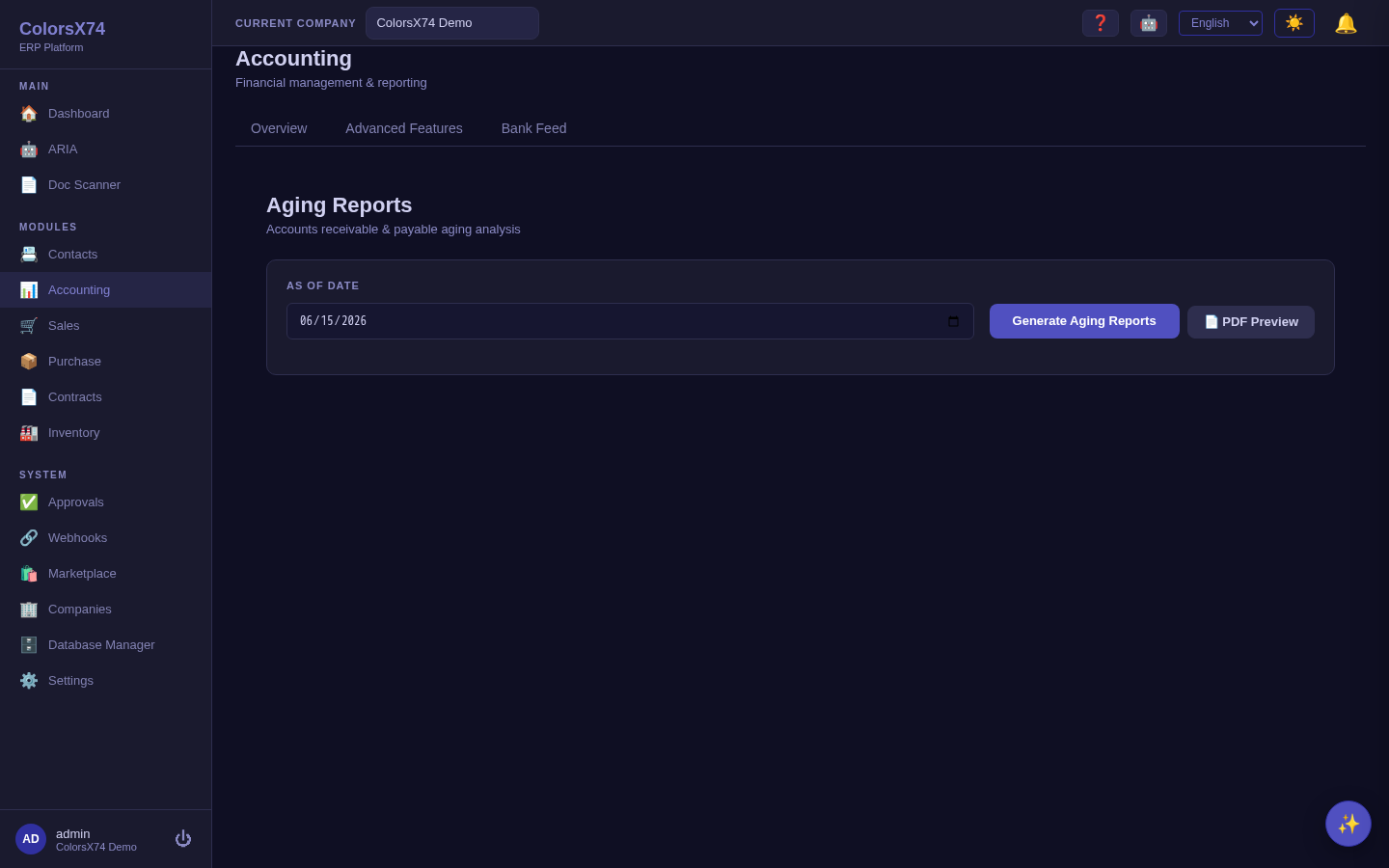
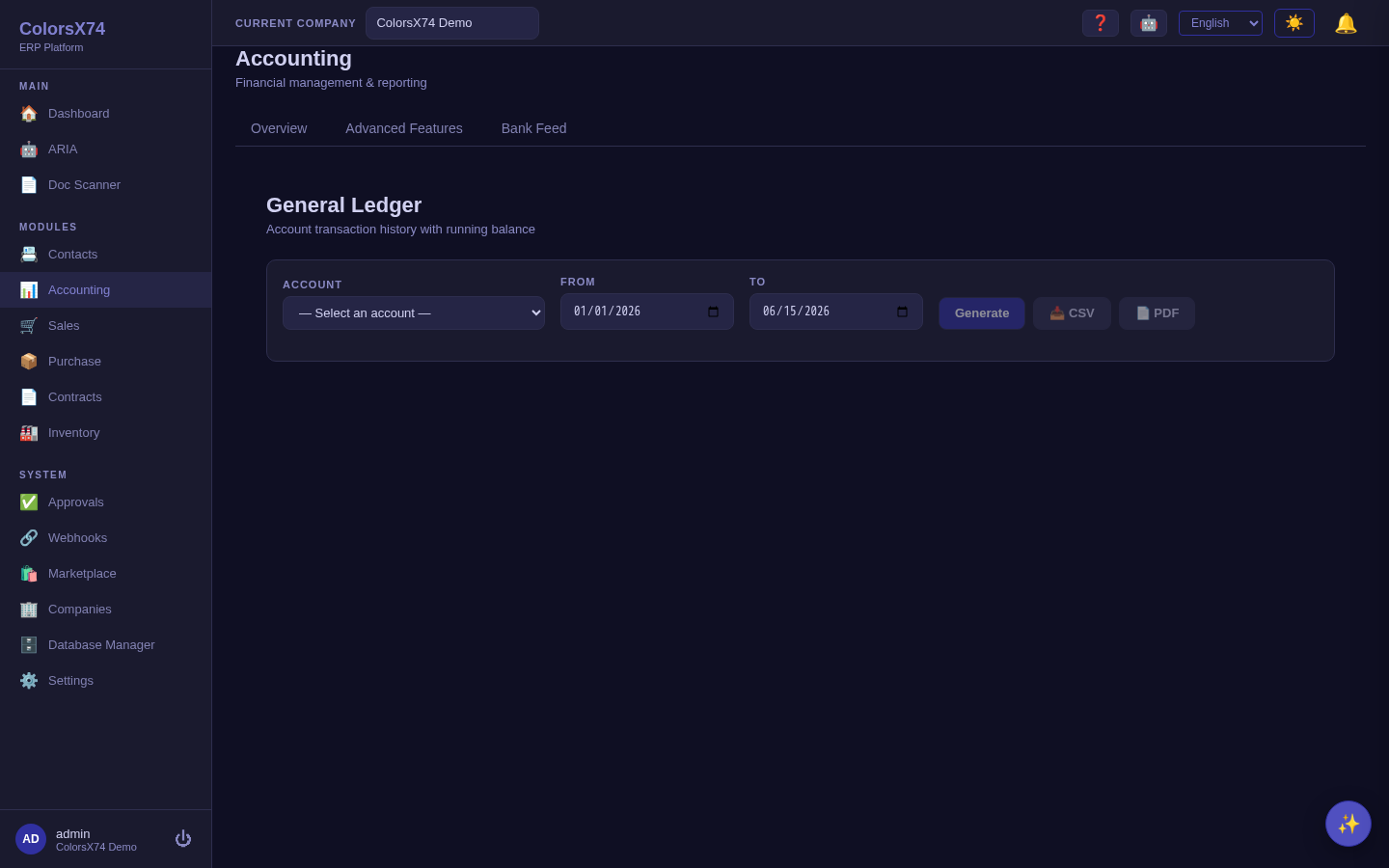
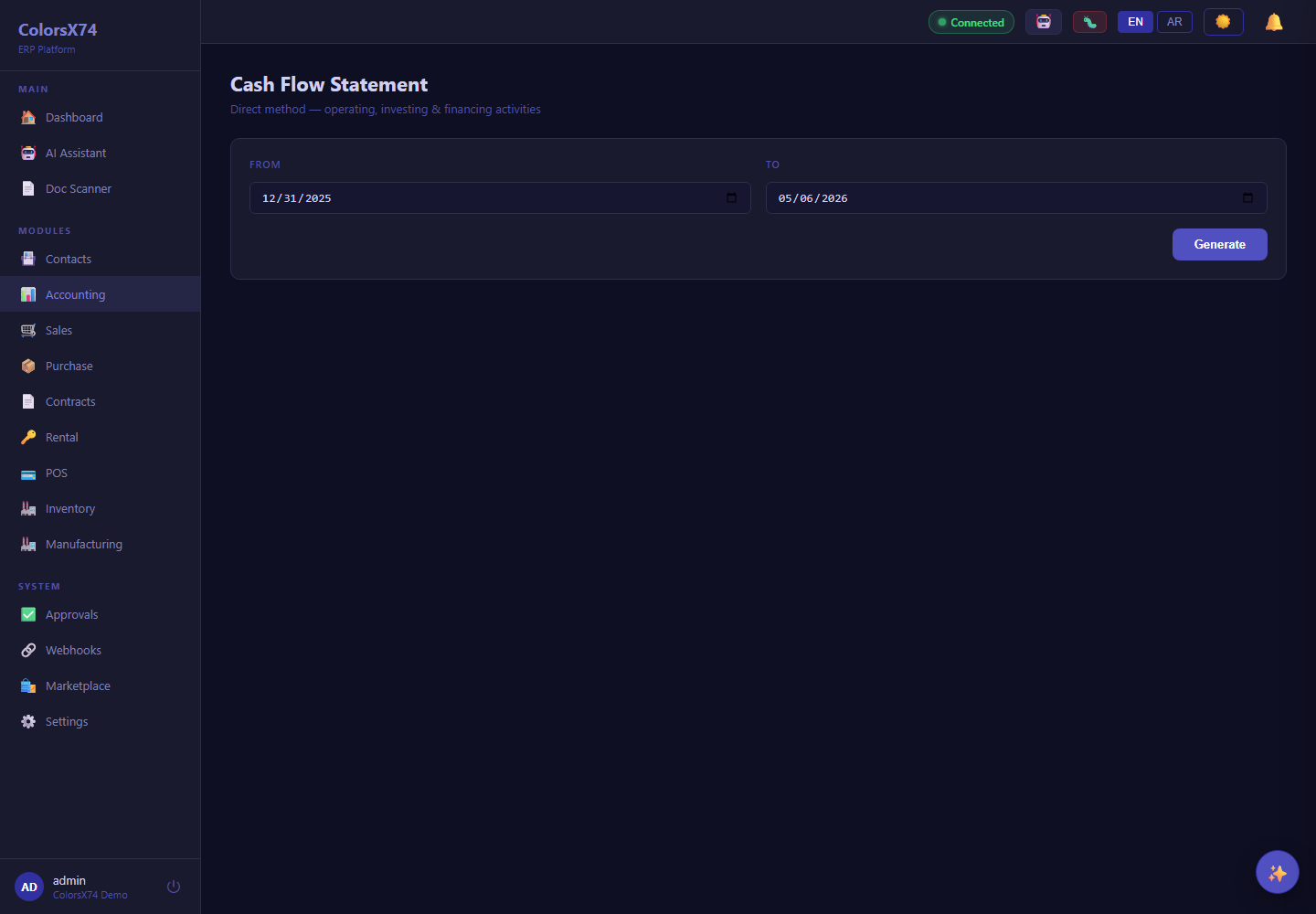
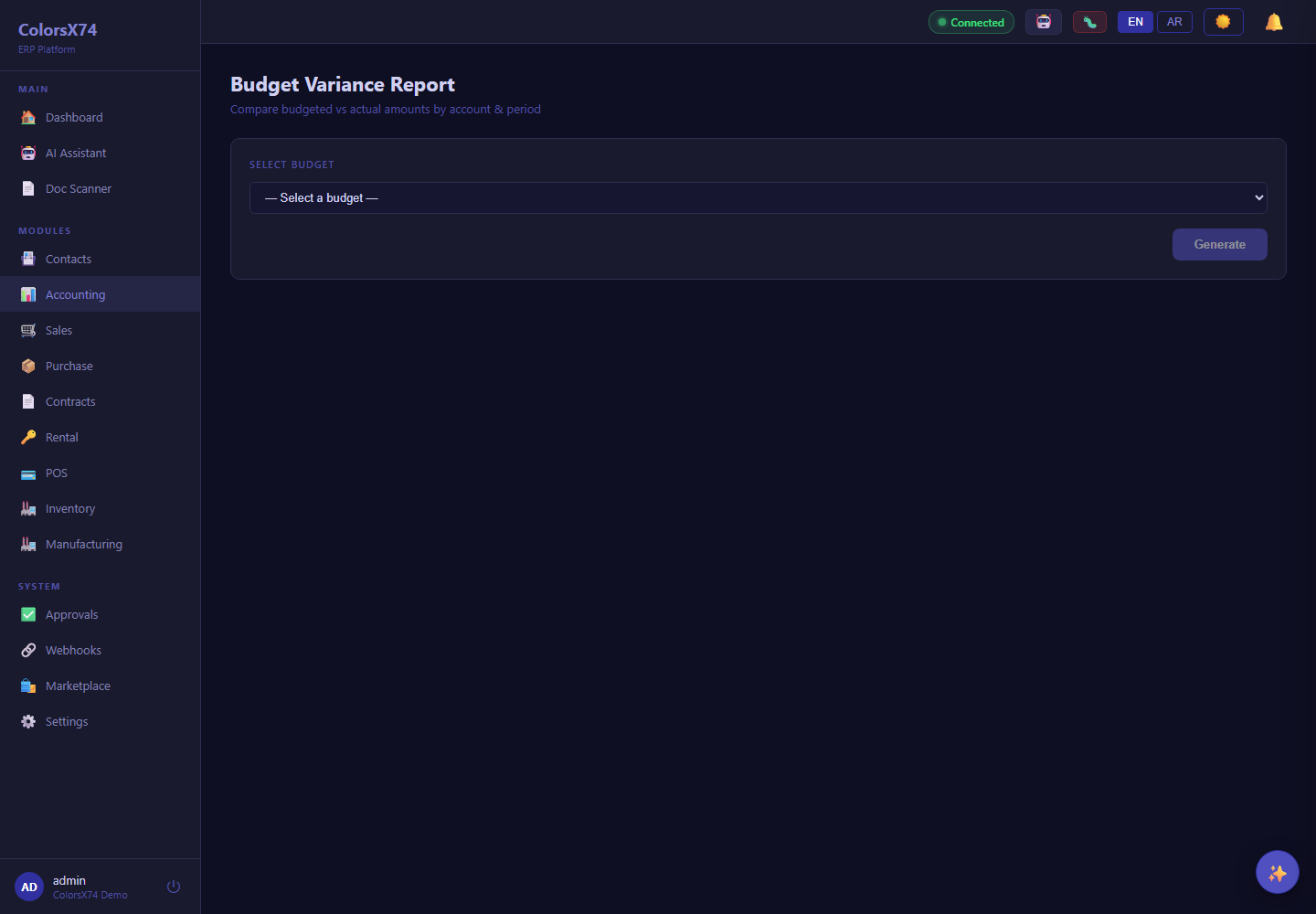
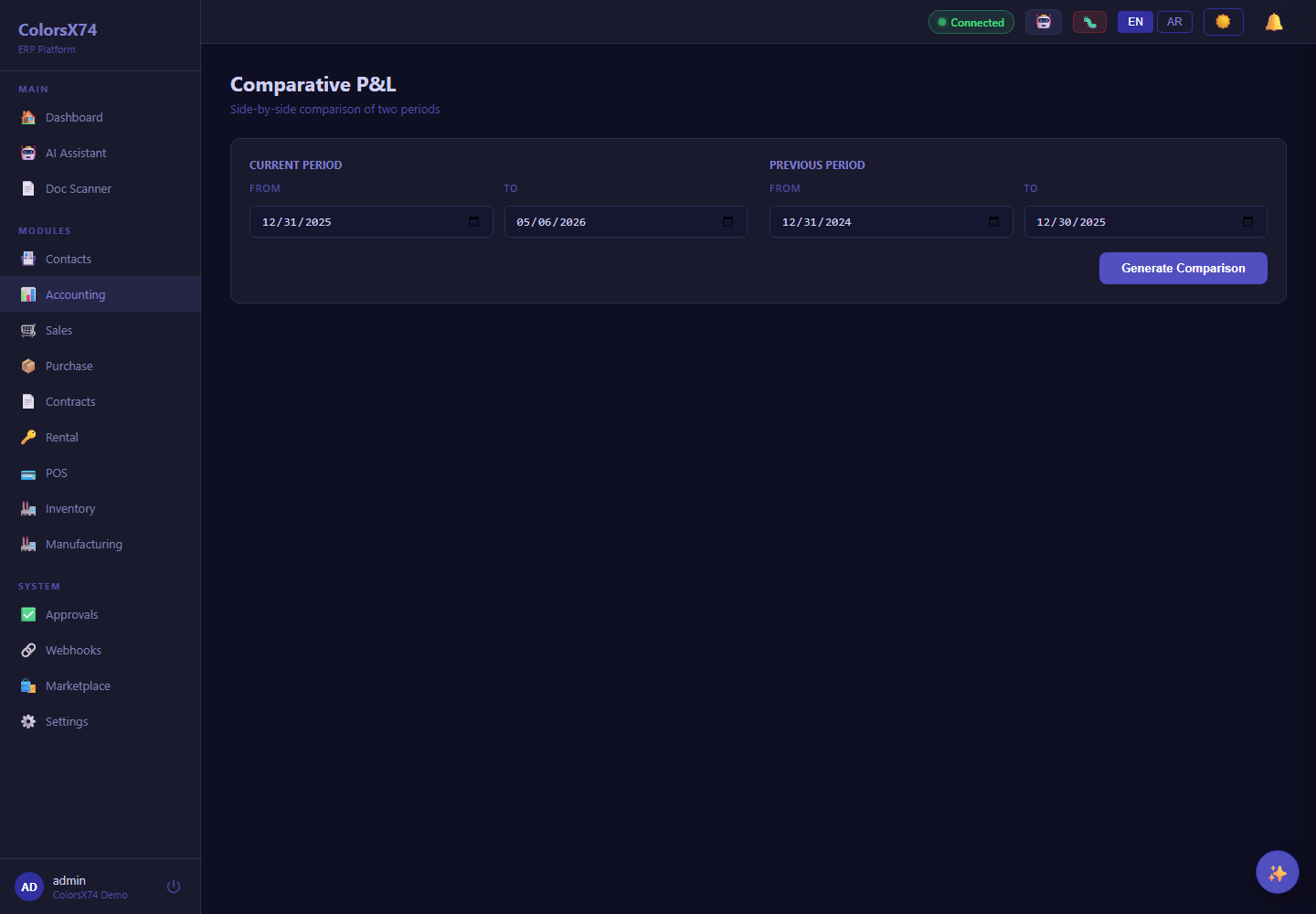
Use it wisely. Close in order: reconcile bank and subledgers, post adjustments, then run the Trial Balance — only trust the P&L and Balance Sheet once the trial balance is clean. Read the Aging and Cash Flow together with the P&L; a profitable period with deteriorating aging and falling cash is a warning, not a celebration. When a figure surprises you, drill into the General Ledger rather than guessing.
Bank reconciliation
What it is. Reconciliation matches what the ledger says happened in a bank account against what the bank statement says. It is how you catch missing entries, duplicates, and bank charges before they pollute the accounts.
How to use it. Open Accounting → Bank Reconciliation, pick the account and statement period, and match each statement line to its ledger payment or receipt. Unmatched items on either side are exactly the work to investigate. The Banking area gives the bank-account overview that this screen reconciles against.
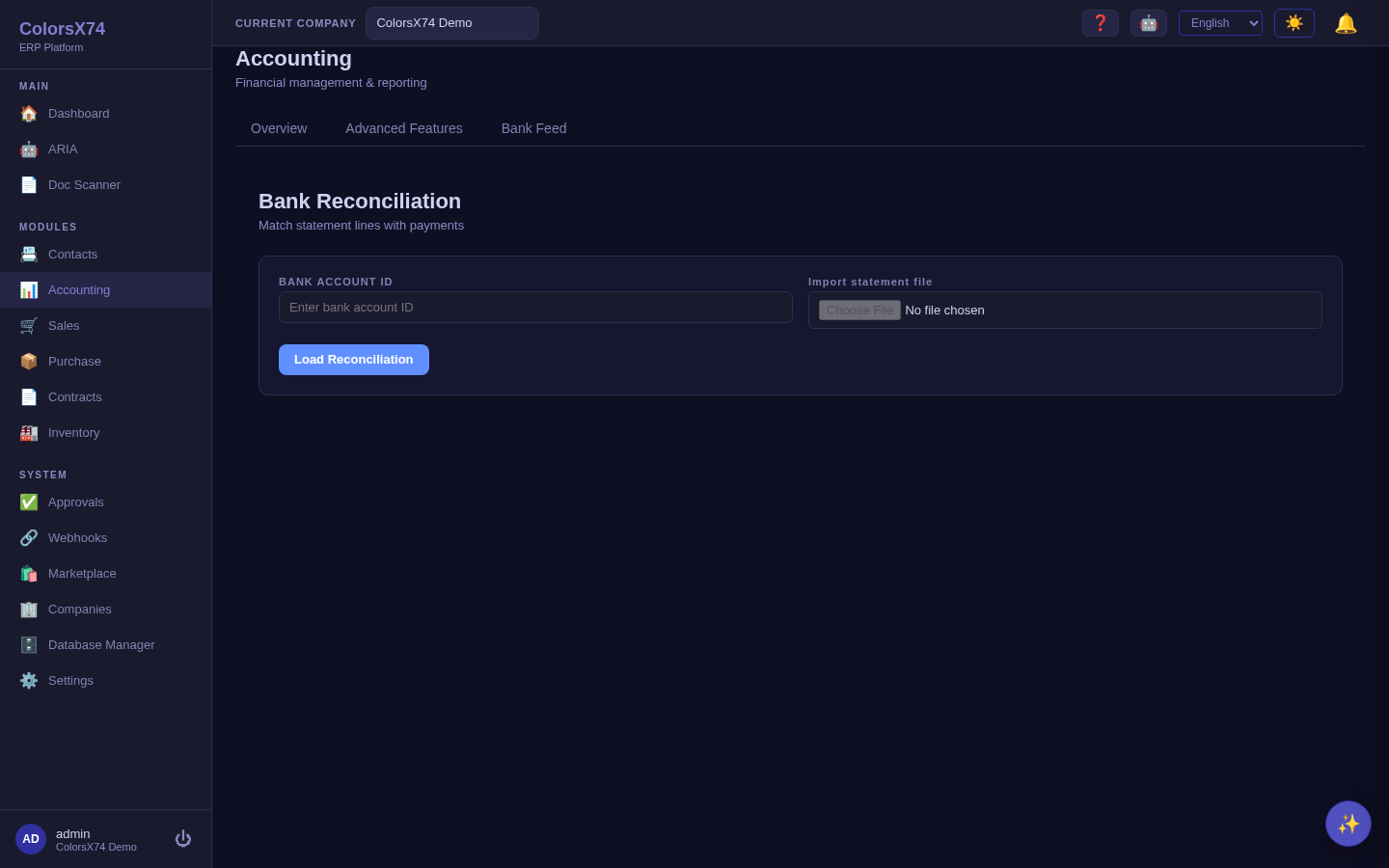
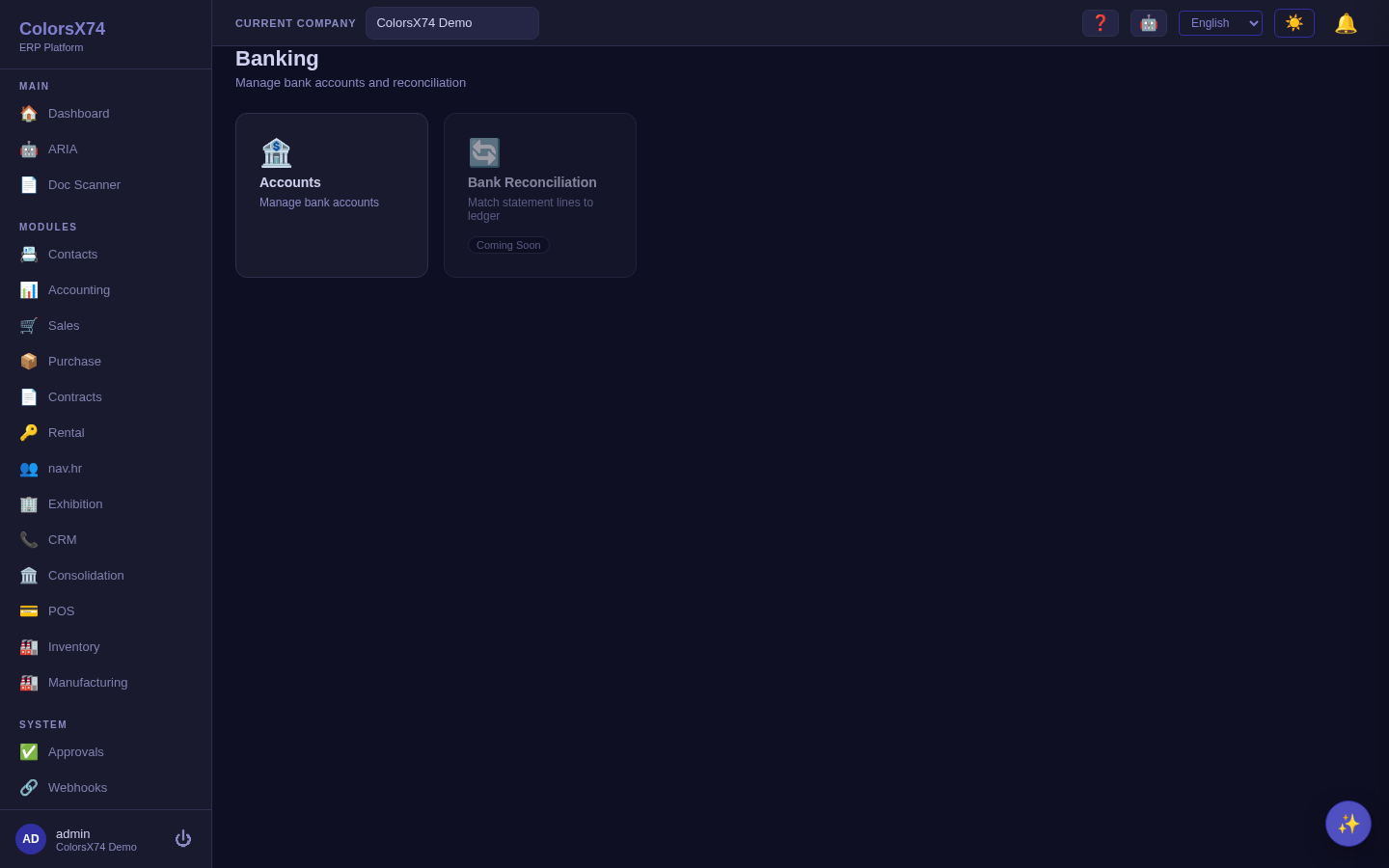
Use it wisely. Reconcile every account every period, not just when something looks off — small unreconciled differences compound. Investigate unmatched items immediately while the context is fresh; a stale unmatched line is usually a missing payment allocation. Never "force" a reconciliation to balance with a plug entry; find the real cause.
Tax
What it is. The Tax screen defines the tax codes and rates that invoices and bills apply, and gives the view of tax collected and paid that supports a return.
How to use it. Open Accounting → Tax to set up your rates and see the tax position. Once codes exist, they appear as choices on invoice and bill lines so tax is captured at the point of entry rather than reconstructed later.
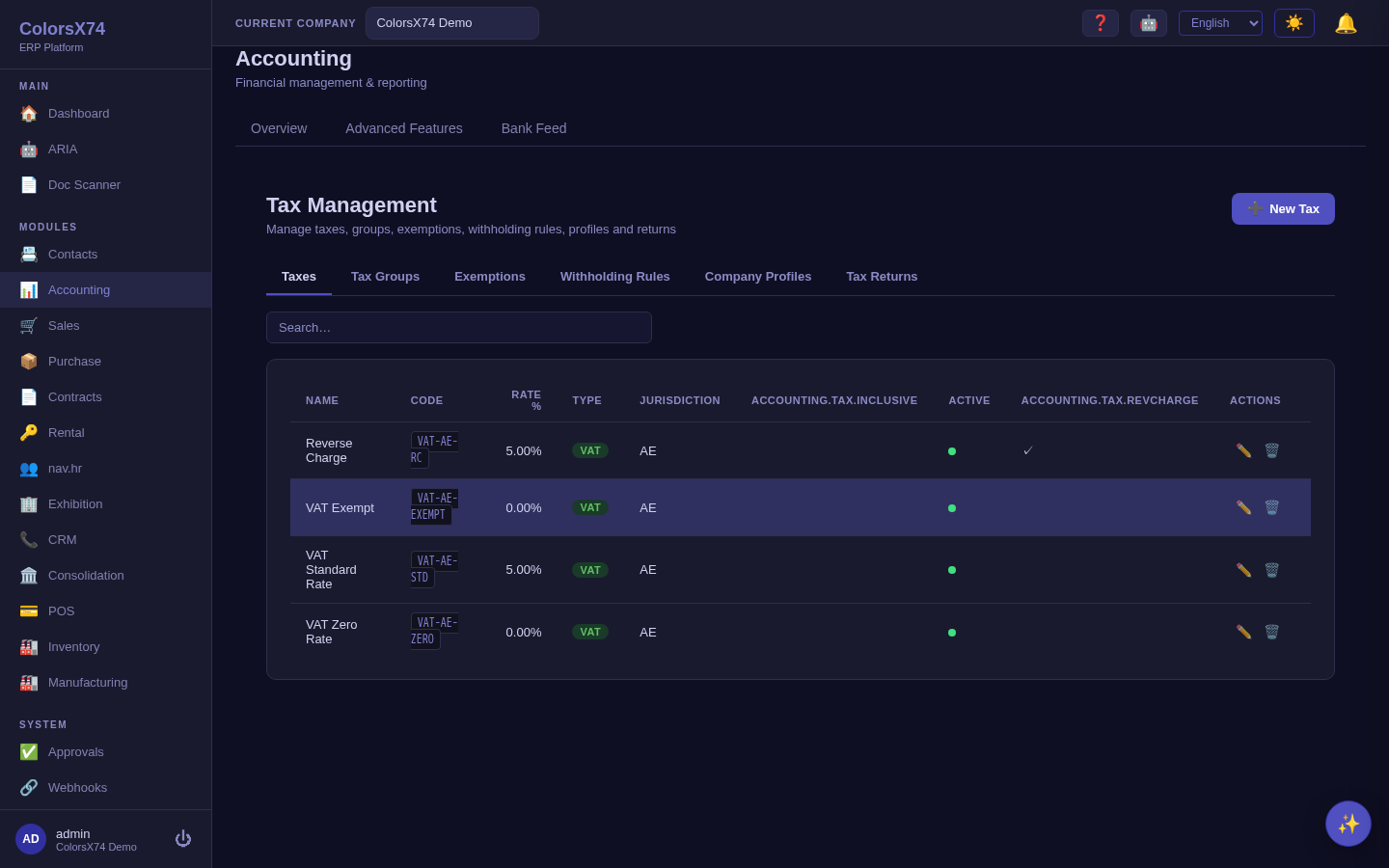
Use it wisely. Match your tax codes to your jurisdiction's return lines so filing is a read-off rather than a reconstruction. Set rates up before you start invoicing; retro-fitting tax onto historical documents is painful. Review the tax position before each filing period rather than at the deadline.
Tax exemption certificates
What it is. Some customers and vendors are legally relieved of VAT — a diplomatic mission, a government body, an exporter holding a certificate. Record the certificate once against the customer or vendor and the system stops charging that tax: every invoice or bill raised for them zeroes the covered lines, keeps the original tax link for audit, and stamps the line as exempt with the certificate's reason. The VAT return files those amounts in the exempt box rather than the standard box, and the e-invoice (ZATCA in Saudi Arabia, PINT AE in the UAE) carries the exemption reason code the tax authority requires.
How to use it. Open Accounting → Tax → Exemptions and record the certificate: the customer or the vendor it belongs to, its number and reason, the VATEX reason code for e-invoicing, and the dates it is effective between. Leave the tax scope blank for a blanket exemption (every taxable line), or point it at one tax or tax group when the relief is narrower. From then on it applies automatically wherever documents are raised — sales orders and invoices, vendor bills, the quick accounting entries, and imported vendor invoices.
Use it wisely. Enter the certificate before raising the first document for that party — exemptions apply when a document is created, so earlier invoices keep the tax they were issued with (correct them with a credit note if needed). Always fill in the VATEX reason code if you e-invoice: the tax authority validates it against its own code list, and a certificate with only free text is accepted but less precise. Set the end date to the certificate's real expiry so the relief stops by itself when the certificate lapses. If a price was entered tax-inclusive, an exempt customer pays the true net — the tax is stripped out, not kept as extra margin.
Multi-currency and exchange rates
What it is. ColorsX74 supports transacting in foreign currencies. Exchange-rate lookup is built into core so documents convert to your base currency; advanced finance adds rate management and the period-end FX revaluation run that restates open foreign-currency balances at current rates.
How to use it. Maintain rates under Settings (see the Admin page) and review them on the Exchange Rates screen. At period end, advanced users run FX Revaluation to recognise unrealised gains or losses on open foreign-currency receivables and payables.
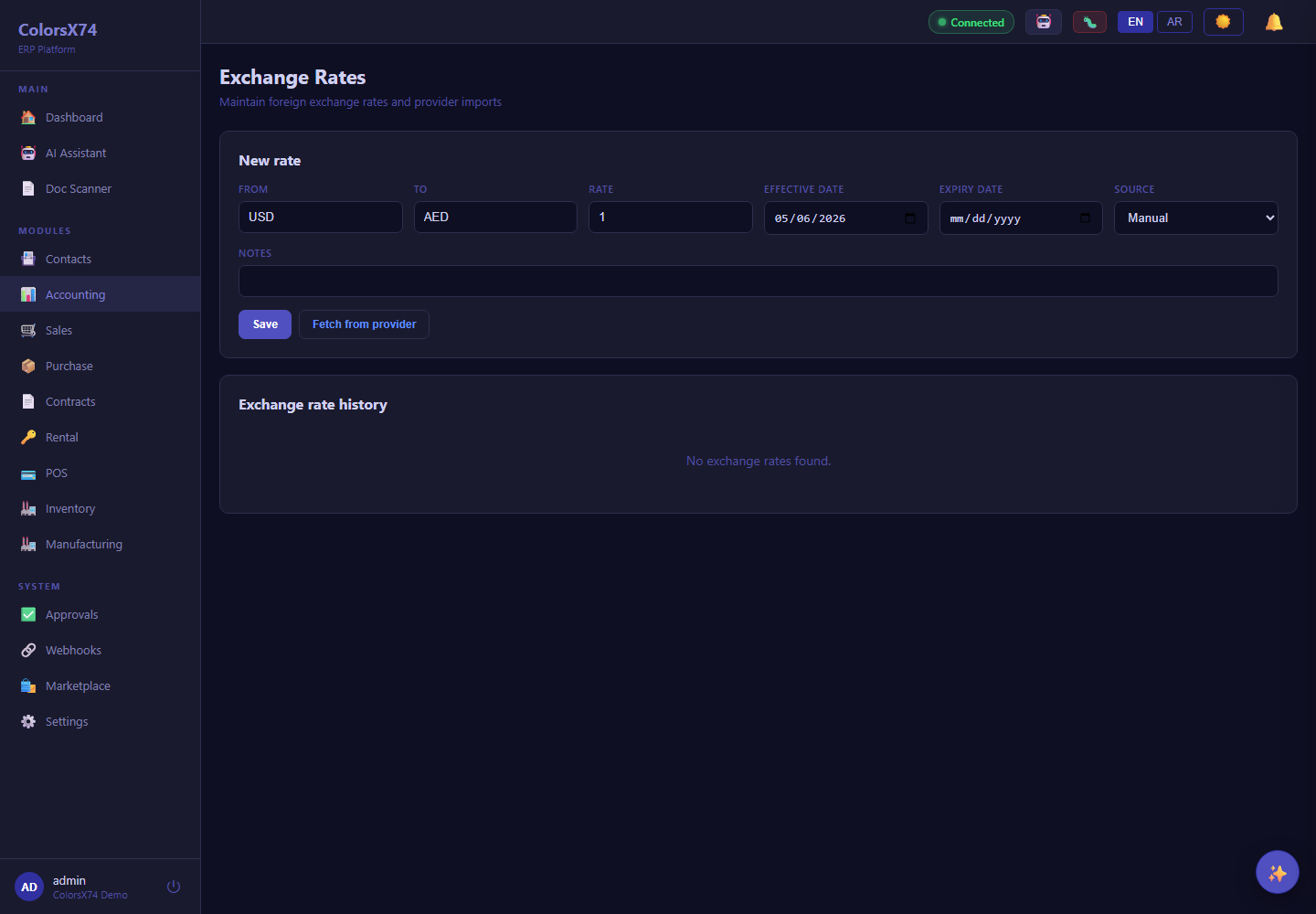
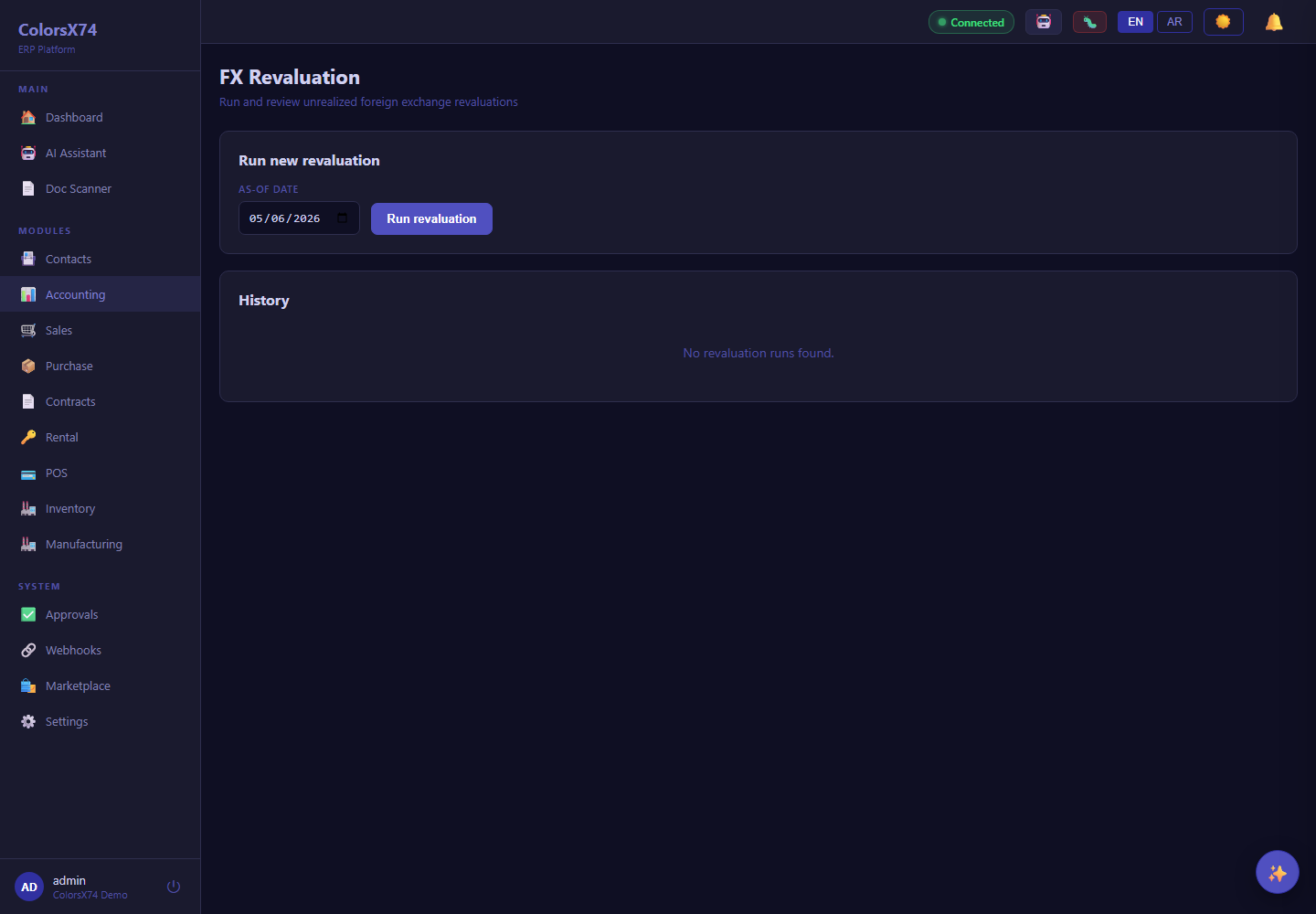
Use it wisely. Keep rates current — stale rates quietly misstate every foreign-currency balance. Run revaluation as part of close, after you have posted the period's transactions but before you finalise the statements, and document the rate source you used.
Advanced finance: budgets, fixed assets, payment gateways
What it is. The accounting-advanced add-on extends the core ledger with budgeting, fixed-asset depreciation, and payment-gateway configuration. These appear under the Advanced Features tab and require the add-on to be enabled for the organization.
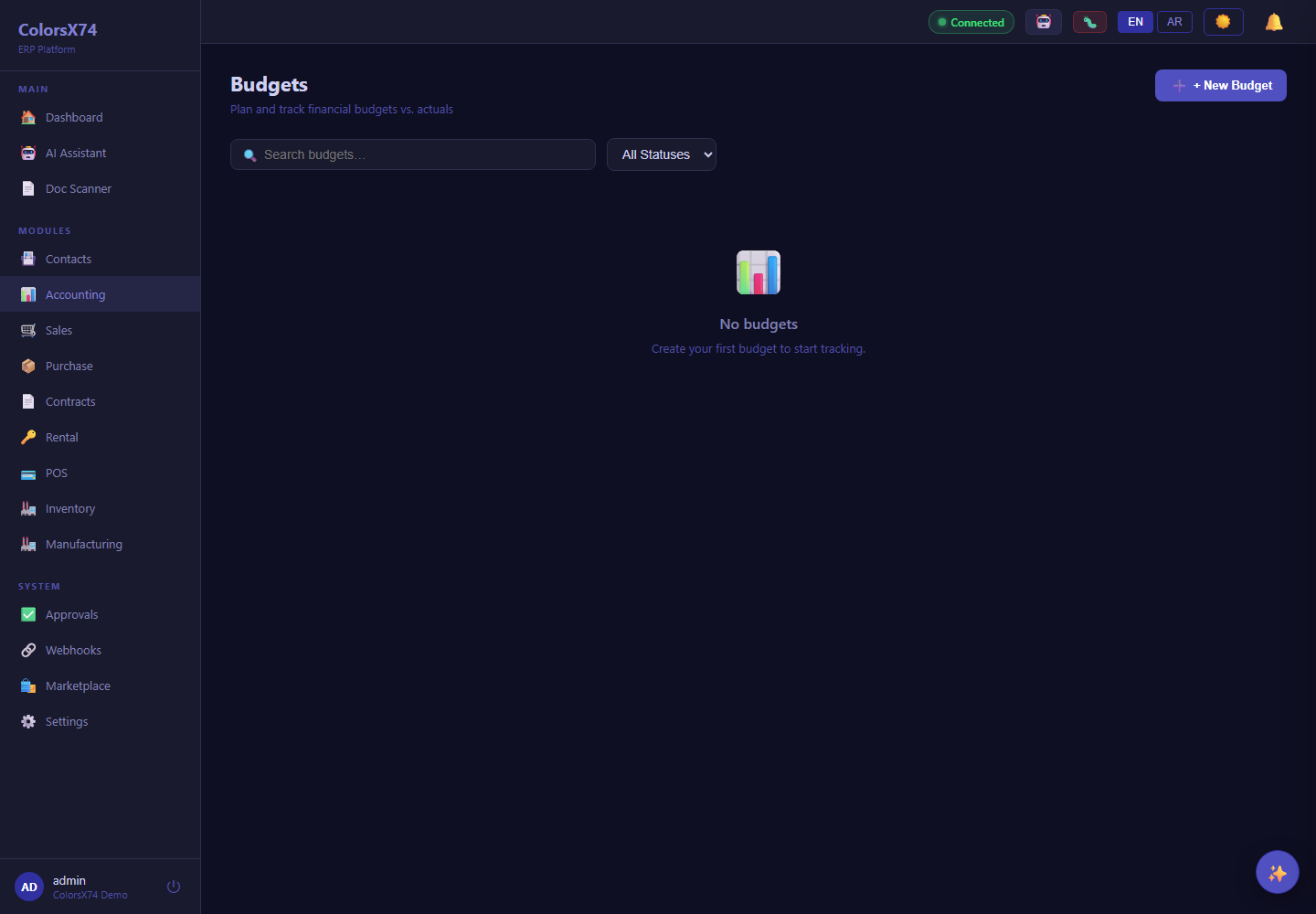
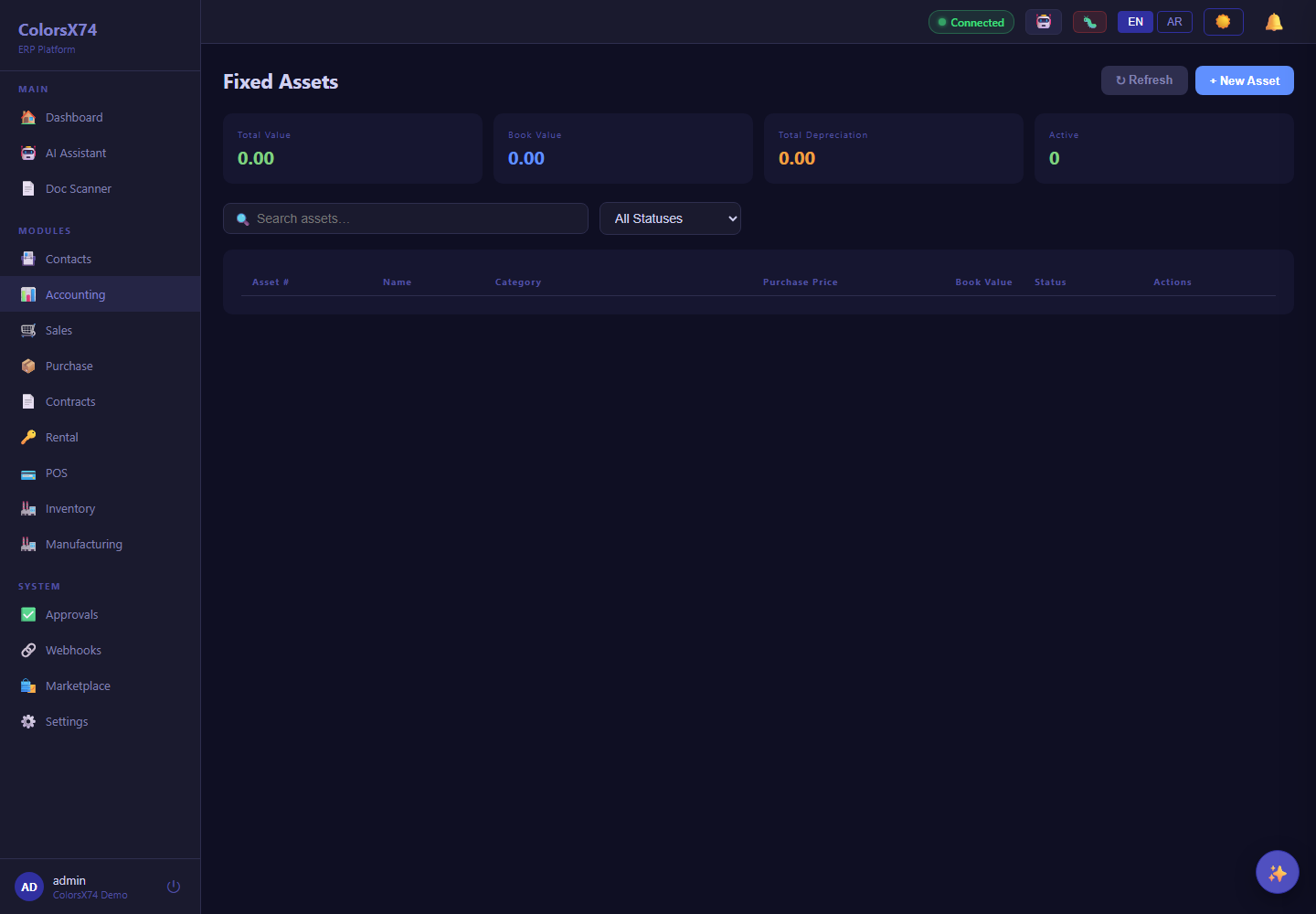
Use it wisely. Budget at the level you will actually review — a handful of meaningful lines beats a hundred you ignore. Register fixed assets when you buy them so depreciation never falls behind. For gateways, keep secrets in environment configuration, not screenshots, and demonstrate the workflow with test/sandbox credentials only.
Suggested demo flow
- Open Accounting and frame it as the hub every other module posts into.
- Show the Chart of Accounts to explain structure, then Journal Entries for the audit trail.
- Walk Invoices → Payments (receivables) and Vendor Bills → Payments (payables).
- Run the Trial Balance → P&L → Balance Sheet → Aging to prove the numbers roll up.
- Close with Bank Reconciliation, Tax, and the Advanced features (budgets, fixed assets, FX) to show depth.
Related pages
- Overview, login, and dashboard
- Sales, purchase, contracts, and rental
- Inventory, manufacturing, marketplace, and add-ons
- Exhibition rental management
- AI, ARIA, setup wizard, scan, draft, and settings
- Admin, settings, security, audit, approvals, and notifications
- Troubleshooting, browser requirements, and support handoff