Demo data note: Screenshots in these docs use representative demo data. Do not use real customer records, secrets, payment keys, or private documents in public demos.
Key capabilities
Modern browser guidance keeps demos consistent across Edge, Chrome, Firefox, and Safari.
Demo-data notes help representatives avoid real customer data in screenshots and public calls.
Gated modules and detail routes are explained in user-facing terms so missing pages are not mistaken for product defects.
Support handoff steps capture useful context without passwords, tokens, local logs, or private implementation details.
Support handoff checklist
- Record the organization, user role, module, screen name, approximate time, and business impact.
- Capture a screenshot with sensitive information hidden or replaced by demo data.
- Write the exact steps taken before the issue appeared and whether it repeats after refresh/sign-in.
- Note whether the screen uses an add-on, a selected record, or a demo dataset that may not be enabled in every environment.
- Never send passwords, API keys, payment provider secrets, customer private documents, raw logs, or browser storage contents in a support handoff.
Browser requirements
Use a current version of Microsoft Edge, Google Chrome, Mozilla Firefox, or Safari. Enable JavaScript, cookies, and standard image loading. A laptop or desktop viewport is recommended for representative demos.
Demo and data expectations
Screenshots in this package use demo data. Empty states can appear in a fresh tenant until sample customers, vendors, products, contracts, rentals, and transactions are created.
Gated modules and the marketplace redirect
Optional modules (Rental, Manufacturing, CRM, Exhibition, Consolidation, POS, HR, and the Advanced feature sets) are governed by entitlements. If a module is not activated for the organization — or the user has no seat for it — its route is gated and the app redirects to the marketplace. This is expected behaviour, not a defect. To enable a module, an administrator turns it On under Settings → Module Access and assigns seats (see the Admin page). Some screens also need a selected record, or a separate kiosk application (POS), to display.
Common checks
If a page appears unavailable or empty, confirm in order: the user is signed in; the user has the right role; the module is activated and the user has a seat under Module Access; the browser is current; and the required demo record actually exists. Transient "service unavailable" or empty-KPI states usually clear on refresh — the dev environment rate-limits bursts of requests, so a moment's wait and a reload typically restores data.
A list seems to be missing recent records
Fixed on 8 August 2026. Lists throughout the system — invoices, customers, orders, quotations, credit notes, journal entries, vendor bills, payments, budgets, fixed assets, tax returns, contracts, rental assets and exhibition payment machines — previously stopped at the first 50 records, with nothing on screen to indicate that more existed. Depending on how a list was sorted, a newly created record could fall outside those 50 and appear not to have been saved at all.
Nothing was ever lost: the records were always stored correctly and were visible through search and reports. Lists now load in full, however many records they contain.
Three more lists were corrected on 11 August 2026 — employees, fixed assets and budgets. These had the same symptom for a slightly different reason: the screen asked for every record, but the server understood a different way of asking and quietly answered with the first page only. A newly added employee could therefore be missing from the employee list while appearing correctly everywhere else.
A page looks incomplete in Arabic, French or Spanish
Fixed on 8 August 2026. Until then, switching the interface language to Arabic, French or Spanish left the application without the data it needs to format numbers and dates. Any list containing an amount stopped rendering at the first one, so the page looked truncated rather than broken — the chart of accounts, for example, showed a single account group instead of all five, while the group heading still reported the full number of accounts it contained.
If you saw this, no data was affected: it was a display fault only, and the records were always intact. Reload the page once after updating and the full content appears. English was never affected.
The chart of accounts appears to be missing accounts
Fixed on 8 August 2026. The chart of accounts previously loaded only the first 50 accounts, with nothing to indicate that more existed. It now loads the complete chart whatever its size. The same limit applied to the account selection lists on invoices, bills, expense claims and payroll, which also now show every account.
Choosing the accounts for a fixed asset
Changed on 29 August 2026. The Asset, Depreciation Expense and Accumulated Depreciation fields on the fixed-asset form used to be blank boxes labelled “Account ID”, expecting the internal identifier of an account to be typed in by hand. They are now drop-down lists of your own chart of accounts, each entry shown as its code and name — for example 1590 — Accumulated Depreciation. Leave any of them on — not set — if you are not ready to choose; depreciation cannot be posted until they are set, and it will say so.
This matters beyond convenience. A mistyped identifier was accepted silently and pointed the asset at whatever account happened to have that id, so depreciation could be recorded against the wrong account — on our own test system it had been landing in Accounts Receivable, which is exactly the sort of error that makes a receivables balance stop agreeing with the customer statements behind it. Accounts from another organisation are now rejected outright, on this form and on Settings → Accounting Defaults, with a message naming the field that needs attention.
The dashboard Revenue figure has gone down
Changed on 29 August 2026, and the new figure is the correct one. The dashboard's Revenue and Expenses tiles were reporting amounts including tax. Tax you collect is not income — it is money held on the tax authority's behalf, and the general ledger has always recorded it separately — so the tile disagreed with your profit & loss, and with the Gross margin tile sitting next to it on the same screen, by the whole VAT amount. On a 15% book that is 15% too high. Expenses were overstated the same way by recoverable input tax, and any invoice carrying a whole-document discount was counted before the discount.
Revenue and Expenses, the Net profit derived from them, and the 12-month trend charts now all report the same net amounts the ledger and the profit & loss report use. Nothing about your invoices, your tax figures or your accounts changed — only what these tiles were measuring. The Sales section's Gross revenue, Net revenue and Tax collected tiles are unchanged and still show the split explicitly.
A code you deleted is still reported as already in use
Fixed on 29 August 2026. Deleting a record here is deliberately reversible — the row is retired rather than erased, so history and reports stay intact. But the uniqueness rules did not know that, and kept counting the retired record. Typing an account code, deleting it because it was wrong, and typing the same code again was refused as a duplicate against a record no longer visible anywhere, with a bare “Conflict” that named no reason. The code was then unusable for good.
Uniqueness is now measured against live records only, everywhere it applies: account codes, exchange rates for a currency pair and date, role names, tax group names, budget names, translation and field-label overrides, mailbox addresses, payment-machine serial numbers, AI provider settings, consolidation group members, and re-adding a user to an organization they were previously removed from.
Nothing was lost while this was in effect, and there is nothing to clean up. Any code that was stuck is simply available again.
Staying up to date (automatic)
The app keeps itself current. When a new version is deployed, open browser tabs detect it on their own and reload onto the latest build within about a minute — you do not need to manually hard-refresh or clear the browser cache after an update. Likewise, when an optional module's screens are updated, their widgets refresh in place without a full reload. If a page ever looks out of date, simply wait a moment or reload; as a last resort, Settings → Display → Reset app clears all cached data and reloads cleanly.
A vendor cannot be deleted, or a bill is missing from a list
Fixed on 11 August 2026. A vendor could be deleted while unpaid bills or purchase returns were still open against them, because the check only ever looked for purchase orders — and a bill entered directly, without a purchase order, is a perfectly normal way to work here. Deleting the vendor did not delete their bills: it left them in place but hid them from the payables list, so an amount that was genuinely owed disappeared from view while still being owed.
Two changes. Deleting a vendor is now refused while any bill or purchase return exists for them, matching how customers have always behaved — retire the vendor instead of deleting them. And payables lists now show these documents even where the vendor record was removed previously, with the former vendor's name still attached, so anything already in that state reappears rather than staying hidden.
Nothing was ever lost. The bills remained in the database and in the general ledger throughout; only their visibility in the list was affected.
Screenshots
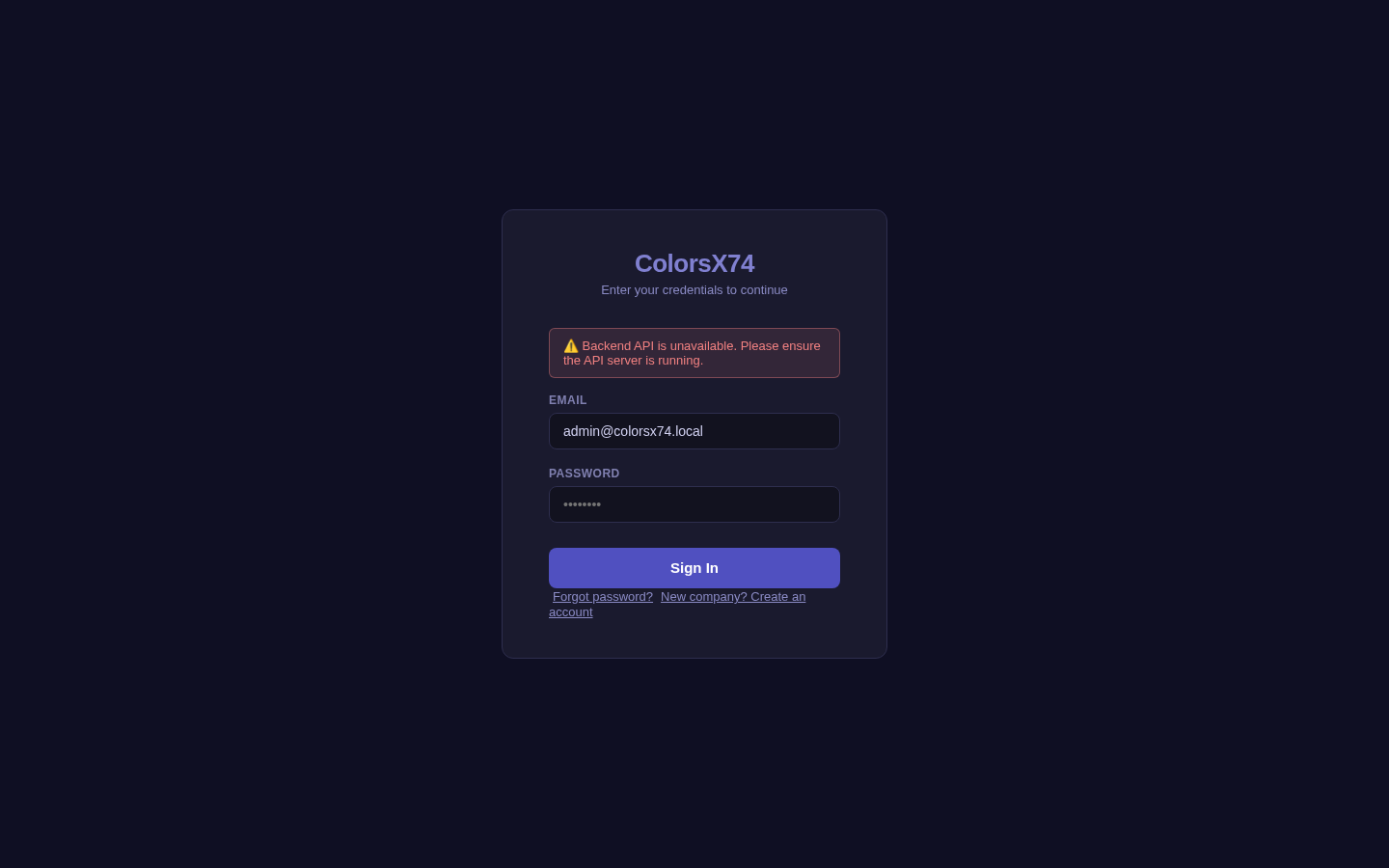
Use sign-in to explain browser and account readiness.
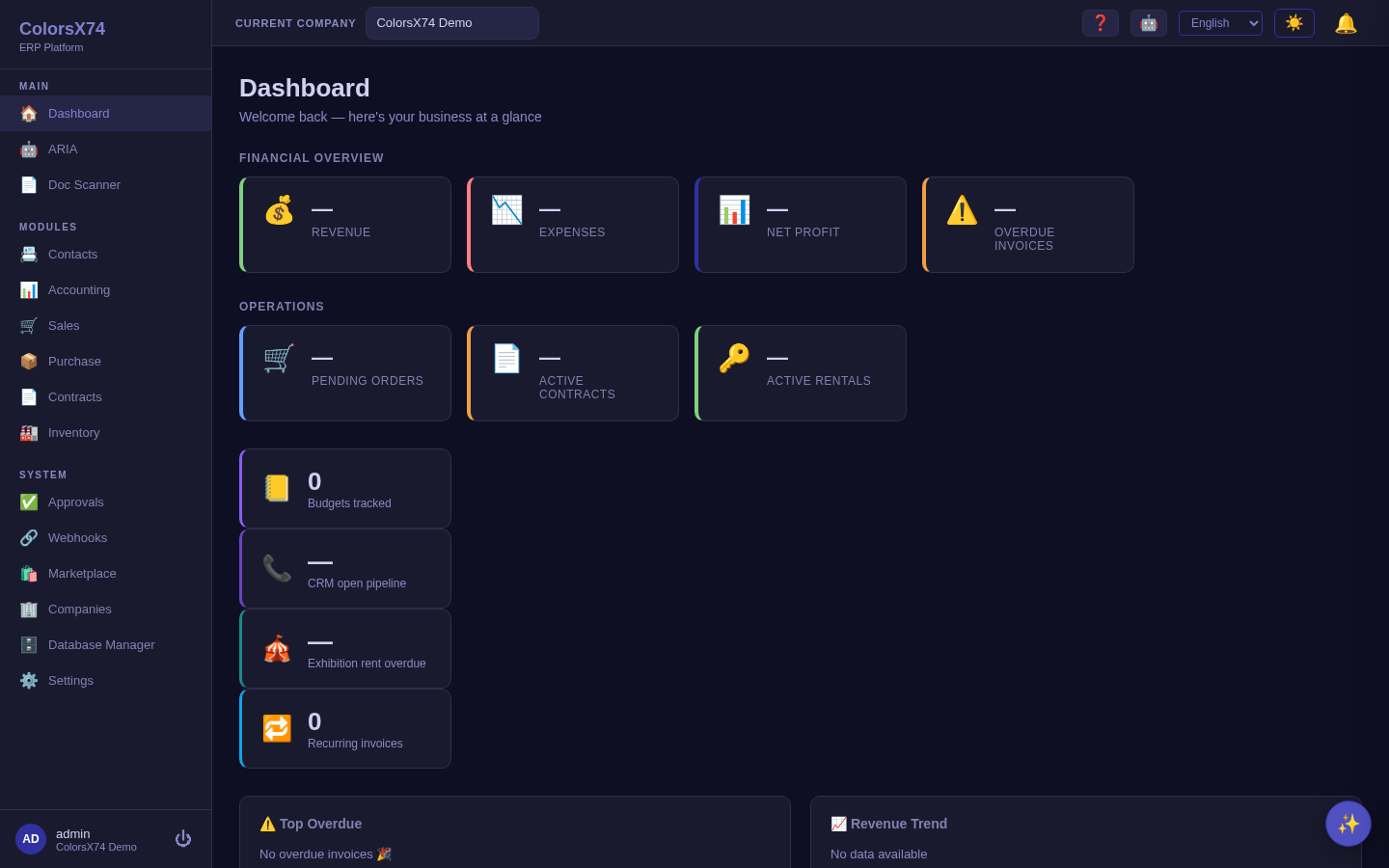
Use dashboard state to confirm the user reached the portal.
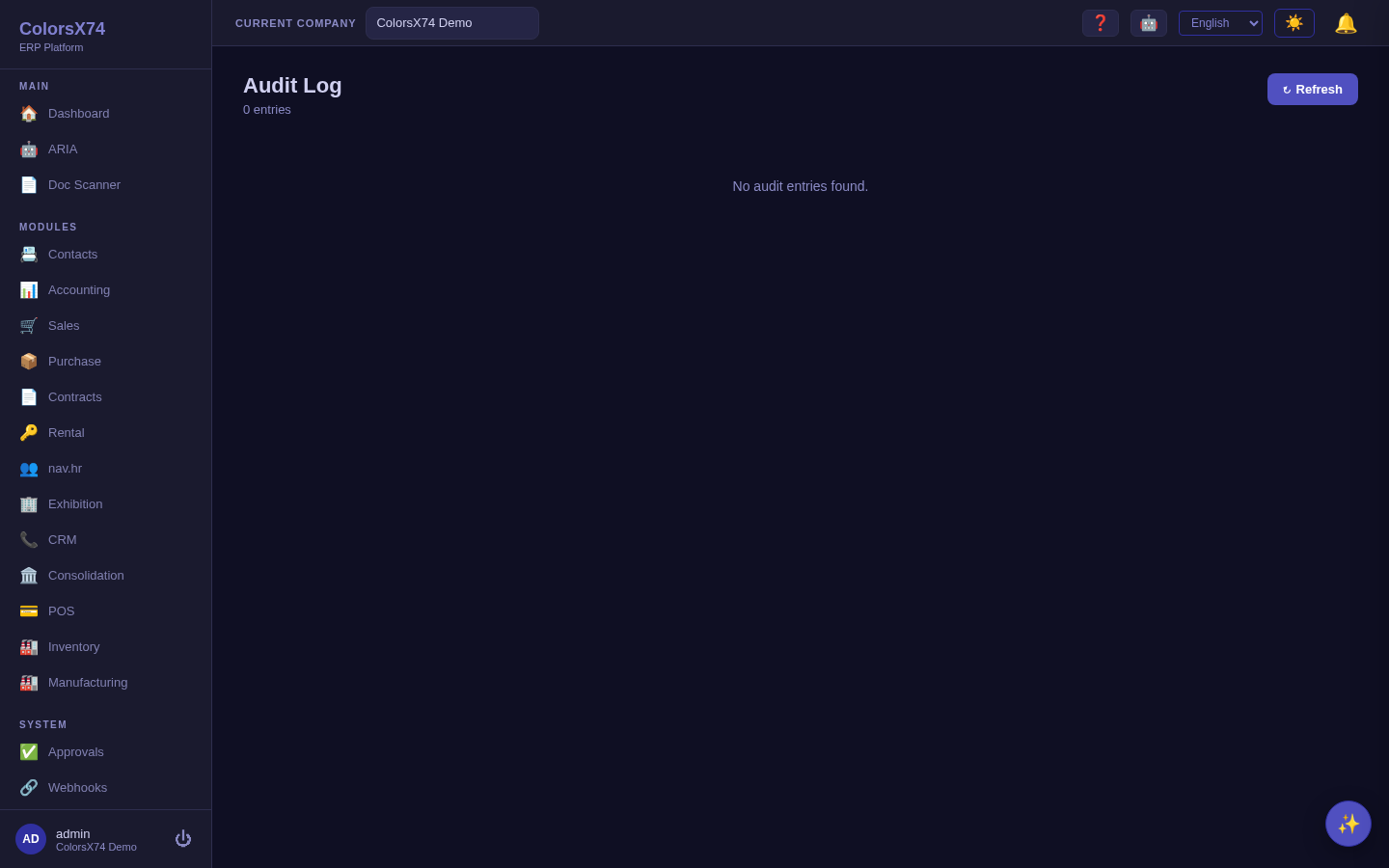
Use audit to discuss traceability when support needs context.
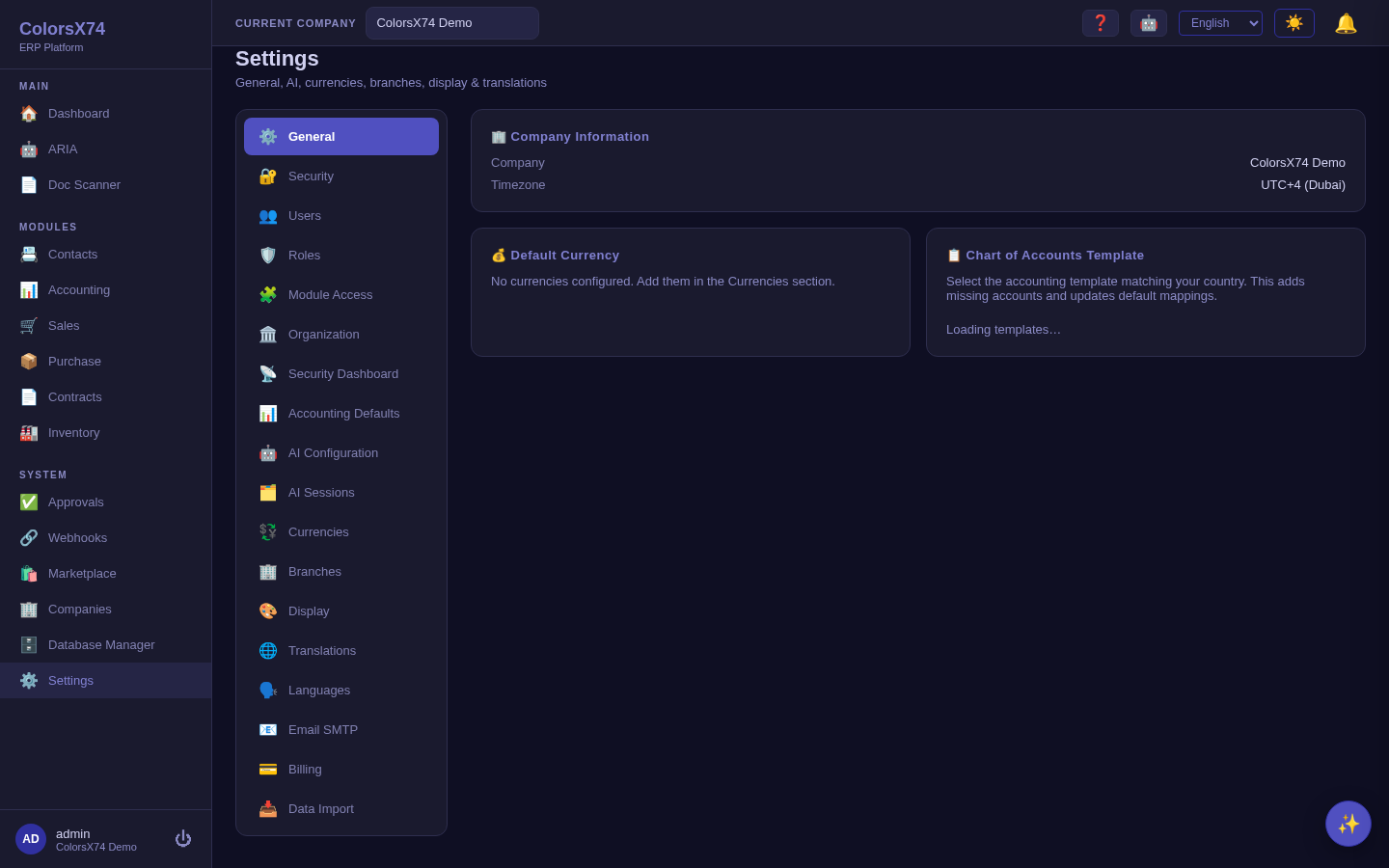
Use settings to confirm configuration area access.
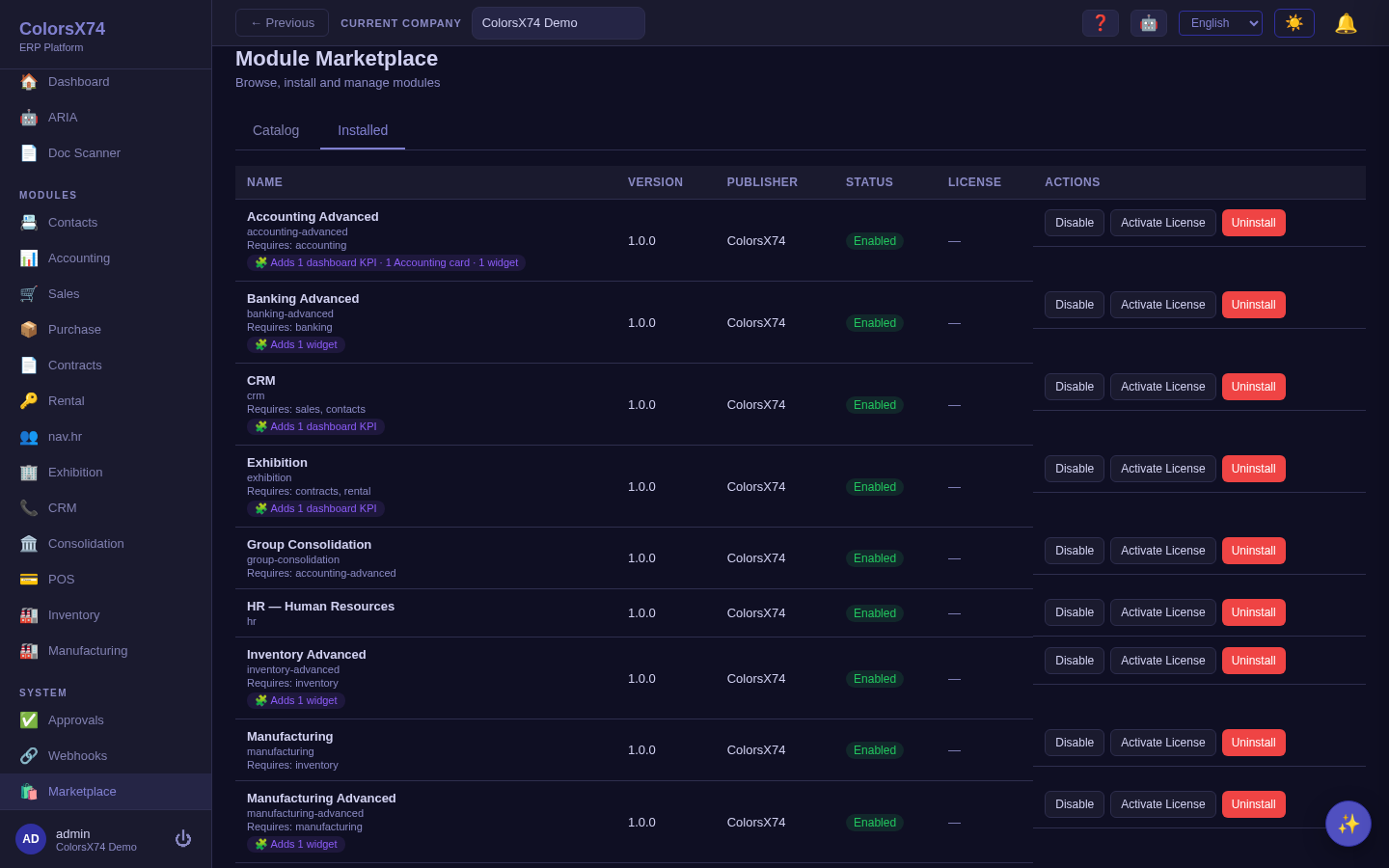
Use installed modules to explain add-on availability.
Related pages
- Overview, login, and dashboard
- Accounting, reports, banking, tax, and payments
- Sales, purchase, contracts, and rental
- Inventory, manufacturing, marketplace, and add-ons
- Exhibition rental management
- AI, ARIA, setup wizard, scan, draft, and settings
- Admin, settings, security, audit, approvals, and notifications