Demo data note: Screenshots use representative demo data captured from a live environment. AI features depend on a configured provider; some setup screens show advisory states where no provider or hardware is configured. Never send real customer data to a model without that tenant's explicit data-consent, and never show API keys.
How AI is positioned
AI in ColorsX74 ERP is not a bolt-on chatbot — it is ERP-aware help embedded in the daily workflow, branded ARIA. It can answer questions about your own data, scan documents into structured records, and draft business documents, all governed by a per-tenant provider configuration and a consent posture. The assistant is built around discrete skills you can turn on or off, and a setup wizard guides administrators from hardware detection to activation.
Jump to: ARIA assistant · Document scan · Document draft · AI settings · Setup wizard · Consent & safety.
ARIA — the AI assistant
What it is. ARIA is a conversational assistant that understands your ERP data. The screen pairs a chat surface with a Skills panel (each skill can be ON or OFF) and a Provider panel showing the active model, provider, and online status. It offers starter prompts so users know what to ask.
How to use it. Open ARIA from the top of the navigation and type a question, or click a suggested prompt such as "Show this month's top 5 customers by revenue", "Which contracts expire in the next 30 days?", "Generate a summary of overdue invoices", or "Which assets are available for rental?". The skills panel shows what ARIA can do — in the demo, PDF reports, Email draft, Contract draft, Document scanner, and Summaries are enabled, while Forecast is off. Press Enter to send (Shift+Enter for a new line) and choose a model from the selector.
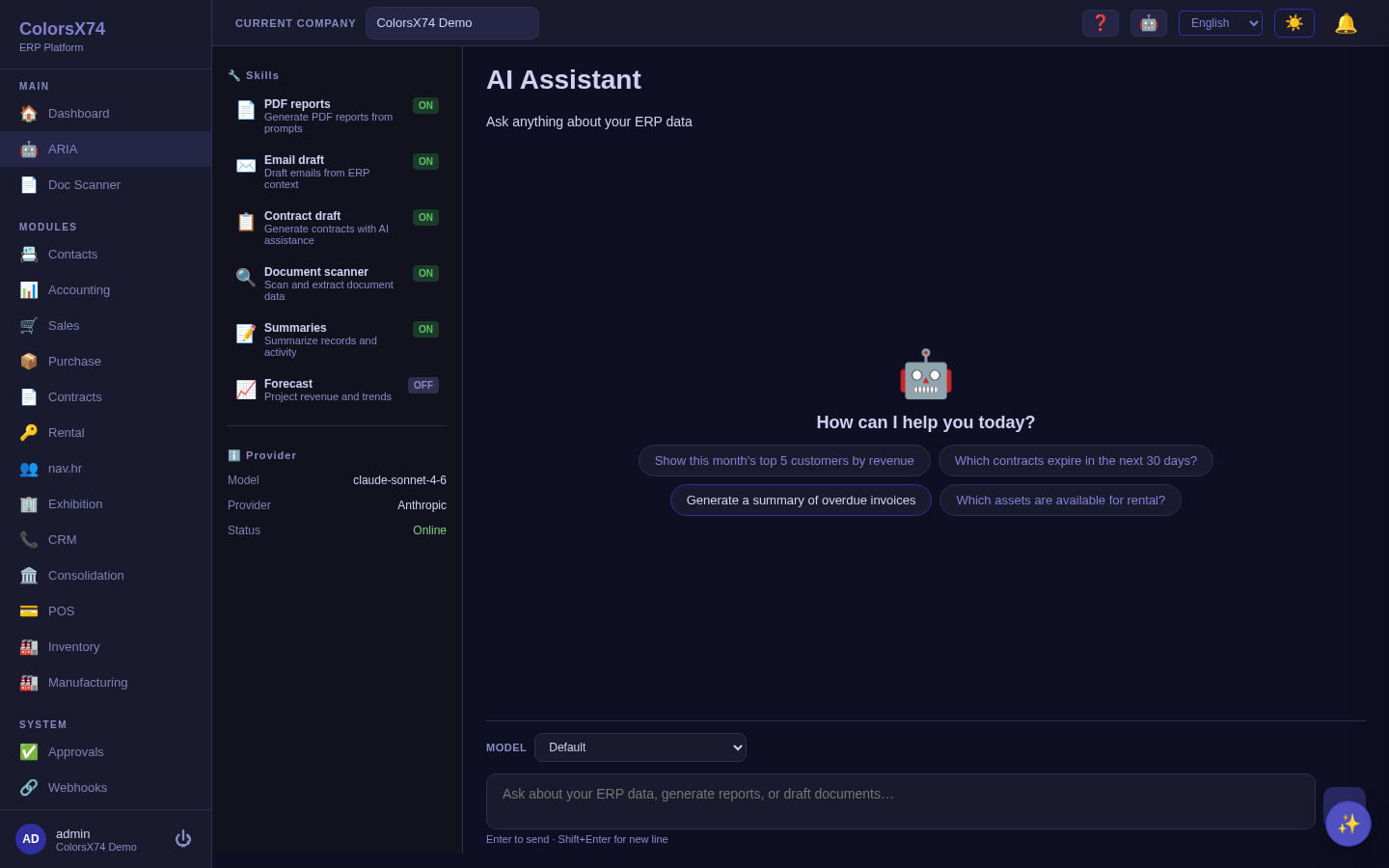
Use it wisely. Treat ARIA as a fast analyst, not an oracle — verify any number it gives you against the source report before acting on it. Enable only the skills your users actually need; fewer, well-understood skills are easier to govern. Phrase questions concretely ("top 5 customers by revenue this month") rather than vaguely, and keep demo conversations on demo data.
Rate ARIA's answers (it learns from you). Every answer carries a 👍 / 👎 — tap one to tell ARIA whether it helped, and add a quick note on 👎 to say what was wrong. Your ratings are recorded against the answer, and an operator digest surfaces how the assistant is doing and which skills fail most, so the team can improve it over time.
ARIA sees the screen you're on (ambient context). You don't have to explain where you are or paste anything in — ARIA automatically knows the view you have open: which module, whether it's a list or a single record, and which record is in focus. On a sales invoice, you can just ask "what's wrong with this?", "explain this screen", or "what can I do here?" and ARIA answers about that invoice, pulling its live values first rather than guessing. It also knows your name and company, so replies stay personal and correctly scoped. Say "this", "here", or "these" and ARIA understands you mean what's on screen.
Ask ARIA about the ERP itself, not only about your data. ARIA can read this deployment's own data model and its list of API endpoints live, so questions about the system are answered from what is actually running rather than from a manual that may have drifted. Ask "what fields does a sales invoice have?", "which records does the accounting module hold?", or "what permission do I need to post a journal entry?" — for that last one ARIA can name the exact permission code the action requires (posting a journal entry needs Accounting.Journal.Create), which is precisely what to ask an administrator for.
"How do I…" is answered from the module guides. When you ask how to use a module, where a workflow lives, or which steps to follow, ARIA looks up the authoritative help guide for the module you are in, or searches every guide when you only describe the task. It is also told which add-on modules are installed and enabled on your deployment, so it will not walk you through a feature your company does not have — it says the module isn't installed and offers to help you enable it from the Marketplace.
Approvals, inside the conversation. Ask "what needs my approval?" and ARIA lists the requests waiting on you — addressed to you directly or through a role you hold — with the document type, amount, who raised it, and which level it has reached. You can approve or reject from the chat, with an optional comment. It runs through exactly the same approval service as the Approvals screen, including the rule that you can never approve or reject a request you raised yourself, and each decision asks you to confirm first.
ARIA acts with YOUR permissions. Two gates stand in front of every skill: your role must be allowed that skill, and the action must then pass the very same permission code the equivalent screen or API enforces. ARIA can therefore never read or write anything you could not do by hand. When a request is refused, the refusal names the missing permission ("you don't have the Accounting.Bill.Create permission…"), so you can ask for exactly that rather than guess. Where a request spans several kinds of record — a lookup across customers, vendors and products, or a document with related lines — ARIA answers from the parts you are entitled to and marks the rest as withheld instead of failing the whole answer. Fields that are sensitive by nature (passwords, keys, tokens, one-time codes) are never handed to the model at all.
What ARIA asks you to confirm — and why. Three kinds of work always stop for an explicit confirm step: anything that posts to the ledger, anything sent outside the company, and anything that would run unattended. That covers posting a journal entry, closing a fiscal period, running an FX revaluation, sending a contract for e-signature, sending a notification, approving or rejecting a request, queueing a background job or scheduling a recurring one, and anything whose name means delete. Creating a record is judged by what you are creating: a sales invoice or a vendor bill writes its journal (receivable/revenue/tax, or payable/expense/tax) the moment it is created, so those are confirmed, while a customer, a quotation or a purchase order — which touch no ledger — are created straight away. A skill contributed by an installed add-on module is always confirmed when it changes something, because the built-in rules cannot vouch for a skill they have never seen (an add-on skill that only reads is not confirmed).
Every action ARIA takes is recorded. Each skill invocation writes an audit row: which skill ran, the parameters it was given, the result it returned, the outcome (succeeded, failed, denied, or still pending your confirmation), whether confirmation was required and who gave it, and when it executed. Refusals are logged too, so a permission problem leaves a trail rather than vanishing into the chat. An administrator with audit access reviews the whole company's AI activity on the AI Activity screen, filtered by outcome, skill, user, or date, and can expand any row to see its parameters and result.
Installed modules can teach ARIA new skills. An add-on you install may contribute its own skills, which appear alongside the built-in ones automatically — the Customer Support module, for example, adds a ticket summary ARIA can answer from, and the Commerce connector adds a read-only explanation of your online store's stock ("why does the shop show 0 for SKU-1?", "is the online store in sync?"; it needs the Commerce.Link.Read permission). A module's read-only skill is available to every role like the other read-only skills; a module skill that changes anything always requires your confirmation.
A health check for administrators. Users who hold the diagnostics permission can ask ARIA whether the system is healthy and get a real answer: whether the database is reachable, how many background jobs have failed recently (with the error on each), and whether the audit trail's integrity chain is intact over the last seven days — entries that were legitimately written at the same moment are reported separately as chain forks rather than counted as tampering. The same users can ask for a tail of recent server errors when chasing a failure. Everyone else gets a plain "you'd need the … permission" answer instead.
What you can find is what you may see. ARIA's lookups are filtered the same way the screens are: it searches only the record types you are allowed to read and silently skips the rest. The ERP's global search behaves the same way — each indexed record carries the owner of the row it came from, so a colleague's private record never surfaces in your results, and everything stays inside your company. Searching is open to every user; rebuilding or clearing the search index is a separate administrator permission, because that is maintenance, not a query.
Show ARIA a document (attachments). You can attach a file to the conversation instead of describing it. Use the 📎 button in the composer (or attach several — up to five per message), and each document is read with the same scanner that powers Doc Scanner. The extracted text joins the conversation, so you can ask follow-up questions about it — "what's the total on this?", "does this match PO-1042?", "which lines are taxable?" — without re-attaching. Only the extracted text is kept, never the file itself, and a staged attachment you never send is discarded automatically after 24 hours. Long documents are shortened to fit the conversation, and ARIA is told when that happened so it will not pretend to have seen the rest.
Connect an external agent (MCP server). ARIA's toolset is also exposed as a standard Model Context Protocol (MCP) server at POST /api/v1/mcp, so an external AI agent — for example Claude Code during a support or QA session — can list and call the ERP's tools directly over the standard MCP handshake. Crucially, the agent operates as you: it authenticates with your own login and can never do anything you couldn't do by hand. Every tool call runs through the same permission checks as the in-app assistant — your role's skill grants, the per-record permission of each entity, and the confirmation policy. Read-only tools (reports, lookups, schema and diagnostics) can be called straight away; any tool that changes data (posting to the ledger, taking a payment, deleting, approving) is flagged and must be explicitly confirmed by the agent before it runs, exactly like the confirm step you see in the ARIA panel. This lets a trusted assistant help you operate and debug the system without ever widening your access.
Proactive insights (ambient AI). ARIA can also watch your business events and flag things worth a look before you ask. It is off by default and opt-in per company: an administrator turns it on under AI Settings → Ambient AI, chooses which events ARIA watches — a new invoice or credit note, a customer payment (settlement milestone or possible duplicate), or a new approval request (ARIA summarizes it and flags risk for the approver) — and sets a daily insight budget — a simple cap that keeps proactive AI cheap and quiet. When a watched event happens, ARIA reviews it and, only if something is notable — an unusually large amount, a likely duplicate, a missing reference — sends you a notification. It is deliberately surface-only: ARIA points things out, it never posts or changes data on its own (any change it suggests still goes through the same confirm step). The same principle governs what ARIA creates: when you ask it to raise a sales invoice or a vendor bill, it produces a genuine unposted draft — no ledger entry, no balance moved, no number taken from your legal series — and issuing or submitting it stays your decision. Because proactive reviews use the AI model you've configured, the sensible default budget is generous when you're on the free built-in model or your own model and conservative on a paid cloud model — and cloud reviews still require your data-consent, exactly like the rest of ARIA.
Ambient AI runs on your own model — and only a platform operator can switch it on. Two rules govern proactive AI, and both exist to keep spend where it belongs. First, ambient runs on the AI provider your company has selected and enabled. If your company has not configured a model of its own, proactive reviews simply do not run — they never fall back to the shared built-in model. (Interactive chat still does; a person is waiting on that answer. Background work that nobody asked for is a different question.) Second, the on/off switch itself is a platform-operator action: your administrator still chooses which events ARIA watches, the daily insight budget and who receives the insights, but turning ambient AI on or off for a company is done by the platform team. Ask us and we will enable it. One company's ambient settings never affect another's, and one company's runs never touch another's model or credit. The same now holds for scheduled ARIA tasks: work ARIA runs in the background uses your company's configured model, not a shared one.
Not ready to bring your own model? The platform can switch ambient AI on for your company using the built-in system model instead, with a daily ceiling we set. You can also switch ambient AI on yourself the moment you have selected and enabled your own AI model — it is your model and your spend, so it is your call. Only when you have no model of your own does it need us, because it would then run on the platform's; that we can enable for your company specifically, or across the board. Your own AI settings never show or control it, and one company's allowance is entirely independent of another's. If we grant it, your ambient AI runs on the platform's model up to that daily ceiling, or your own daily budget, whichever is lower.
If you later bring your own model, ambient AI pauses on purpose. Suppose we switched ambient on for you using the platform's built-in model, and you afterwards configure your own AI model. Ambient does not silently move onto your model — running it there spends your credit, and that is your decision to make rather than one you inherit. The AI settings screen tells you it is paused, and switching it on again is all it takes.
Attach a document anywhere you chat. The 📎 button now appears in BOTH the docked assistant and the full ARIA page — attach a PDF or an image (invoice, statement, receipt) and ask about it directly. Files are read once and folded into the conversation, so follow-up questions still refer to them without re-attaching. Up to five per message.
Interactive chat daily cap. Separately from the ambient budget, an administrator can cap how many AI model calls the company's interactive chat may use per day (AI Settings → Ambient AI → Interactive chat cap; 0 = unlimited, the default). The cap counts every model call — one agent turn can use up to 10 — so it bounds real spend on metered cloud providers. When the cap is reached, ARIA answers with a friendly notice instead of failing, and the counter resets at midnight UTC. Failed calls don't consume the budget, and platform operators (SuperAdmin) are never locked out.
How to connect. The recommended path is the auto-refreshing bridge tools/erp-mcp-bridge.py (Python 3, no install) — point your MCP client's server config at it with your ERP email and a password file, and it logs in and keeps the session's token fresh automatically, so you set it up once. Alternatively, for a quick single session, run tools/erp-mcp-token.sh to print a fresh ~60-minute token and give it to your client as an Authorization: Bearer header (Claude Code: claude mcp add --transport http). Full step-by-step config for Claude Code and Claude Desktop — both paths — is in the Connect an external agent to the ERP (MCP) developer guide. Keep your password file and any token at mode 600; they are your credentials. Best of all, issue a long-lived MCP access token from AI Settings → MCP Tokens (create it, copy it once, and set it as the agent's token) so you never store a password or refresh a short-lived one — and revoke it from the same screen the moment you no longer need it.
ARIA drafts invoices — it never posts them. When you ask ARIA to raise an invoice it creates a draft: nothing is posted to the ledger, no customer balance moves, and no credit limit is touched. The invoice waits for you to review and issue it, and issuing is always your step, never ARIA's. This is deliberate — it lets ARIA prepare work continuously without anything becoming final until a person agrees.
Vendor bills are different for now. A bill ARIA creates is posted on creation, because the purchase side does not yet have the same draft state. Until it does, treat an ARIA-created vendor bill as a real, posted document.
ARIA can offer to work ahead. When you ask something you will plainly want again — what is overdue, what needs approving, how the month is going — ARIA answers first and may offer once to run it on a schedule and send you the result. It never schedules anything without your explicit yes, and it checks what is already running so it cannot set up a duplicate. Ask it to list or cancel your schedules at any time.
Proactive insights are separate and off by default. ARIA reacting to events as they happen — reviewing an invoice the moment it is raised, for instance — is a per-company setting an administrator turns on under AI Settings → Ambient AI, with its own daily budget. ARIA cannot switch it on itself.
Document scan
What it is. Document Scan (the Doc Scanner in the navigation) turns documents — invoices, receipts, and similar files — into structured data you can review before it becomes a record.
How to use it. Open Doc Scanner, upload a clean demo file, and let the scanner extract the fields; review and correct the extraction, then commit it to the appropriate record. The scan step always produces a draft for human review rather than posting silently.
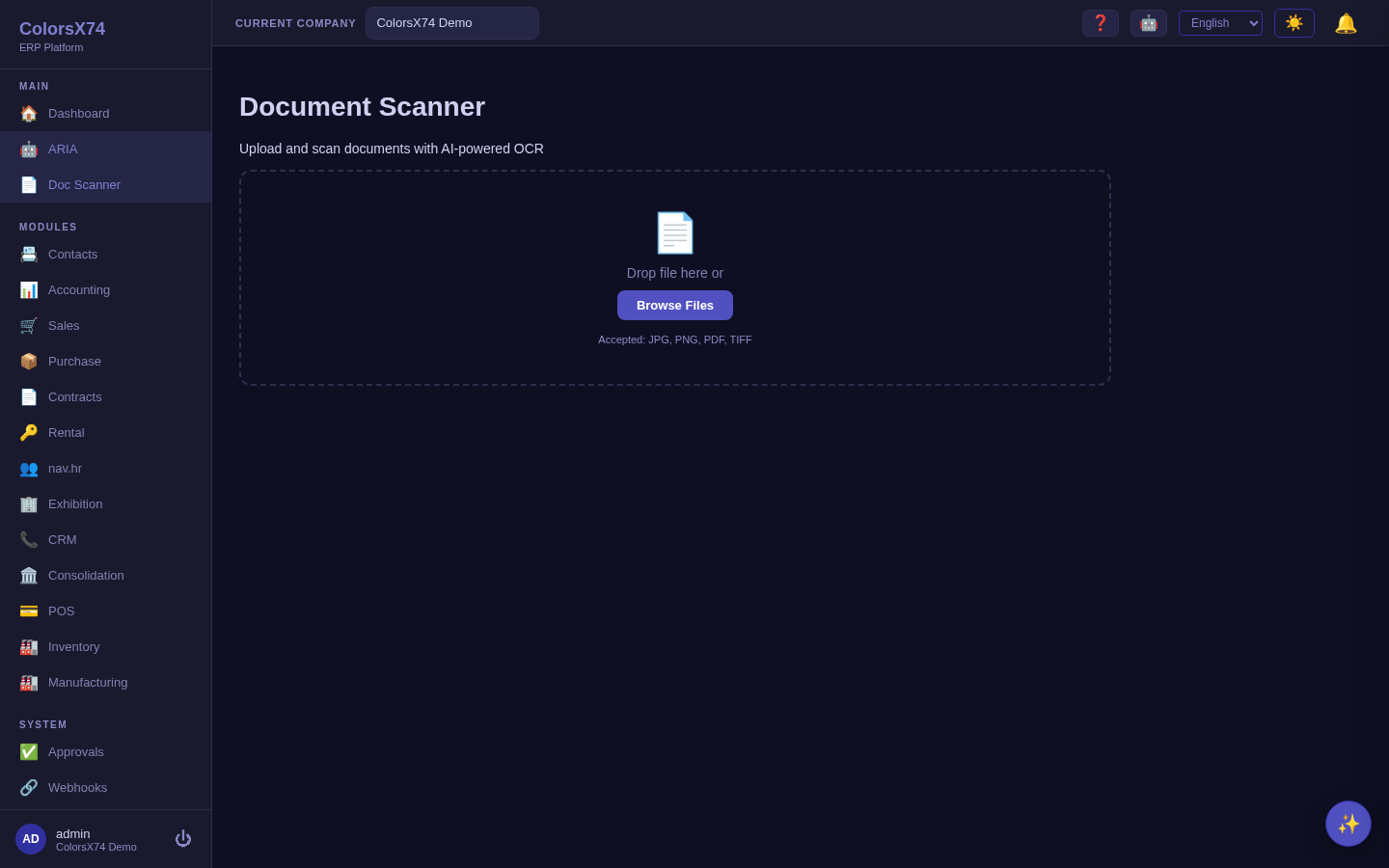
Scan several documents at once. The scanner takes more than one file per go — pick or drag a whole batch of supplier invoices and they queue up together. Each document is extracted on its own and reported on its own: a file the scanner cannot read (an unsupported type, an oversized file, an unreadable scan) says so against that file alone and the rest still come back extracted, so one bad page never costs you the batch. Review the list, open any result to check its fields, and commit the ones you want. A batch takes up to 10 files, 5 MB each and 25 MB in total.
Use it wisely. Always review extracted values — especially amounts, dates, and tax — before committing; OCR is a head-start, not a substitute for a checker. In demos use only clean, non-confidential sample documents.
Document draft
What it is. Document Draft turns a prompt and a template into the first version of a business document, so users start from a sensible draft instead of a blank page.
How to use it. Open Document Draft, choose a template, describe what you need, and let the assistant produce a draft you then edit and finalise. The output is explicitly a draft, not a final document.
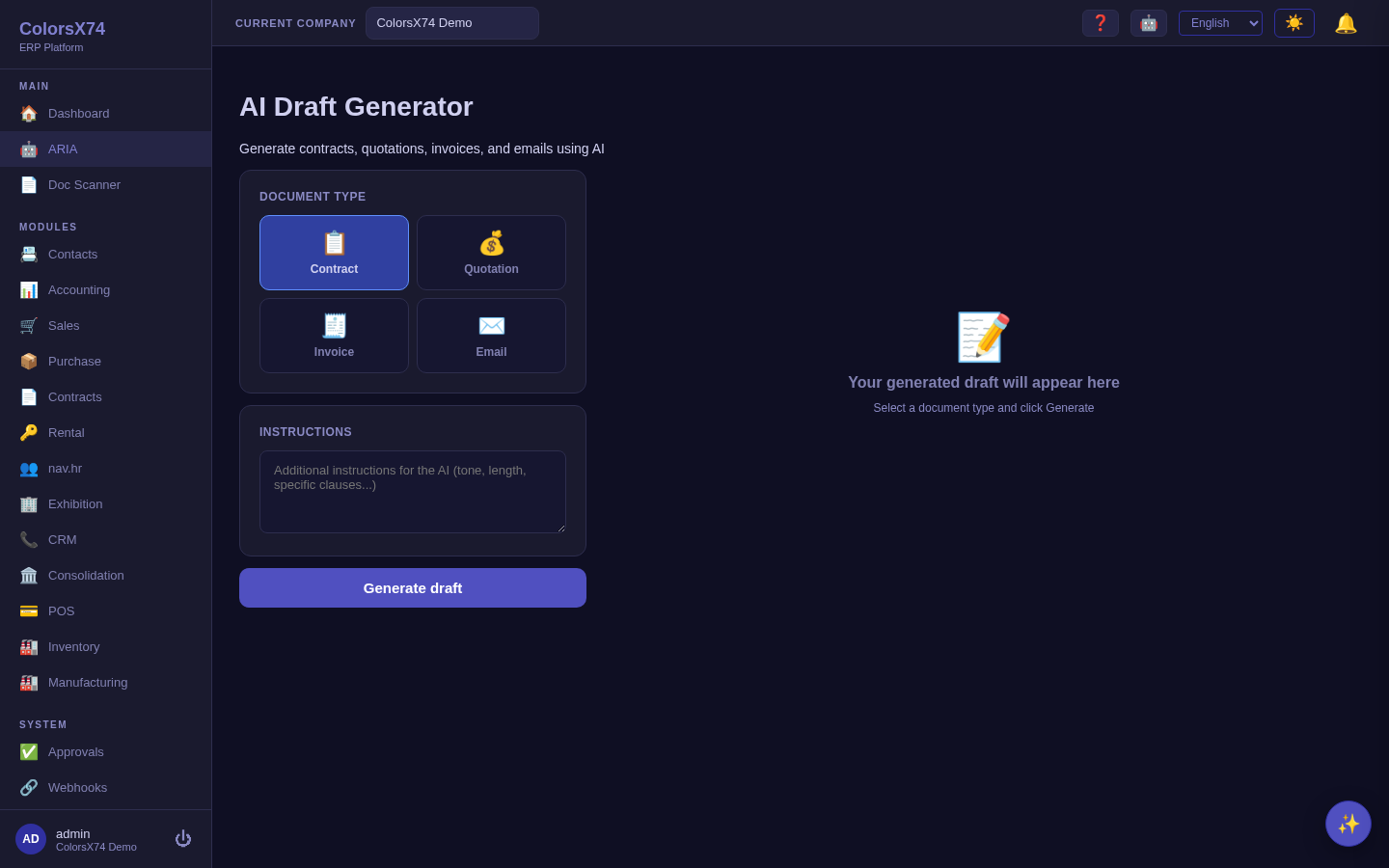
Use it wisely. Use drafting to remove the blank-page problem, not to skip review — read every generated clause, particularly in contracts. Keep a small set of good templates so drafts start from your house style.
AI Settings — provider, models, skills, hardware, privacy
What it is. AI Settings is where an administrator configures the tenant's AI: the provider and model, the available skills, the hardware tier, session history, and the privacy/consent posture. It is organised into tabs — Provider, Models, Skills, Hardware, Sessions, and Privacy — and links to the guided setup wizard.
How to use it. On the Provider tab pick a provider (for example Anthropic Claude), choose or enter a model, set the endpoint and optional API key, then Test connection before saving. Use Skills to toggle individual capabilities, Hardware to review the detected machine tier, Sessions to see conversation history, and Privacy to control data handling and consent.
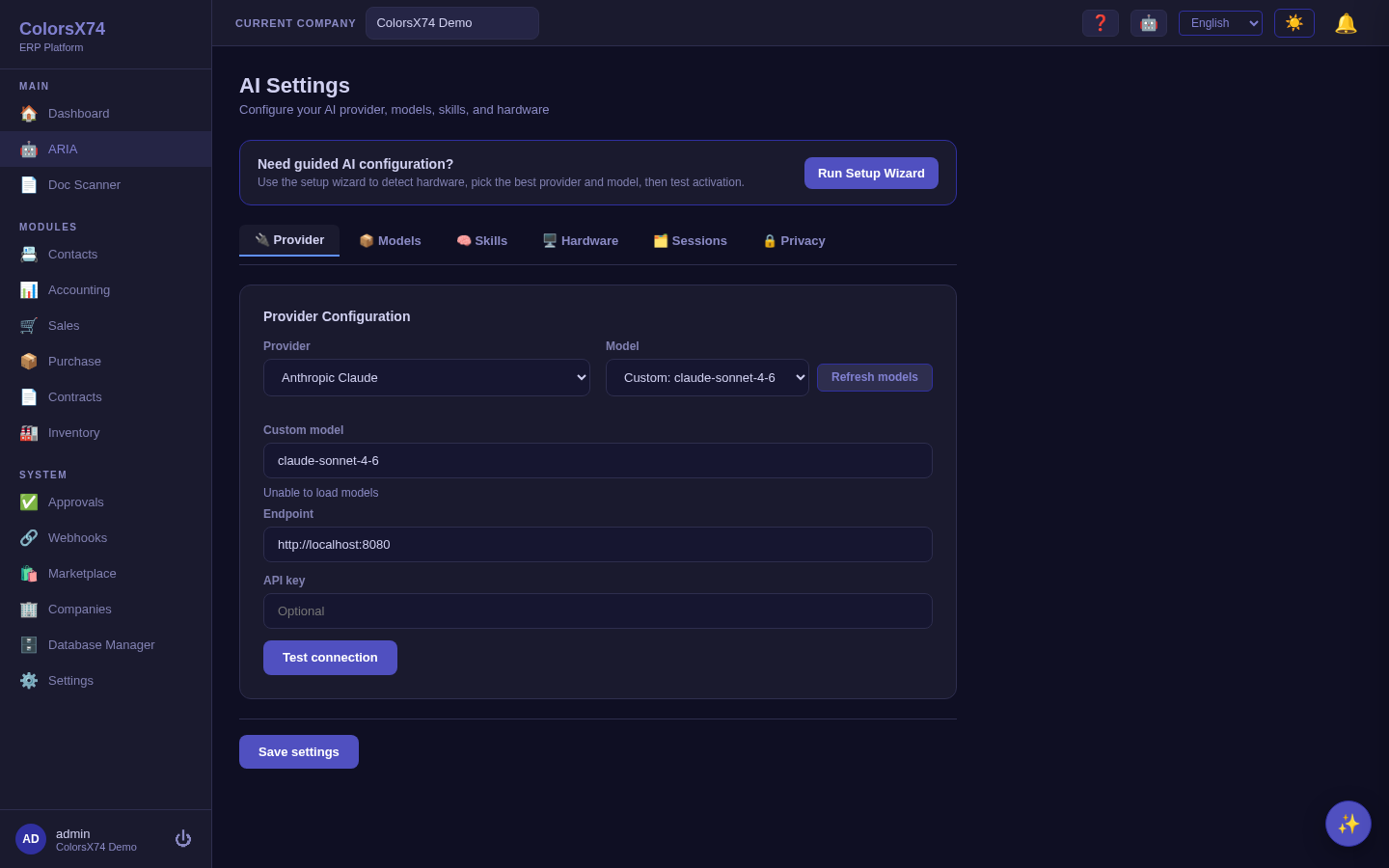
Per-task model routing (optional). Beyond the single default model, you can route each request type to the model best suited for it — for example a cheap, fast model for chat and a stronger model for contract drafting. On the active provider's card a Per-task model routing section lists each routable task (Chat, Draft, Auto-translate, and Contract drafting / renewal / extraction); pick a model per task, or leave it on Use default model. Routing only changes which model within your configured provider handles the request — it never changes the privacy/consent rules (cloud egress still requires consent regardless of the model). A platform operator can set the same per-task routing on the system-default "free AI" so every company inherits sensible task-to-model choices.
Choosing the system-default model (platform operators). On the System Default AI page a platform operator pastes the shared OpenRouter key and the full live model catalogue loads into a sortable, filterable table — click any column heading (Model, Provider, Context window, Prompt $/1M, Completion $/1M) to sort, or type in the filter box to narrow hundreds of models to the ones you care about, then press Select on a row to make it the default (the chosen row is badged ✓ Default). To take the guesswork out of it, the page highlights a Recommended default with a one-click Use button and a ★ on the suggested row, and each per-task routing row carries a ✨ recommended button that applies the best-suited model for that task — recommendations balance capability, context window, and price, so chat and translation lean to cheap, fast models while drafting and contract work lean to stronger ones.
The key is saved once — change the model without re-pasting it. After you save a key the page shows a green ✓ API key configured banner with the stored key's last four digits, so it's obvious a key is already in place. To switch models later you just Select a different row and Save — leave the key field blank to keep the stored key (the placeholder reads "Leave blank to keep current key"). You only ever paste a key again to replace it. The saved key is also mirrored to durable storage outside the database, so a database reset can't lose it — the banner notes when the active key came from durable storage or the environment configuration.
Live balance & consumption. The page shows a 💳 OpenRouter panel with the account's current balance, lifetime spend, and the configured key's own usage (and whether it's on the free tier), pulled live from OpenRouter — press ↻ to refresh after a change. This lets a platform operator see exactly what the system-default key is consuming without leaving the page.
The same configuration is also reachable from the global Settings area:
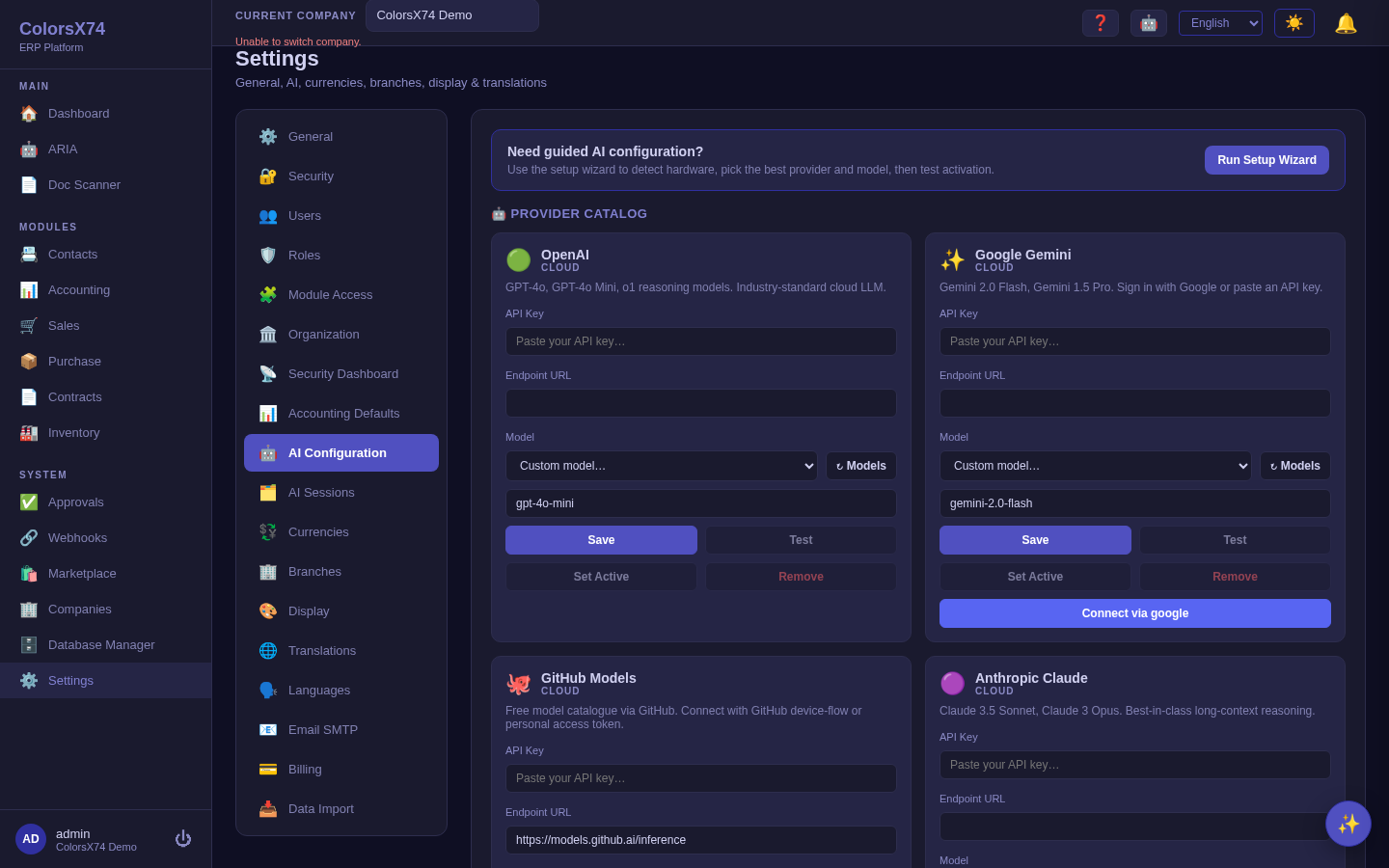
Use it wisely. Always Test connection before relying on a provider, and keep the API key in secure configuration — never paste it into a shared screen or screenshot. Match the model to the hardware tier the Hardware tab reports; a model larger than the machine can serve will be slow or fail.
The AI Setup Wizard
What it is. A guided, five-step path that takes an administrator from nothing to a working assistant: 1 Detect hardware → 2 Choose provider → 3 Choose model → 4 Skills & confirmation → 5 Test & finish. Step one inspects the machine (CPU, cores, RAM, GPU) and recommends a provider tier; for a CPU-only machine with limited RAM it will, for example, recommend llama.cpp with a small model and warn that only small models are supported reliably.
How to use it. Click Run Setup Wizard from AI Settings and follow the steps in order, accepting or overriding the recommendations, then test activation on the final step. The wizard is the fastest way to a sane first configuration.
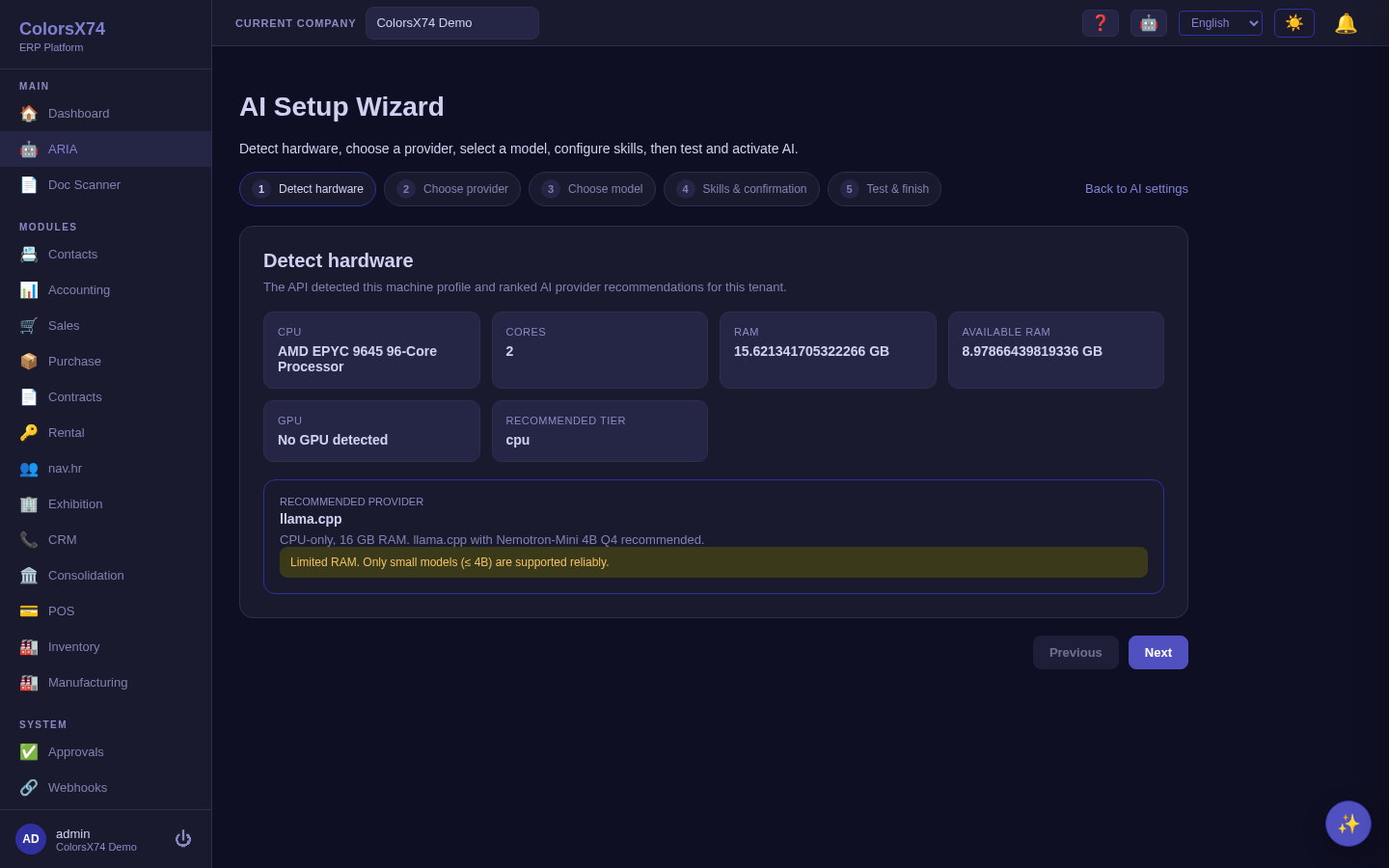
Use it wisely. Run the wizard once per environment before opening AI to users, and heed the RAM/GPU advisories — picking a model the hardware cannot serve is the most common cause of slow or failing AI. Re-run it after a hardware change.
Consent, safety, and ARIA handoff
AI in ColorsX74 ERP is built to be governable. User data is only sent to a model where the tenant has granted data consent, scanning and drafting produce drafts for human review rather than silent automation, and sessions are recorded so AI activity is auditable. When discussing the in-app ARIA assistant, emphasise human confirmation, permissions, and job history over invisible automation.
ARIA sees exactly what you see. Every question ARIA answers is bounded by your own permissions — not just the actions it takes, but the information it reads. Asking for the overdue-invoice list, an aged-receivables report, a cash-flow forecast, a contract's terms or a vendor's pricing requires the same permission as opening that screen yourself, and when you ask a question that spans several kinds of record, ARIA quietly answers from the parts you are entitled to. If you lack the permission entirely, ARIA says so and names what is missing, so you can ask an administrator for it rather than wonder why the answer looks thin.
Anything that reaches the ledger is confirmed first. ARIA can raise a sales invoice or enter a vendor bill for you, and because those post to your accounts the moment they are created, they join payments, journal entries and period closes on the list of actions that show you a confirm step before anything happens. Records that touch no ledger — a customer, a quotation, a purchase order — are created straight away, so the confirm step stays meaningful instead of becoming a reflex click. A confirmation is also single-use: confirming twice (a double-click, a retried request) can never post the same document twice.
Use it wisely. Make consent an explicit decision per tenant, keep a human in the loop for anything AI drafts or extracts, and in public demos use only demo data and sandbox/test credentials. Treat the Privacy tab and consent setting as the front gate to every other AI feature.
Enabling cloud AI (the "enable cloud content" prompt). Local providers (llama.cpp, on-prem Ollama) need no consent. Cloud providers — OpenAI, Anthropic, Google Gemini, and OpenRouter — only become selectable, testable, and usable once an administrator grants this company's AI data consent. Turn it on from AI Settings → Privacy, or directly in the setup wizard's provider step; that single toggle clears the "enable cloud content / consent required" message and unlocks the cloud provider cards. Data is still only sent to the cloud for a tenant that has granted this consent — it gates both setup and every actual request.
OpenRouter. OpenRouter is a unified, OpenAI-compatible gateway (one API key reaches OpenAI, Anthropic, Google, Mistral, and more). Pick OpenRouter on the provider step — the endpoint is prefilled to https://openrouter.ai/api/v1 — paste your OpenRouter API key, and choose a model id such as openai/gpt-4o-mini or anthropic/claude-sonnet-4.6. Test & finish validates and activates it.
Long answers are capped. To keep your AI provider account from being over-reserved, ARIA limits how long a single reply can be (4,096 tokens by default). On low-balance OpenRouter accounts this removes the "payment required" (402) error that long limits could cause. If a reply hits the limit, ARIA says so at the end of the message, so you know it was cut short and can ask it to continue. Self-hosted models are capped too; an administrator can raise the limit for long-form use.
Suggested demo flow
- Open ARIA and run a suggested prompt to show ERP-aware answers, then point at the Skills and Provider panels.
- Show Document Scan turning a sample file into a reviewable draft.
- Show Document Draft producing an editable first version from a prompt.
- Open AI Settings and walk the Provider/Skills/Hardware/Privacy tabs.
- Run the AI Setup Wizard to show the guided path, and close on consent and human-in-the-loop safety.
Related pages
- Overview, login, and dashboard
- Accounting, reports, banking, tax, and payments
- Sales, purchase, contracts, and rental
- Inventory, manufacturing, marketplace, and add-ons
- Exhibition rental management
- Admin, settings, security, audit, approvals, and notifications
- Troubleshooting, browser requirements, and support handoff